MCP server · Design tools
OrcaSlicer MCP server
by MaxEllis
Let your AI load models, change settings, slice, and compare print options in OrcaSlicer for you.
This is a helper that connects your AI assistant to a running copy of OrcaSlicer, the 3D printing slicer. You ask in plain words, and the assistant loads models, changes settings, slices, and reads the results back. It is handy if you already use OrcaSlicer and want a hand with the fiddly parts.
What is an MCP server? The 30-second version
On its own, your AI can only chat. An MCP server is a small helper program that gives your AI a new skill or a connection to an app. This one connects your AI to OrcaSlicer on your own computer, so it can look at your plate, change settings, and slice when you ask. Nothing is sent anywhere except between your AI and OrcaSlicer.
What this MCP server does
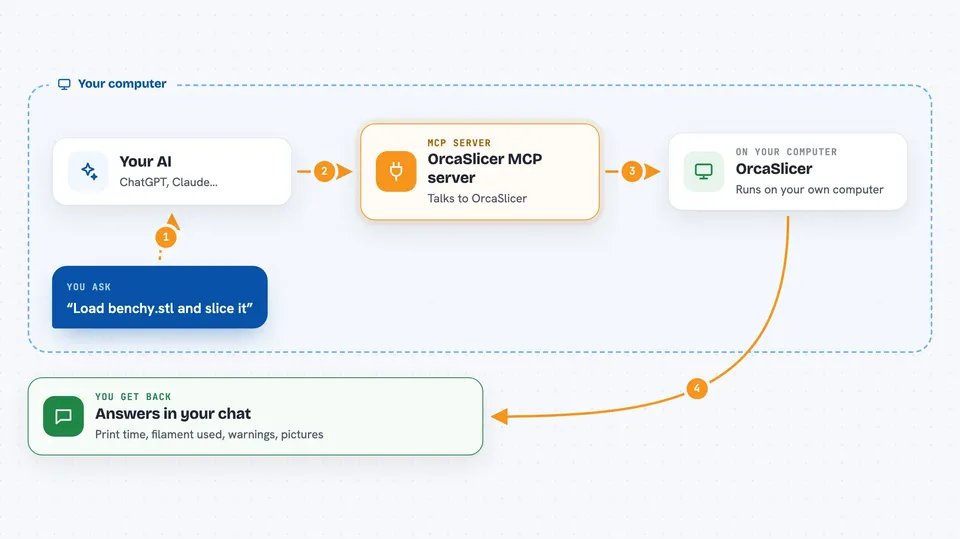
You ask your AI something like load a model or slice this plate. The AI passes that request to this helper program. The helper talks to your running OrcaSlicer and makes the change or runs the slice. Then it reads the result back, like print time, filament used, or warnings, and tells you in the chat. You can watch every change land in the OrcaSlicer window as it happens.
 Click to zoom
What you can do with it
- Load a model file onto the plate and arrange it
- Change any of about 800 slicer settings
- Slice the plate and report print time and filament use
- Compare several settings variants side by side
- Explain what a setting actually does
- Check whether a profile breaks your printer's limits
- Render a picture of the plate or the sliced toolpaths
Try asking your AI
- “Load benchy.stl, slice it with the current profile, and tell me the print time.”
- “What does layer height actually cost me? Compare 0.3, 0.4, 0.5 and 0.6 mm.”
- “Which feature is eating most of the print time on this plate?”
- “Check my profile for anything that would break my printer's limits.”
What it gives back to you
You get answers in the chat: numbers like print time and filament weight, a table breaking down time per feature, warnings, or a short sentence describing how a part sits on the plate. It can also hand back a PNG picture of the plate or the sliced toolpaths. When you ask it to change a setting, it tells you what it changed.
Before you start
What you need
- The OrcaSlicer MCP build from the project's releases page (stock OrcaSlicer has no control API)
- The uv tool installed, which provides the uvx command
- The API token from OrcaSlicer's Preferences under Remote API
- An MCP client such as Claude Desktop or Claude Code
Good to know
It can change your live settings and slice your plate, so check the changes it made before you start a real print.
Install it with your AI
Add OrcaSlicer MCP server to your AI, no technical skills needed
You don't install anything by hand. You copy one prompt, paste it into an AI that can work on your computer, and it checks, installs and connects the server for you, asking you when it needs something.
Sign in to get the install prompt
Members get a ready-made prompt that lets the Claude desktop app check OrcaSlicer MCP server, install it and connect it for them, step by step. You don't need any technical skills: you copy, paste and answer a few questions. Your connected AI can also find and install any of the 4,361 MCP servers here for you.
Who it's for
People who already use OrcaSlicer for 3D printing and want help tuning settings, comparing options, or understanding slice results.