MCP server · Productivity
Miro MCP server
by k-jarzyna
Lets your AI read and change your Miro boards, like adding sticky notes or cards for you.

This is a small helper that connects your AI assistant to Miro, the online whiteboard where teams put sticky notes, cards, and diagrams. Once it is set up, you can ask your AI in plain words to look at a board or add things to it, and it will do that for you. It is handy if you plan workshops, run brainstorming sessions, or keep project boards in Miro and want less clicking.
What is an MCP server? The 30-second version
On its own, your AI can only chat. An MCP server is a small helper program that gives your AI a new skill or a connection to an app or service. This one connects your AI to Miro, so when you ask about a board or want something added, the AI can go and look or make the change for you. You do not need to know how it works inside; you just talk to your AI like usual.
What this MCP server does
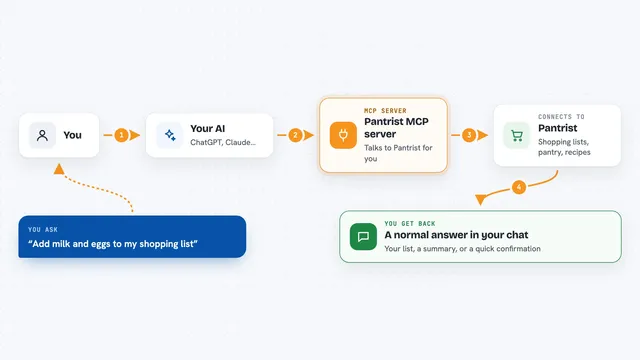
You ask your AI something about Miro, like listing your boards or adding a sticky note. The AI passes that request to this helper. The helper talks to Miro using your Miro account and the access token you gave it. Miro sends back the answer or makes the change, and the helper hands the result to your AI. Your AI then shows it to you in the chat, as a list, a short summary, or a confirmation that something was created or updated.
 Click to zoom
What you can do with it
- List all your Miro boards
- Create a new board or copy an existing one
- Add sticky notes, cards, text, shapes, and images to a board
- Read what is currently on a board
- Move, update, or delete items on a board
- Create connectors between items and build mindmap nodes
- Add or remove tags and manage board members
Try asking your AI
- “List my Miro boards and tell me which ones were updated most recently.”
- “On my Sprint Planning board, add a sticky note that says Review backlog in the To Do column.”
- “Show me everything on the Workshop Ideas board and summarise it in a few bullet points.”
- “Create a new board called Q3 Retrospective and add three frames: What went well, What did not, and Actions.”
What it gives back to you
You get answers in the chat: lists of boards or items, short summaries, or details about a specific card or sticky note. When you ask it to change something, it tells you what it created, updated, or deleted, often with the item name or ID. For bigger jobs, like exporting a board, it can give you a status and then the results. Everything shows up as normal text in the conversation, not as files you have to download.
Before you start
What you need
- A Miro account
- A Miro access token (a kind of password for apps; you create one for free in the Miro Developer Portal)
- Node.js version 16 or newer installed on your computer
- The Claude desktop app if you want to use it with Claude
Good to know
It can change and delete things on your Miro boards, so be careful with requests like delete or remove, and check what it did afterwards.
Install it with your AI
Add Miro MCP server to your AI, no technical skills needed
You don't install anything by hand. You copy one prompt, paste it into an AI that can work on your computer, and it checks, installs and connects the server for you, asking you when it needs something.
Sign in to get the install prompt
Members get a ready-made prompt that lets the Claude desktop app check Miro MCP server, install it and connect it for them, step by step. You don't need any technical skills: you copy, paste and answer a few questions. Your connected AI can also find and install any of the 4,361 MCP servers here for you.
Who it's for
People who run workshops, plan projects, or keep team boards in Miro and want to update or read them by just asking their AI.