MCP server · Security
MCP Hangar
by mcp-hangar
Put a guard in front of your AI's tools so calls can be checked, logged, and blocked when something changes.
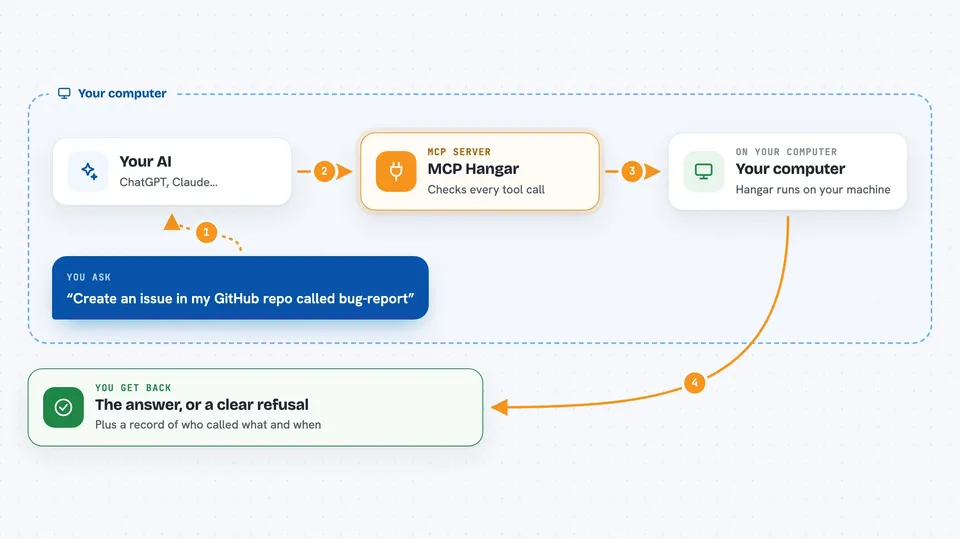
MCP Hangar is a small program you run on your own computer that sits between your AI assistant and the other tools it uses. It checks every tool call before it happens, keeps a record of who asked for what, and stops calls that no longer match what you approved. It is handy if you use several AI tools and want to know exactly what they are doing and be able to say no.
What is an MCP server? The 30-second version
On its own, your AI can only chat with you. An MCP server is a small helper program that gives your AI a new skill or a connection to an app, like reading your GitHub issues or sending a message. MCP Hangar is a special kind of helper: it stands in front of your other helpers, so when your AI wants to use one of them, the request goes through Hangar first. Hangar decides whether the call is allowed, and writes down what happened.
What this MCP server does
You ask your AI to do something, like create an issue in GitHub. Your AI turns that into a tool call and sends it to Hangar instead of straight to the GitHub helper. Hangar checks the call against the rules you wrote, and against a fingerprint it saved earlier of what each tool is supposed to look like. If everything matches, Hangar passes the call along and gives the result back to your AI. If a tool has quietly changed, Hangar refuses the call and tells you why.
 Click to zoom
What you can do with it
- Block a tool call when the tool's description has changed since you approved it
- Allow or deny calls based on which tool, which arguments, and which server
- Keep a record of every call with the identity of who made it
- Send those records to your security logging system in common formats
- Give different people or teams different sets of tools
- Run several tool calls at the same time and return all the answers together
- Ask a real person to approve a call before it goes through
Try asking your AI
- “Create an issue in my GitHub repo called bug-report”
- “List the open issues in the project”
- “Check whether the tools I have pinned have changed”
- “Show me the audit log for the last hour”
What it gives back to you
You get the normal result of the tool call, like a list of issues or a confirmation that something was created. When a call is refused, you get a short message from Hangar explaining why, such as a tool's fingerprint not matching. You can also ask for summaries of the audit log, which show who called what and when.
Before you start
What you need
- Python installed on your computer (the install command handles the package)
- Your AI client, such as Claude Desktop, Cursor, or Claude Code
- A config file listing the MCP servers you want to put behind Hangar
Good to know
Hangar can block tool calls, so if you pin the wrong thing or write a rule too tightly, your AI may stop being able to do things you expected it to do.
Install it with your AI
Add MCP Hangar to your AI, no technical skills needed
You don't install anything by hand. You copy one prompt, paste it into an AI that can work on your computer, and it checks, installs and connects the server for you, asking you when it needs something.
Sign in to get the install prompt
Members get a ready-made prompt that lets the Claude desktop app check MCP Hangar, install it and connect it for them, step by step. You don't need any technical skills: you copy, paste and answer a few questions. Your connected AI can also find and install any of the 4,361 MCP servers here for you.
Who it's for
People who use several AI tools at work and want a simple way to see, limit, and record what those tools are allowed to do.