
MCP server · Developer tools
Chrome Web Store MCP server
by mikusnuz
Lets your AI upload, publish, and check the status of your Chrome extension for you.
This is a small helper that connects your AI assistant to the Chrome Web Store, the place where Chrome browser extensions live. Once it is set up, you can ask your AI in plain words to upload a new version of your extension, send it for review, or check how the review is going. It is handy for anyone who publishes a Chrome extension and is tired of clicking through the developer dashboard every time.
What is an MCP server? The 30-second version
On its own, your AI can only chat with you. An MCP server is a small helper program that gives your AI a new skill or a connection to an app or service. This one connects your AI to the Chrome Web Store, so it can look up your extension's status or send a new version for review when you ask. You stay in the chat, and the helper does the clicking behind the scenes.
What this MCP server does
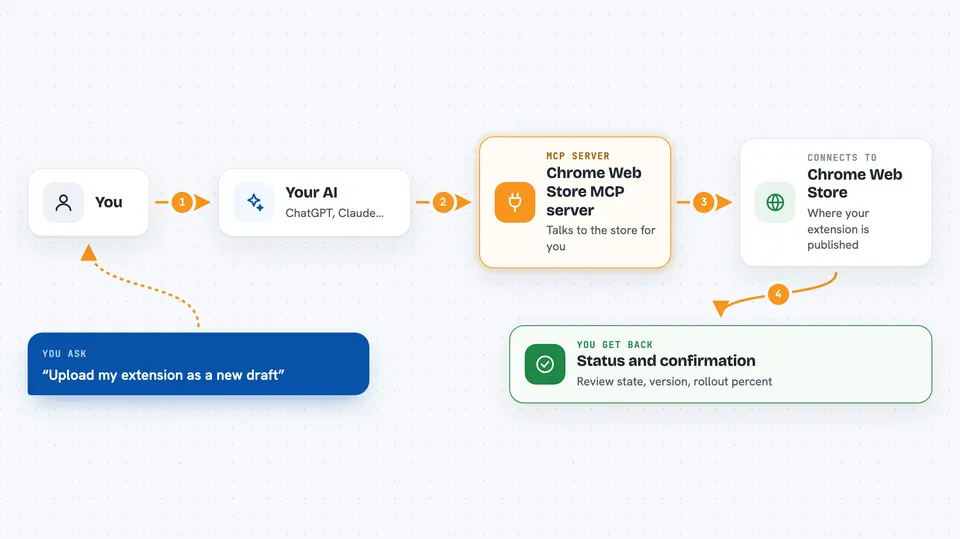
You tell your AI what you want, for example to upload a new build of your extension. The AI passes that request to this helper. The helper talks to the Chrome Web Store on your behalf, using permission you gave it once during setup. Then it brings the result back into your chat, like a confirmation that the upload worked or the current review state of your extension.
 Click to zoom
What you can do with it
- Upload a new ZIP file of your extension as a draft
- Publish your extension so it goes to review and then live
- Check the review status, version, and rollout percentage
- Cancel a submission that is still under review
- Set a staged rollout percentage to release slowly
- Update your store listing details like title, description, and screenshots
- Read your current draft or published listing information
Try asking your AI
- “Upload my extension zip at /Users/me/build/myext.zip as a new draft”
- “Publish my extension now and skip review if that is allowed”
- “What is the current status of my extension?”
- “Set the staged rollout to 10 percent”
What it gives back to you
You get short answers in the chat, like the current review state, the version number, and the deploy percentage. When you upload or publish, it tells you whether the action went through. When you ask for metadata, it shows you the listing details it found. You do not get files back, just clear text answers and confirmations.
Before you start
What you need
- A Chrome Web Store developer account with at least one extension
- Google OAuth2 credentials (a Client ID and Client Secret) from Google Cloud Console with the Chrome Web Store API turned on
- A refresh token from Google, which the README shows how to get with a browser link and a curl command
- Node.js installed if you run it with npx, or the built file path if you run it locally
Good to know
This helper can publish, cancel, and change your live store listing, so be careful with requests that go live or affect real users, and keep your Google credentials private.
Install it with your AI
Add Chrome Web Store MCP server to your AI, no technical skills needed
You don't install anything by hand. You copy one prompt, paste it into an AI that can work on your computer, and it checks, installs and connects the server for you, asking you when it needs something.
Sign in to get the install prompt
Members get a ready-made prompt that lets the Claude desktop app check Chrome Web Store MCP server, install it and connect it for them, step by step. You don't need any technical skills: you copy, paste and answer a few questions. Your connected AI can also find and install any of the 4,609 MCP servers here for you.
Who it's for
Chrome extension developers and small teams who publish to the Chrome Web Store and want to handle uploads, publishing, and status checks from their AI chat instead of the dashboard.



