
MCP server · Developer tools · official
Bitrise MCP server
by bitrise-io · official
Lets your AI look up your Bitrise apps, builds, and artifacts, and explain what happened.
This is a helper that connects your AI assistant to Bitrise, the service teams use to build and test their apps automatically. Once it is set up, you can ask your AI about your builds in plain English instead of clicking around the Bitrise website. It is handy for anyone who checks build results, even if you are not a developer yourself.
What is an MCP server? The 30-second version
On its own, your AI can only chat with you. An MCP server is a small helper program that gives your AI a new skill or a connection to an app or service. This one connects your AI to Bitrise, so it can look things up there or do things for you when you ask. You stay in the chat, and the helper does the running around.
What this MCP server does
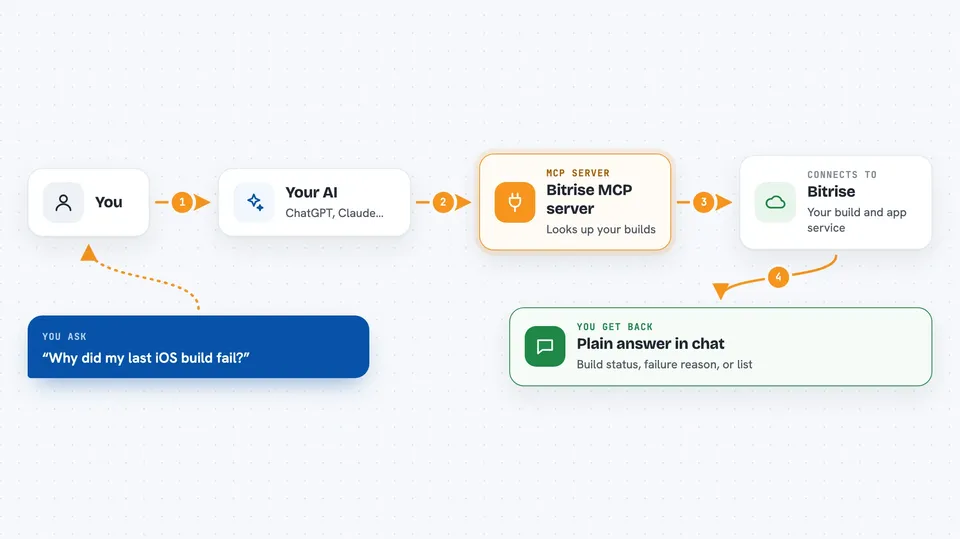
You ask your AI a question about your Bitrise account, like why a build failed. The AI passes your request to this helper. The helper talks to Bitrise using your account, finds the app, build, or artifact you asked about, and brings the details back. Your AI then explains the answer to you in the chat, in normal words.
 Click to zoom
What you can do with it
- Check the status of your recent builds
- Find out why a build failed and get a plain explanation
- Look up the success rate of a branch over the last week
- List the apps in your Bitrise account
- Browse the artifacts a build produced
- Add a new team member to your workspace
Try asking your AI
- “Show me my last failed iOS build and explain why it failed.”
- “What's the success rate of my main branch builds over the last week?”
- “List the apps in my Bitrise account.”
- “Add a new team member to my workspace as an admin.”
What it gives back to you
You get answers in the chat: build statuses, short explanations of failures, lists of apps or artifacts, and numbers like success rates. When you ask it to change something, such as adding a team member, it tells you what it did. It does not dump raw technical files on you unless you ask for details.
Before you start
What you need
- A Bitrise account
- An AI app that supports MCP, such as Claude Desktop, VS Code, or Cursor
- Sign-in permission for Bitrise (the setup walks you through it; a personal access token also works)
Good to know
It can change things in your Bitrise account, like adding team members, so check before you say yes to a request that makes changes.
Install it with your AI
Add Bitrise MCP server to your AI, no technical skills needed
You don't install anything by hand. You copy one prompt, paste it into an AI that can work on your computer, and it checks, installs and connects the server for you, asking you when it needs something.
Sign in to get the install prompt
Members get a ready-made prompt that lets the Claude desktop app check Bitrise MCP server, install it and connect it for them, step by step. You don't need any technical skills: you copy, paste and answer a few questions. Your connected AI can also find and install any of the 4,361 MCP servers here for you.
Who it's for
Team leads, project managers, QA folks, and developers who want quick answers about their Bitrise builds without digging through the website.



