MCP server · Security
Keycloak Admin MCP server
by mrz1880
Lets your AI look up and manage Keycloak users, roles, clients and groups for you.

This is a helper that connects your AI assistant to Keycloak, the system many companies use to manage who can log in and what they are allowed to do. Once it is set up, you can ask your AI in plain words to find a user, check their roles, or disable an account, instead of clicking around the Keycloak admin screens. It is handy for anyone who looks after user accounts but does not want to be an expert in the Keycloak console.
What is an MCP server? The 30-second version
On its own, your AI can only chat. It cannot see your Keycloak system or change anything there. An MCP server is a small helper program that gives your AI a new skill, in this case a connection to your Keycloak server. When you ask a question about users or roles, the AI passes the request to this helper, the helper talks to Keycloak, and the answer comes back to you in the chat.
What this MCP server does
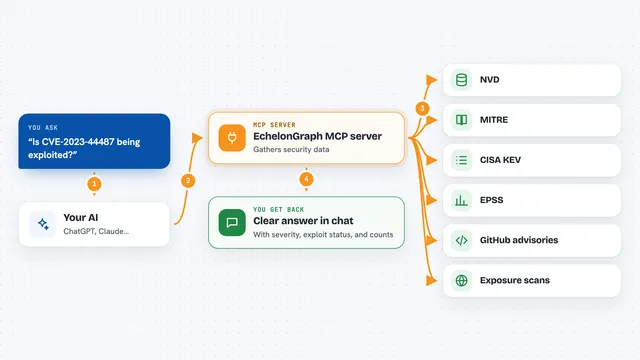
You ask your AI something like find the user with this email, or list the roles of this person. The AI uses this helper to send that request to your Keycloak server through its admin interface. Keycloak answers, and the helper hands the result back to the AI. The AI then shows it to you in the chat as a list or a short summary. If you ask it to change something, like disabling a user, the helper makes the change in Keycloak and tells you it is done.
 Click to zoom
What you can do with it
- Search for users by email, username or free text
- Look up a user's details, roles and active sessions
- Create users and update their email, name or enabled status
- Enable or disable an account
- Grant or revoke roles for a user
- List clients, groups and identity providers in a realm
- Read recent login and admin events
Try asking your AI
- “Find the Keycloak user with the email anna.smith@example.com”
- “Which roles does this user have right now?”
- “Disable the account for user jdoe”
- “Show me the last login events for the demo realm”
What it gives back to you
You get answers in the chat, usually as a short list or a summary. For example, a user search comes back as a list of matching people with their usernames and emails. A role check comes back as the names of the roles that person has. When you ask for a change, you get a short confirmation that it was made.
Before you start
What you need
- Node.js version 20 or newer on your computer
- A Keycloak 26.x server you can reach
- A client id and client secret from Keycloak (a kind of app password), or an admin username and password
- An MCP client such as the Claude desktop app, set up to run this server
Good to know
Some actions can change or delete real accounts, roles and clients, so check with someone before letting your AI run anything destructive, and consider turning on READ_ONLY for important servers.
Install it with your AI
Add Keycloak Admin MCP server to your AI, no technical skills needed
You don't install anything by hand. You copy one prompt, paste it into an AI that can work on your computer, and it checks, installs and connects the server for you, asking you when it needs something.
Sign in to get the install prompt
Members get a ready-made prompt that lets the Claude desktop app check Keycloak Admin MCP server, install it and connect it for them, step by step. You don't need any technical skills: you copy, paste and answer a few questions. Your connected AI can also find and install any of the 4,609 MCP servers here for you.
Who it's for
IT support staff, system administrators and anyone who manages user accounts in Keycloak but prefers asking questions in plain words over clicking through the admin console.