MCP server · Security
SecObserve MCP server
by nh4ttruong
Lets your AI look at security findings, triage them, and import scan reports in SecObserve.
This is a helper that connects your AI assistant to SecObserve, a tool teams use to track security vulnerabilities and software licenses. Once connected, you can ask your AI in plain words to look up findings, sort them, or pull in a new scan report. It is handy if you work with security findings but do not want to click through the SecObserve website for every little thing.
What is an MCP server? The 30-second version
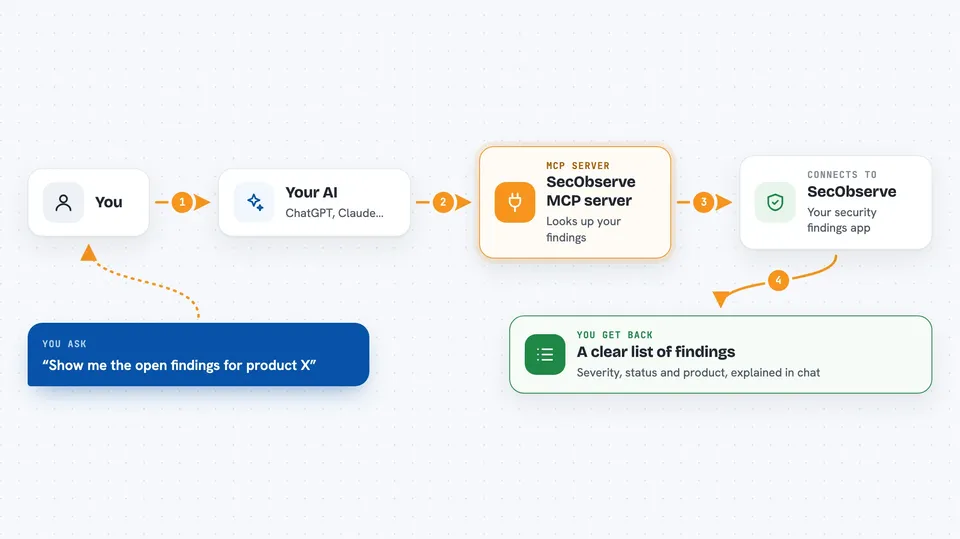
On its own, your AI can only chat. It cannot see your SecObserve data or change anything there. An MCP server is a small helper program that gives your AI a new skill, in this case the ability to talk to SecObserve for you. You ask a question in the chat, the AI passes it to this helper, and the helper talks to your SecObserve instance and brings the answer back.
What this MCP server does
You ask your AI something like show me the open findings for this product. The AI uses this helper to send that request to your SecObserve instance. SecObserve answers with the matching findings, and the helper hands them back to your AI. Your AI then explains them to you in the chat, or, if you asked, changes something in SecObserve, like writing an assessment on a finding. It can also pull in a scan report or SBOM file you have on your computer and load it into SecObserve.
 Click to zoom
What you can do with it
- Look up findings, products, branches and rules in SecObserve
- Triage one finding or up to 250 at once with a comment
- Approve or reject pending assessments
- Import a scan report, SBOM or VEX file from your computer
- Run a built-in OSV or VulnerableCode scan
- Generate a VEX document in CSAF, OpenVEX or CycloneDX format
- Get counts and timelines for a product's findings
Try asking your AI
- “Show me the open findings for product X, highest severity first”
- “Assess these findings as not affected and add a short note”
- “Import this scan report file into SecObserve”
- “Give me today's counts per product and what changed since midnight”
What it gives back to you
You get answers in the chat, usually as a list or a short summary. For example, a list of findings with their severity, status and product. If you asked for a report, you get the numbers and what moved. If you asked it to change something, like write an assessment, it tells you what it did and whether it went through.
Before you start
What you need
- A running SecObserve instance you can reach
- A SecObserve API token (a kind of password for apps; you create one in SecObserve)
- The base web address of your SecObserve instance (without /api at the end)
- Python and the uvx tool installed on your computer
Good to know
If you allow changes, this can write assessments, import files and even delete records, and deletions cascade and cannot be undone, so keep it read-only until you trust it.
Install it with your AI
Add SecObserve MCP server to your AI, no technical skills needed
You don't install anything by hand. You copy one prompt, paste it into an AI that can work on your computer, and it checks, installs and connects the server for you, asking you when it needs something.
Sign in to get the install prompt
Members get a ready-made prompt that lets the Claude desktop app check SecObserve MCP server, install it and connect it for them, step by step. You don't need any technical skills: you copy, paste and answer a few questions. Your connected AI can also find and install any of the 4,609 MCP servers here for you.
Who it's for
Security analysts, product owners and anyone who tracks vulnerabilities or license findings in SecObserve and wants to work with them from a chat instead of clicking around.