MCP server · Analytics
OctoEverywhere MCP server
Ask your AI about your 3D printer and control prints from chat.
This is a helper that connects your AI chatbot to your 3D printer through OctoEverywhere. Once it is set up, you can ask your AI things like how your print is going or to pause it, and it will answer or act. It is handy for anyone who owns a 3D printer and wants to check on it without opening another app.
What is an MCP server? The 30-second version
On its own, your AI can only chat. It cannot see your printer or touch it. An MCP server is a small helper program that gives your AI a new skill or a connection to a service. This one connects your AI to OctoEverywhere, which is linked to your 3D printer, so the AI can look up printer status or send simple commands when you ask.
What this MCP server does
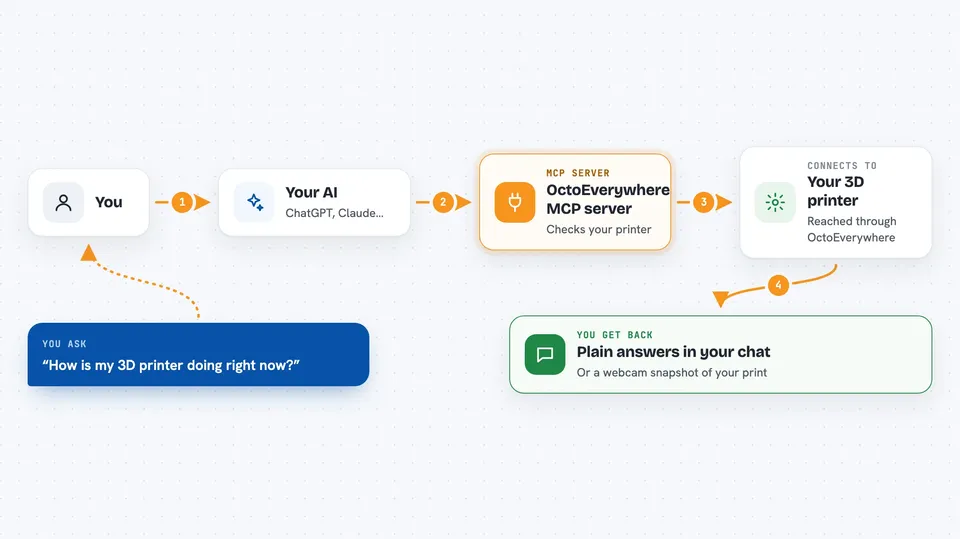
You ask your AI a question about your printer, like how far along a print is. The AI sends that request to this MCP server. The server talks to OctoEverywhere, which talks to your printer. Then it sends the answer back, and your AI tells you in plain words, or shows you a webcam snapshot.
 Click to zoom
What you can do with it
- Check your printer's current state and status
- See print progress, elapsed time, and estimated time left
- View hotend, bed, and chamber temperatures
- Get a live webcam snapshot of your print
- Pause, resume, or cancel a print job
- See the current layer and total layers
- Check if Gadget AI has detected a print failure
Try asking your AI
- “How is my 3D printer doing right now?”
- “Show me a webcam snapshot of my print.”
- “Pause my print, I need to check something.”
- “What temperature is the hotend at?”
What it gives back to you
You get plain answers in the chat, like the printer state, temperatures, or time remaining. It can also send a webcam image so you can see the print. If you ask it to pause, resume, or cancel, it will tell you that the action was done.
Before you start
What you need
- A free OctoEverywhere account
- Your 3D printer linked to OctoEverywhere
- An OctoEverywhere MCP Access Token from the setup page
- An AI chatbot that supports MCP servers
Good to know
It can pause, resume, or cancel your print jobs, so be careful with those commands.
Install it with your AI
Add OctoEverywhere MCP server to your AI, no technical skills needed
You don't install anything by hand. You copy one prompt, paste it into an AI that can work on your computer, and it checks, installs and connects the server for you, asking you when it needs something.
Sign in to get the install prompt
Members get a ready-made prompt that lets the Claude desktop app check OctoEverywhere MCP server, install it and connect it for them, step by step. You don't need any technical skills: you copy, paste and answer a few questions. Your connected AI can also find and install any of the 4,361 MCP servers here for you.
Who it's for
3D printing hobbyists and makers who want to check on or control their printer from an AI chat.