
MCP server · Developer tools
JMeter MCP server
by QAInsights
Run JMeter performance tests and get plain-English analysis of the results from your AI.
This is a helper that lets your AI run JMeter tests and then explain the results. JMeter is a free tool for checking how a website or app behaves when lots of people use it at once. If you already run JMeter tests at work, this makes it much easier to understand what the numbers mean.
What is an MCP server? The 30-second version
On its own, your AI can only chat. It cannot start programs on your computer or read your test files. An MCP server is a small helper program that gives your AI a new skill, and here that skill is working with JMeter. Once it is connected, you can ask your AI to run a JMeter test or look at a results file, and it will do it for you.
What this MCP server does
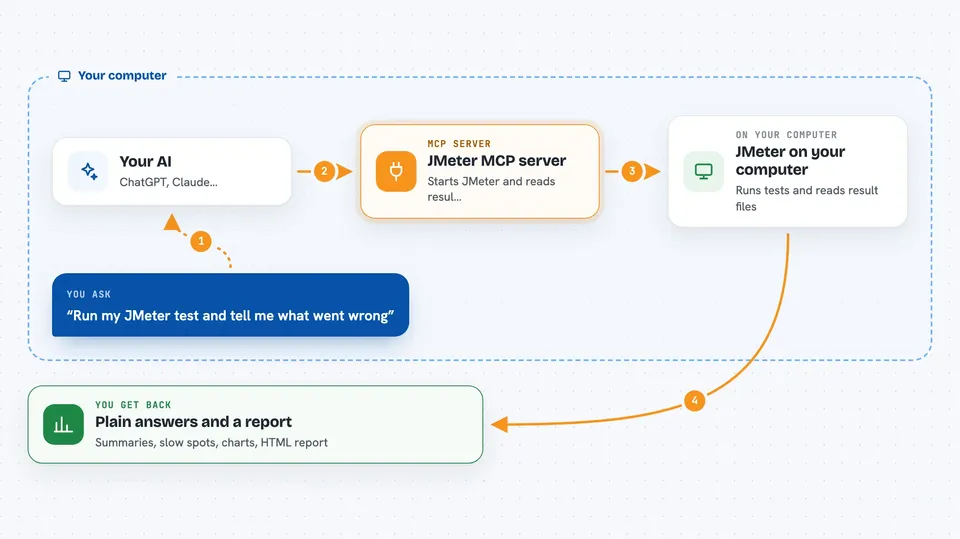
You ask your AI something like "run this JMeter test" or "what went wrong in this results file". The AI passes your request to this helper. The helper starts JMeter on your computer, or opens your results file and reads it. Then it sends the output back to the AI, and the AI explains it to you in normal words.
 Click to zoom
What you can do with it
- Run a JMeter test in the background (non-GUI mode) and save the results
- Open JMeter in its window mode so you can build or edit a test
- Analyze a results file and summarize the key numbers
- Point out which pages or endpoints were slow or failing
- Suggest what to fix to make things faster
- Create charts of response times over the test
- Generate an HTML report you can share with your team
Try asking your AI
- “Run JMeter test sample_test.jmx in non-GUI mode and save results to results.jtl”
- “Analyze the JMeter test results in results.jtl and give me a summary”
- “What are the performance bottlenecks in results.jtl?”
- “Create a time series graph of response times from results.jtl”
What it gives back to you
You get answers in the chat: summaries of average and slowest response times, lists of problem endpoints, and plain suggestions for what to improve. It can also produce charts and an HTML report file you can open in your browser. When you run a test, you get the output text and a results file.
Before you start
What you need
- JMeter installed on your computer and working from the command line
- Python and the uv tool installed
- The Python packages listed in the project's requirements.txt file
- A .env file with the path to your JMeter folder
Good to know
This runs real programs on your computer, so only point it at JMeter test files and results files you trust.
Install it with your AI
Add JMeter MCP server to your AI, no technical skills needed
You don't install anything by hand. You copy one prompt, paste it into an AI that can work on your computer, and it checks, installs and connects the server for you, asking you when it needs something.
Sign in to get the install prompt
Members get a ready-made prompt that lets the Claude desktop app check JMeter MCP server, install it and connect it for them, step by step. You don't need any technical skills: you copy, paste and answer a few questions. Your connected AI can also find and install any of the 4,609 MCP servers here for you.
Who it's for
Performance testers and QA engineers who already use JMeter and want help reading and acting on their results.



