
MCP server · Browser automation
SnapMCP screenshot server
by reeinharddd
Turn terminal output, code, web pages and diffs into clean PNG, JPEG, PDF or GIF images your AI saves for you.
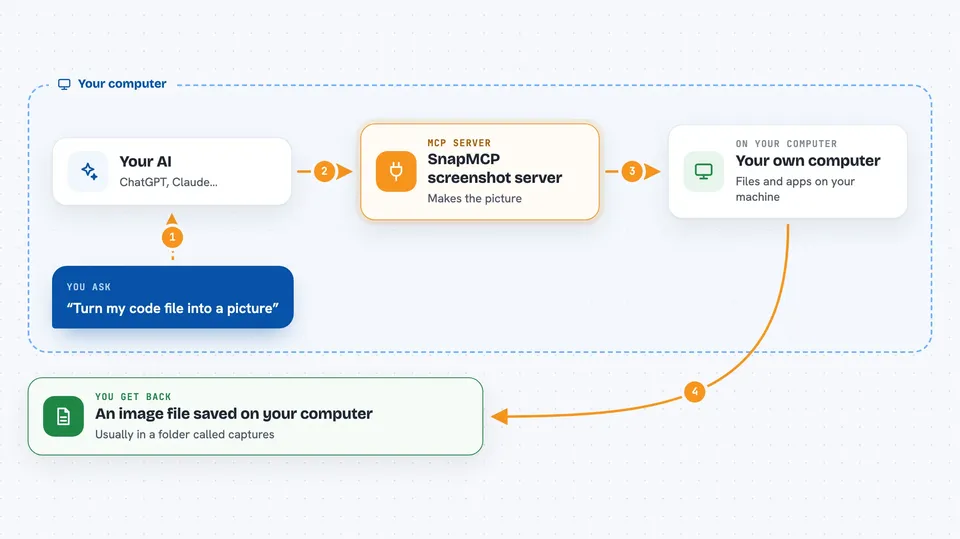
SnapMCP is a small helper that lets your AI make pictures of things: a terminal window, a piece of code, a web page, a git diff, a markdown file. It is handy if you write documentation, guides or reports and you want real screenshots instead of plain text. You ask in normal words, and the images land in a folder on your computer.
What is an MCP server? The 30-second version
On its own, your AI can only chat with you. An MCP server is a small helper program that gives your AI one extra skill. SnapMCP is that helper, and its skill is making images: it takes what you describe, renders it in a real browser engine, and saves the result as a picture file. So instead of your AI saying "here is what the code looks like", it can hand you an actual image of it.
What this MCP server does
You ask your AI something like "capture a screenshot of this code file" or "make a PDF of this web page". Your AI passes that request to SnapMCP. SnapMCP opens a hidden browser, draws the terminal output, code, page or diff with the right colors and theme, and saves it as a PNG, JPEG, PDF or GIF. Then it tells your AI where the file is, and your AI tells you. You end up with an image file on your disk, ready to drop into a document or send to someone.
 Click to zoom
What you can do with it
- Capture terminal output with real colors from your terminal theme
- Turn a code file into a syntax-highlighted image
- Screenshot a web page, full page or just the visible part
- Render a git diff as a green and red image
- Save a web page as a PDF document
- Make an animated GIF from several screenshots
- Render markdown or an HTML snippet as a styled image
Try asking your AI
- “Capture a terminal screenshot of git log --oneline -5 and save it to my captures folder”
- “Make a syntax-highlighted PNG of src/index.ts”
- “Take a full-page screenshot of https://example.com and save it as a PDF”
- “Create an animated GIF from these three screenshots so I can show the before and after”
What it gives back to you
You get back a short message in the chat telling you the capture worked and where the file was saved. The actual image or PDF sits in your output folder, usually ./captures. You can open it, drag it into a document, or attach it to a message. If something went wrong, like a blocked address or a file that is not allowed, the chat tells you that instead.
Before you start
What you need
- Node.js version 20 or newer (the free program that runs JavaScript tools)
- Google Chrome or Chromium on your computer (SnapMCP can also download Chromium for you the first time)
- An MCP client that supports MCP servers, such as Claude Code, OpenCode, VS Code with Cline, or the Claude desktop app
Good to know
By default it will not read any files until you list allowed paths in SNAPMCP_ALLOWED_PATHS, and it blocks web addresses that point to your own machine or private network, so keep those defaults on unless you know why you are changing them.
Install it with your AI
Add SnapMCP screenshot server to your AI, no technical skills needed
You don't install anything by hand. You copy one prompt, paste it into an AI that can work on your computer, and it checks, installs and connects the server for you, asking you when it needs something.
Sign in to get the install prompt
Members get a ready-made prompt that lets the Claude desktop app check SnapMCP screenshot server, install it and connect it for them, step by step. You don't need any technical skills: you copy, paste and answer a few questions. Your connected AI can also find and install any of the 4,361 MCP servers here for you.
Who it's for
People who write documentation, tutorials, release notes or QA reports and want real screenshots without taking them by hand.


