
MCP server · Developer tools
fenestra MCP server
Lets your AI render and check native Rust app screens, catching visual and accessibility problems for you.
This is a small helper program that lets your AI assistant build and inspect native app screens written in a format called fenestra. It is handy if you work with a team that builds desktop apps and you want quick checks on how a screen looks and how easy it is to use. You do not need to be a programmer to understand what it reports back.
What is an MCP server? The 30-second version
On its own, your AI can only chat with you. An MCP server is a small helper program that gives your AI a new skill or a connection to another tool. This one connects your AI to fenestra, a way of describing native app screens as text. So when you ask about a screen, the AI can actually render it, look at it, and tell you what it sees.
What this MCP server does
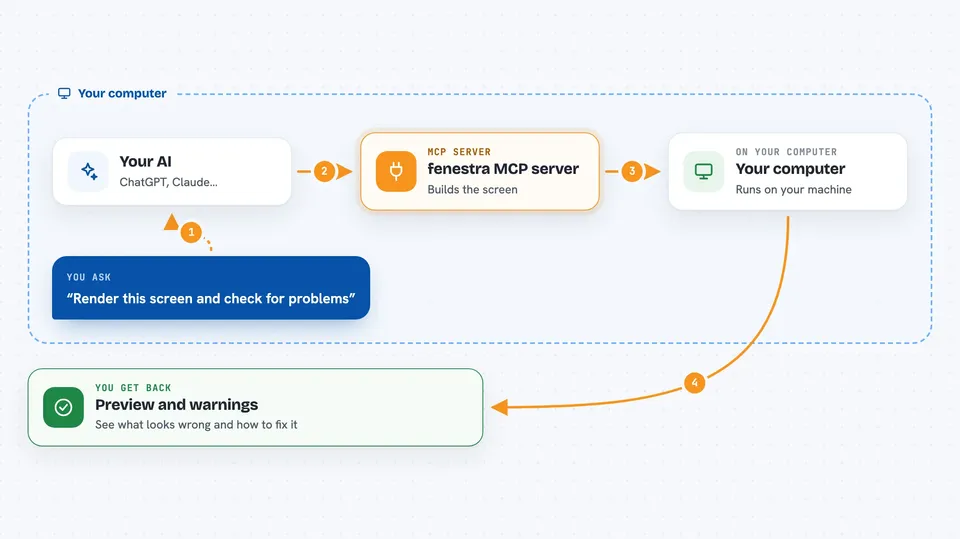
You give your AI a description of an app screen, written in the fenestra text format. The AI passes that description to this helper program. The helper builds the screen behind the scenes, takes a small preview picture, and checks things like contrast, labels, and focus order. Then it sends the results back to your AI, which explains them to you in plain words. If you ask it to, it can also click, type, or compare the screen against an earlier version.
 Click to zoom
What you can do with it
- Render a screen description and get a preview image plus warnings
- Find a specific button or field by its role, name, or id
- Check color contrast and whether every control has a label
- See the order the Tab key visits things in
- Compare a screen against a saved baseline picture
- Run a scripted set of clicks and typing, then check the result
- Capture a short filmstrip of a screen with motion turned on
Try asking your AI
- “Render this screen description and tell me if anything looks wrong”
- “Check the contrast and labels on this form”
- “What order does the Tab key visit the controls in?”
- “Compare this screen to the baseline picture and show me what changed”
What it gives back to you
You get back plain answers plus structured details: lists of controls, warnings about contrast or missing labels, the focus order, and numbers like how many pixels differ from a baseline. The visual tools also attach a small preview image, with a link to the full-size picture if you need it. Everything shows up right in your chat, so you can read it and ask follow-up questions.
Before you start
What you need
- The Rust toolchain installed (the cargo command)
- An MCP client, like the Claude desktop app, pointed at the fenestra-mcp program
Install it with your AI
Add fenestra MCP server to your AI, no technical skills needed
You don't install anything by hand. You copy one prompt, paste it into an AI that can work on your computer, and it checks, installs and connects the server for you, asking you when it needs something.
Sign in to get the install prompt
Members get a ready-made prompt that lets the Claude desktop app check fenestra MCP server, install it and connect it for them, step by step. You don't need any technical skills: you copy, paste and answer a few questions. Your connected AI can also find and install any of the 4,361 MCP servers here for you.
Who it's for
Developers and designers who build or review native desktop app screens and want quick visual and accessibility checks.



