MCP server · Gaming
VRChat MCP server
by sawa-zen
Let your AI look up your VRChat friends, worlds, avatars and invites just by asking.
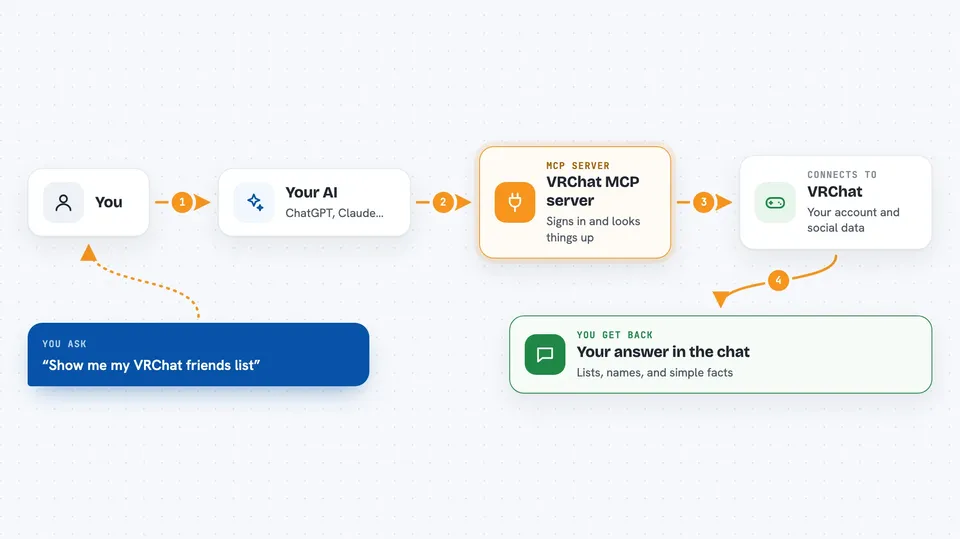
This is a small connector between your AI assistant and your VRChat account. Once it is running, you can ask questions about your friends, saved worlds, avatars and invitations instead of clicking around inside VRChat yourself. It is handy if you play often and want quick answers while chatting with your AI.
What is an MCP server? The 30-second version
On its own, your AI can only talk based on what it already knows. An MCP server is a little helper program that runs next to your AI and adds one extra ability. This particular helper connects your AI to VRChat, so when you ask something about your account, the AI sends the question to this helper, the helper asks VRChat, and brings the answer back into your chat window. Nothing happens until you actually make a request.
What this MCP server does
When you ask your AI something about VRChat, the AI picks the right action offered by this helper. The helper then signs in to the VRChat side using your username and a stored pass called an auth token. It fetches whatever was asked for, such as your friend list, matching worlds, your favourites or recent notifications. Some actions also send things out for you, like sending a friend request or switching your active avatar. Then the result comes back and appears as normal text in your conversation.
 Click to zoom
What you can do with it
- Get a list of all your current VRChat friends
- Send someone a friend request straight from the chat
- Search for avatars and pick a different one to wear
- Look up worlds and see the ones you favourited
- Create a brand new instance and check info about existing instances
- Join a group or search for groups to join
- Read your pending invitation messages and notification feed
Try asking your AI
- “Show me my whole VRChat friends list grouped by online status”
- “Find some cozy chill-out worlds I might enjoy tonight”
- “What did I miss? List my unread VRChat notifications”
- “Switch my avatar to the last one I used yesterday”
What it gives back to you
Mostly lists and simple facts shown as readable text in the chat. Examples include names of friends, titles and IDs of worlds or avatars, favourite entries, and snippets of invitation or notification content. When an action makes a change, like joining a group or adding a favourite, the reply usually confirms whether it worked rather than showing raw data. Everything stays in the same conversation thread where you typed your request.
Before you start
What you need
- Your VRChat username
- A VRChat auth token, which works like a temporary password tied to your session (there is a ready-made tool described below to grab one quickly)
- Node.js installed on your computer (version 20 or newer recommended)
Good to know
Some commands really act on your behalf, they create rooms, accept friendships or alter outfits, so review each confirmation carefully prior to approving.
Install it with your AI
Add VRChat MCP server to your AI, no technical skills needed
You don't install anything by hand. You copy one prompt, paste it into an AI that can work on your computer, and it checks, installs and connects the server for you, asking you when it needs something.
Sign in to get the install prompt
Members get a ready-made prompt that lets the Claude desktop app check VRChat MCP server, install it and connect it for them, step by step. You don't need any technical skills: you copy, paste and answer a few questions. Your connected AI can also find and install any of the 4,361 MCP servers here for you.
Who it's for
Regular VRChat players and community organisers who would rather query their social life and game assets through typing than navigating menus.