MCP server · Productivity · official
Carbon Voice MCP server
by PhononX · official
Let your AI send and read Carbon Voice voice messages, conversations, and action items for you.
This is a helper that connects your AI assistant to Carbon Voice, the app for voice messages and conversations. Once it is set up, you can ask your AI to send a voice memo, read your inbox, or pull action items out of a message. It is handy if you spend a lot of your day in voice chats and want your AI to handle the small stuff.
What is an MCP server? The 30-second version
On its own, your AI can only chat with you. It cannot open Carbon Voice or send a voice message. An MCP server is a small helper program that gives your AI a new skill, and this one connects it to Carbon Voice. So when you ask your AI to do something in Carbon Voice, it uses this helper to talk to the app and bring the result back to you.
What this MCP server does
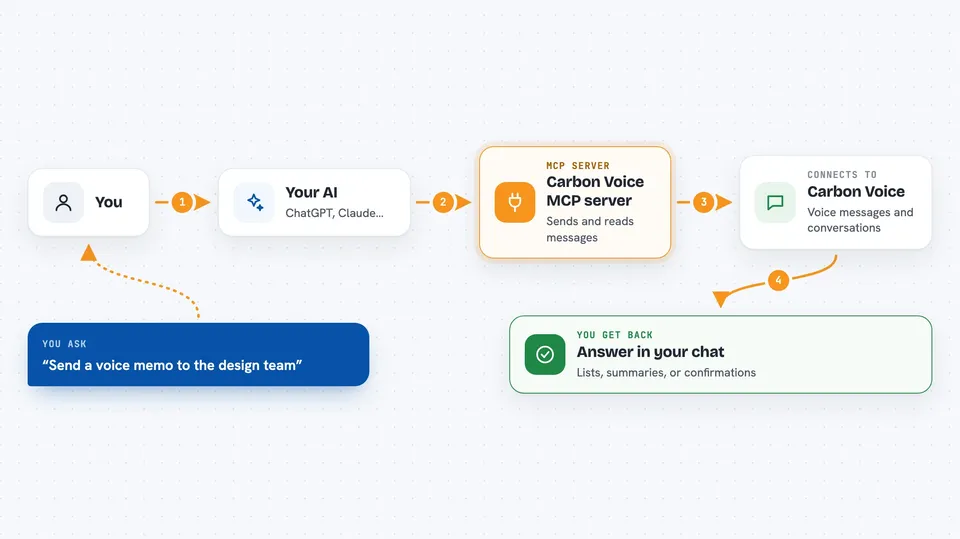
You ask your AI something in plain words, like send a voice memo to my team. Your AI passes that request to this helper. The helper talks to Carbon Voice using your account. Carbon Voice does the work, like creating the message or listing your conversations. Then the helper sends the answer back, and your AI shows it to you in the chat.
 Click to zoom
What you can do with it
- Send a voice memo from text or from an audio link
- Send direct messages to people or groups
- List your recent messages and conversations
- Summarize a conversation using an AI action
- Create and track action items, including ones pulled out of messages
- Organize messages into folders
- Check your inbox and unread count
Try asking your AI
- “Send a voice memo to the design team saying the launch is moved to Friday”
- “What are my unread messages in Carbon Voice?”
- “Pull out any action items from my last message with Sam”
- “Summarize my conversation with the marketing group”
What it gives back to you
You get answers in the chat, like a list of messages, a summary of a conversation, or a count of unread items. When you ask it to send something, it tells you it was sent. When it creates an action item, it confirms the details. Everything shows up as normal text in your chat window.
Before you start
What you need
- A Carbon Voice account
- For the local version: an API key from the Carbon Voice team (email devsupport@phononx.com) and Node.js installed on your computer
- For the cloud version: nothing extra, you just sign in
Good to know
It can send messages and delete folders or action items, so be careful when you ask it to change or remove things.
Install it with your AI
Add Carbon Voice MCP server to your AI, no technical skills needed
You don't install anything by hand. You copy one prompt, paste it into an AI that can work on your computer, and it checks, installs and connects the server for you, asking you when it needs something.
Sign in to get the install prompt
Members get a ready-made prompt that lets the Claude desktop app check Carbon Voice MCP server, install it and connect it for them, step by step. You don't need any technical skills: you copy, paste and answer a few questions. Your connected AI can also find and install any of the 4,361 MCP servers here for you.
Who it's for
People who use Carbon Voice for voice messages and want their AI assistant to help manage conversations, messages, and action items.