MCP server · Security
Zitadel MCP server
by takleb3rry
Let your AI manage Zitadel users, roles, projects and apps by just asking in plain words.
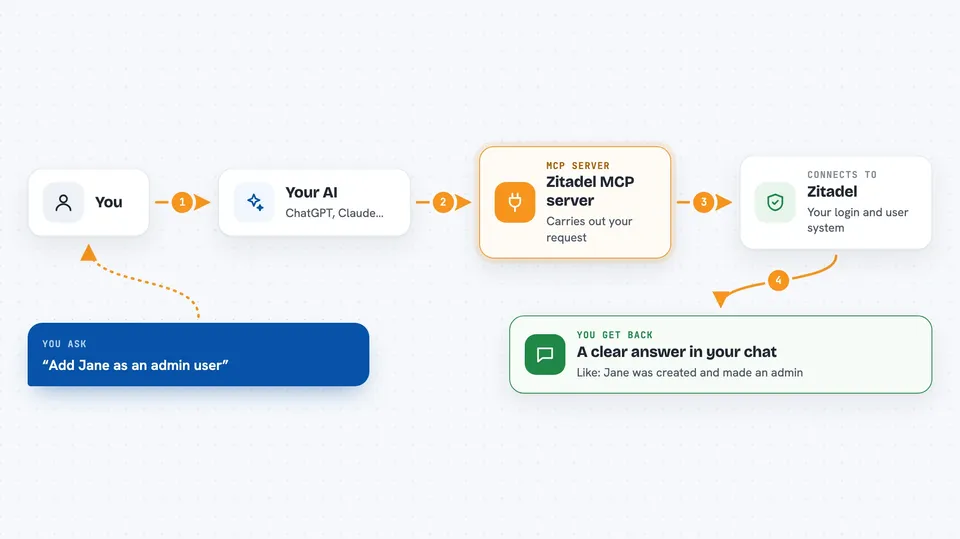
This is a helper that connects your AI assistant to Zitadel, the system many companies use to manage who can log in and what they are allowed to do. Once it is set up, you can ask your AI to create a user, give someone a role, or set up a new app, and it will do it in Zitadel for you. It is handy for anyone who does admin work in Zitadel and would rather type a sentence than click through menus.
What is an MCP server? The 30-second version
On its own, your AI can only chat with you. An MCP server is a small helper program that gives your AI a new skill or a connection to an app, and here that app is Zitadel. You install this helper once, tell it how to log in to your Zitadel instance, and from then on your AI can look things up and make changes there when you ask. Think of it as giving your AI a set of keys to your identity system, but only the keys you hand over.
What this MCP server does
You type a request in plain English, like asking it to add a new colleague or check who has a certain role. Your AI reads that request and picks the right action from this helper. The helper then talks to your Zitadel instance using the login details you gave it. Zitadel does the work, and the helper sends the result back to your AI. Your AI then tells you what happened, in normal words, right in the chat.
 Click to zoom
What you can do with it
- Create a new user and send them an invite email
- Give someone a project role like admin or standard
- List users, projects, apps or roles so you can see what exists
- Deactivate, lock or delete a user when someone leaves
- Set up a new OIDC application in a project
- Create a service account and generate a key for it
- Change the text shown on the Zitadel login page for a language
Try asking your AI
- “Create a user for jane@example.com and make her an admin”
- “Show me all users in the organization”
- “Give bob@example.com the standard role in the main project”
- “Deactivate the account for the person who left last week”
What it gives back to you
You get answers in the chat, not raw data dumps. For a list request, your AI shows you a tidy list of users, roles or apps with their names and IDs. For a change, it tells you what it did, like that the user was created or the role was assigned. For a key or secret, it usually gives you a file path instead of the secret itself, so the secret does not end up in the conversation.
Before you start
What you need
- A Zitadel instance, either their cloud service or one your company runs
- A service account in Zitadel with the Org Owner role, which is a special account for apps
- A JSON key file for that service account, downloaded from the Zitadel console
- Node.js installed on the machine where you run the helper
Good to know
This helper has admin-level access to your Zitadel, so it can create, change and delete users, roles and apps, and you should keep its key private and review the code before you use it.
Install it with your AI
Add Zitadel MCP server to your AI, no technical skills needed
You don't install anything by hand. You copy one prompt, paste it into an AI that can work on your computer, and it checks, installs and connects the server for you, asking you when it needs something.
Sign in to get the install prompt
Members get a ready-made prompt that lets the Claude desktop app check Zitadel MCP server, install it and connect it for them, step by step. You don't need any technical skills: you copy, paste and answer a few questions. Your connected AI can also find and install any of the 4,609 MCP servers here for you.
Who it's for
IT admins, identity or security teams, and anyone who manages Zitadel accounts and roles as part of their job.