MCP server · Developer tools
Cognigy.AI Management MCP server
by TsvetanG2
Lets your AI build, test and deploy Cognigy.AI agents for you, without clicking through the Cognigy dashboard.
This is a helper that connects your AI assistant to Cognigy.AI, a platform companies use to build chatbots and voice agents. Once it is set up, you can ask your AI to create flows, train the language understanding, run tests or move a snapshot to another environment. It is meant for people who already work with Cognigy.AI and want to do things faster with plain sentences instead of lots of clicking.
What is an MCP server? The 30-second version
On its own, your AI can only chat. An MCP server is a small helper program that gives your AI a new skill or a connection to another app. This one connects your AI to Cognigy.AI, so it can look things up and make changes there when you ask. You stay in your chat window, and the helper does the talking to Cognigy behind the scenes.
What this MCP server does
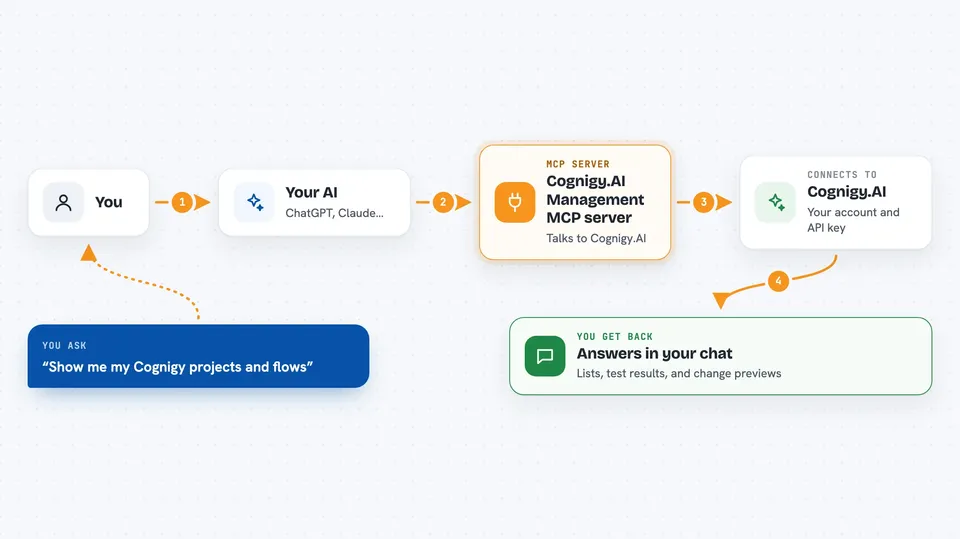
You type a request in plain words, like asking to see your projects or to create a new flow. Your AI passes that request to this helper program. The helper talks to Cognigy.AI using your account and your API key. Cognigy does the work, and the helper brings the answer back to your chat. For changes, it shows you what it would do first, so you can say yes before anything is really changed.
 Click to zoom
What you can do with it
- List your Cognigy projects, flows and flow settings
- Create, edit, search and move nodes inside a flow
- Manage intents and run NLU training or scoring
- Run playbooks and regression tests on your agent
- Create, restore, package and promote snapshots between environments
- Configure LLM providers, Knowledge AI stores and connections
- Look up conversations, transcripts and analytics numbers
Try asking your AI
- “Show me all my Cognigy projects and the flows inside the first one”
- “Create a new flow called Order Status in my default project”
- “Run the regression tests for my main agent and tell me what failed”
- “Make a snapshot of my current flow and prepare it for the staging environment”
What it gives back to you
You get answers in your chat: lists of projects, flows, nodes or intents, short summaries of what a flow contains, test results with pass or fail, and numbers from analytics. When you ask for a change, it first shows a preview of what it would do. After you confirm, it reports back what was actually changed in Cognigy.
Before you start
What you need
- Node.js version 20 or newer installed on your computer
- A Cognigy.AI account with API access (Trial, SaaS or on-premises)
- An API key from Cognigy (found in My Profile, then API Keys)
- Your Cognigy API address, for example https://api-trial.cognigy.ai
Good to know
It can change or delete things in your Cognigy account, so check the preview it shows before you confirm, and keep your API key private.
Install it with your AI
Add Cognigy.AI Management MCP server to your AI, no technical skills needed
You don't install anything by hand. You copy one prompt, paste it into an AI that can work on your computer, and it checks, installs and connects the server for you, asking you when it needs something.
Sign in to get the install prompt
Members get a ready-made prompt that lets the Claude desktop app check Cognigy.AI Management MCP server, install it and connect it for them, step by step. You don't need any technical skills: you copy, paste and answer a few questions. Your connected AI can also find and install any of the 4,361 MCP servers here for you.
Who it's for
Developers, solution architects and partner teams who already build on Cognigy.AI and want to work faster from their AI assistant.