MCP server · Customer communication · official
Perspective AI MCP server
by Perspective-AI · official
Let your AI build and manage Perspective AI conversation agents, then read and act on what people said.

This is the official helper from Perspective AI, a service that turns boring web forms into real conversations with an AI concierge. Once you connect it, your AI assistant can design those conversations, put them on your site, read what people said, and set up follow-ups. It is handy if you work in marketing, sales, research, or customer support and you deal with forms, surveys, or lead capture.
What is an MCP server? The 30-second version
On its own, your AI can only chat with you. An MCP server is a small helper program that gives your AI a new skill or a connection to an app or service. This one connects your AI to Perspective AI, so it can look things up and do things there for you when you ask. You stay in the chat; the helper handles the back and forth with Perspective AI.
What this MCP server does
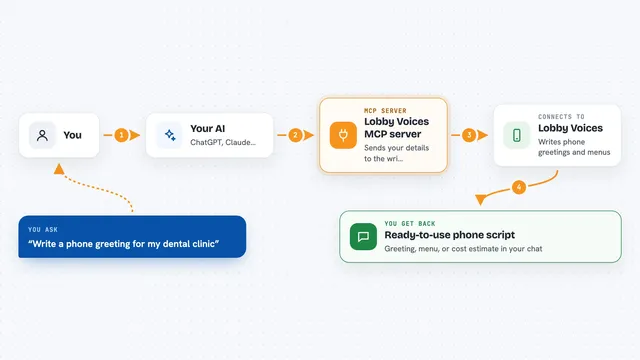
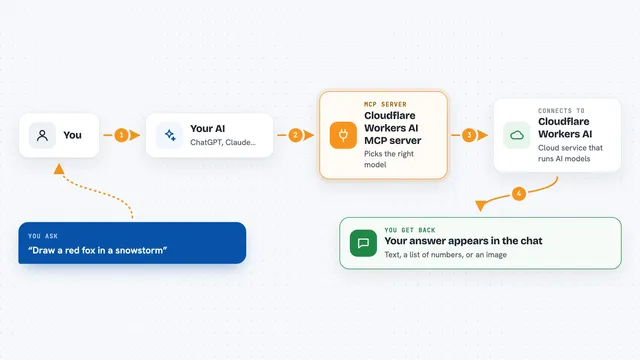
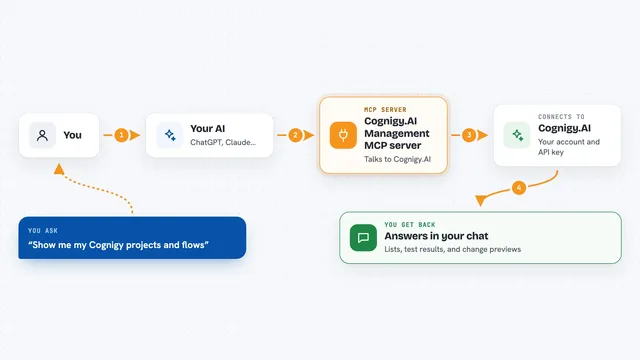
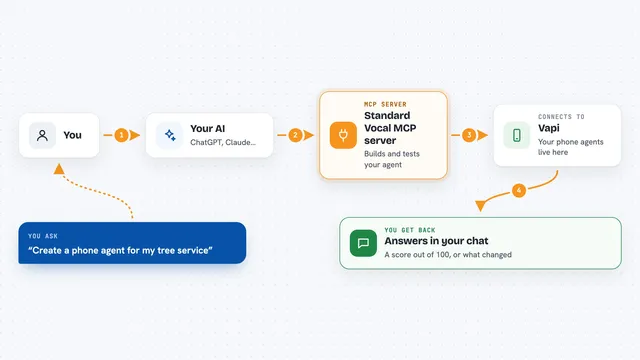
You ask your AI something in plain words, like designing a new conversation or checking why people are dropping off. Your AI passes that request to this helper, which talks to your Perspective AI workspace. Perspective AI does the work, such as creating a draft agent, pulling stats, or listing conversations. The helper brings the result back, and your AI explains it to you in the chat. If you asked for a change, like creating an automation, it makes that change in your account.
 Click to zoom
What you can do with it
- Design a new conversation agent from a short written brief
- Refine an existing agent with plain feedback
- Get a shareable preview link to test before going live
- Get embed code to put the conversation on your website
- Invite specific people with a 48-hour magic link
- Pull stats and read conversations, including transcripts
- Set up follow-ups like sending results to Slack or HubSpot
Try asking your AI
- “Design a Concierge that qualifies pricing-page leads by budget and timeline. Keep the tone warm, not salesy.”
- “Why are people abandoning my lead-capture concierge this week? Pull the drop-off conversations and summarize the top reasons.”
- “Give me the popup embed snippet for my concierge and walk me through adding it to our pricing page.”
- “Whenever a conversation scores above 80 on trust, push it to HubSpot as a contact and ping #sales in Slack.”
What it gives back to you
You get answers in the chat, like a summary of drop-off reasons or a list of conversations with their trust scores. It can also hand you things you can use right away, such as a preview link or an embed snippet to paste into your site. When you ask it to change something, like creating an automation or inviting people, it tells you what it did. Longer items, like a full transcript, come back as readable text you can scroll through.
Before you start
What you need
- A Perspective AI account with access to a workspace
- An MCP-compatible client like Claude Desktop, Claude Code, Cursor, or VS Code
- For token sign-in: a personal access token from Perspective AI Settings, MCP
- For stdio-only clients: Node.js so the mcp-remote helper can run
Good to know
It can create, change, and permanently delete things in your Perspective AI workspace, and automations can send data to other tools like Slack or HubSpot, so check before you confirm.
Install it with your AI
Add Perspective AI MCP server to your AI, no technical skills needed
You don't install anything by hand. You copy one prompt, paste it into an AI that can work on your computer, and it checks, installs and connects the server for you, asking you when it needs something.
Sign in to get the install prompt
Members get a ready-made prompt that lets the Claude desktop app check Perspective AI MCP server, install it and connect it for them, step by step. You don't need any technical skills: you copy, paste and answer a few questions. Your connected AI can also find and install any of the 4,361 MCP servers here for you.
Who it's for
Marketing, sales, research, and support people who collect information from customers and want their AI to help build, run, and read those conversations.