
MCP server · Developer tools
Adaptive Cards MCP server
Lets your AI build, check and fix Adaptive Cards for Teams, Outlook and Copilot, ready to paste and preview.
This is a helper that teaches your AI assistant how to build Adaptive Cards. An Adaptive Card is the little box of text, buttons and tables that shows up in Microsoft Teams, Outlook and Copilot. If you ever need one of those and don't want to hand-write the tricky code behind it, this is for you.
What is an MCP server? The 30-second version
On its own, your AI can only chat with you. An MCP server is a small helper program that gives your AI a new skill or a connection to another tool. This one gives your AI the skill of writing Adaptive Cards for Microsoft apps. So when you describe the card you want, the AI can actually build it, check it and hand you something you can use.
What this MCP server does
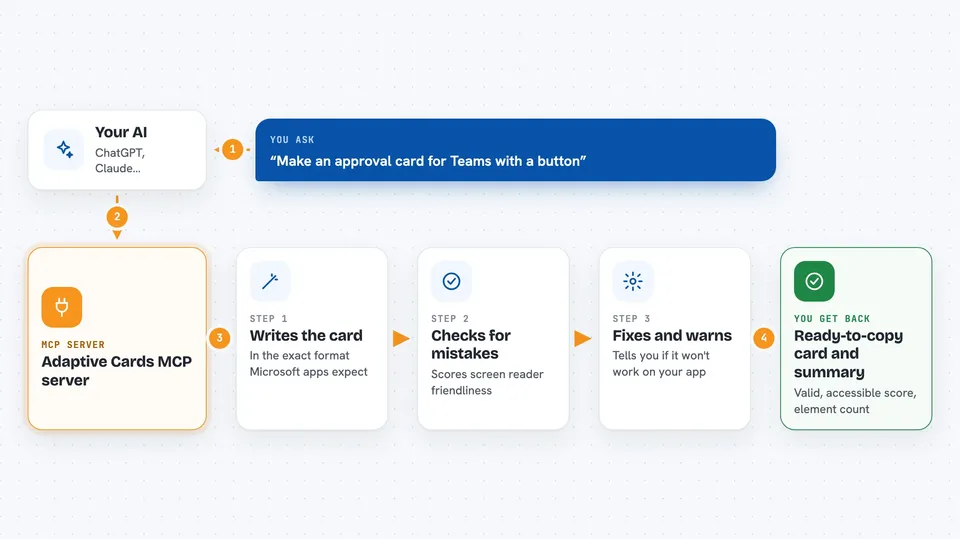
You tell your AI what kind of card you want, in normal words. The AI passes that to this helper, which writes the card in the exact format Microsoft apps expect. The helper also checks the card for mistakes, scores how easy it is for screen readers to use, and warns you if the card won't work on the app you chose. Then it hands the finished card back to you in the chat, ready to copy.
 Click to zoom
What you can do with it
- Build an approval card for Teams with buttons like Approve and Reject
- Turn a list of data, like sales figures or a CSV, into a neat card table
- Check an existing card and get a plain list of what is wrong
- Fix accessibility problems so screen readers can read the card
- Make a card work on Outlook or Webex, which support fewer features
- Turn a finished card into a reusable template with fill-in-the-blank fields
- Suggest the best layout for a dashboard, form or profile card
Try asking your AI
- “Create an expense approval card for Teams with requester name, amount, category and approve or reject buttons”
- “Turn this sales data into a card table: APAC 1,250,000, EMEA 980,000, Americas 2,100,000”
- “Validate this card and tell me what is wrong, I am getting render errors in Outlook”
- “Make this card accessible so it works with screen readers”
What it gives back to you
You get the finished card as a block of text you can copy, plus a short summary underneath. The summary tells you if the card is valid, its accessibility score out of 100, how many elements it has and which version it uses. Some tools also give you a link to preview the card in the official Adaptive Cards Designer.
Before you start
What you need
- An AI assistant that supports MCP, like Claude Code, Cursor or GitHub Copilot in VS Code
- Node.js installed on your computer so the npx command can run (the README says no install is needed, npx fetches it for you)
Good to know
It only writes and checks card text, so it cannot change anything in your Teams or Outlook by itself, but always read the card before you send it to other people.
Install it with your AI
Add Adaptive Cards MCP server to your AI, no technical skills needed
You don't install anything by hand. You copy one prompt, paste it into an AI that can work on your computer, and it checks, installs and connects the server for you, asking you when it needs something.
Sign in to get the install prompt
Members get a ready-made prompt that lets the Claude desktop app check Adaptive Cards MCP server, install it and connect it for them, step by step. You don't need any technical skills: you copy, paste and answer a few questions. Your connected AI can also find and install any of the 4,609 MCP servers here for you.
Who it's for
Anyone who builds or sends cards in Microsoft Teams, Outlook or Copilot, like admins, HR and IT staff, and developers who want a head start.



