MCP server · Health and learning
Garmin Local Archive MCP server
by Wewoc
Ask your AI questions about your own Garmin health data, kept on your computer instead of the cloud.
This is a free Windows app that keeps a full copy of your Garmin Connect health data on your own computer. It stores things like steps, heart rate, sleep and Body Battery in simple files, and it also includes a built-in MCP server. That server is what lets your AI read your archive and answer questions about it.
What is an MCP server? The 30-second version
On its own, your AI can only chat with you. It has no way to see your Garmin data. An MCP server is a small helper program that gives your AI a new skill or a connection to an app or service. Here, the helper connects your AI to your local Garmin archive, so when you ask a question, the AI can look up the numbers in your own files and answer.
What this MCP server does
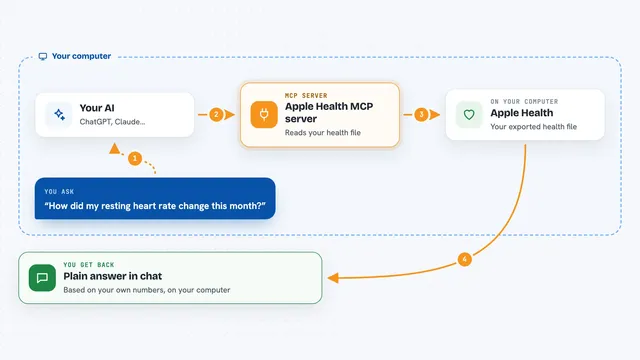
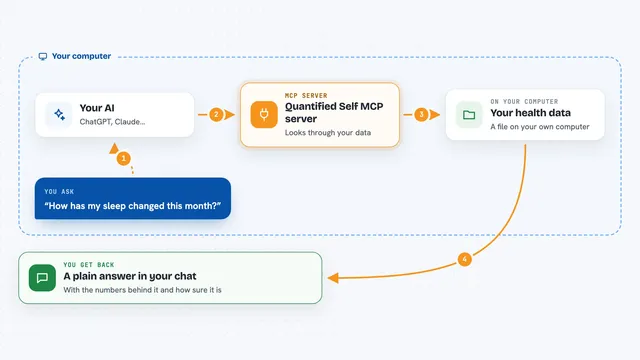
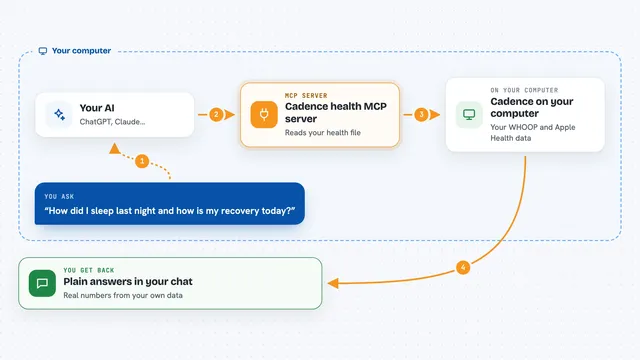
You ask your AI a question about your health, like how your sleep was last month. The AI uses this MCP server to look inside your local Garmin archive. The server reads the stored data, which sits in JSON files on your machine, and uses a small local cache to answer faster. It hands the relevant numbers back to the AI. The AI then turns them into a normal answer in your chat.
What you can do with it
- Ask about your sleep, heart rate, steps or Body Battery over any date range
- Compare a day against your own 90-day baseline
- Look at weather, pollen and air quality next to your health numbers
- Check your heart rate curve across a single day
- Explore stress zones and recovery patterns over time
- Ask follow-up questions about trends you notice
Try asking your AI
- “How did my sleep and Body Battery look over the last two weeks?”
- “Was my resting heart rate higher than usual this month?”
- “Which days last week had high stress and low sleep?”
- “Did pollen or air quality line up with my worse days?”
What it gives back to you
You get answers in plain chat: summaries, comparisons and short explanations built from your own numbers. Depending on what you ask, the AI may show small tables or lists of days and values. It reads your archive to answer, and it does not change your data.
Before you start
What you need
- A Windows computer
- The Garmin Local Archive app installed and running
- Your Garmin data synced or imported into the app
- An AI app that can connect to MCP servers, such as the Claude desktop app
Good to know
This reads your private health data, so be careful which AI you connect it to; the app itself warns against sending identifying information to cloud AI services and suggests a local model instead.
Install it with your AI
Add Garmin Local Archive MCP server to your AI, no technical skills needed
You don't install anything by hand. You copy one prompt, paste it into an AI that can work on your computer, and it checks, installs and connects the server for you, asking you when it needs something.
Sign in to get the install prompt
Members get a ready-made prompt that lets the Claude desktop app check Garmin Local Archive MCP server, install it and connect it for them, step by step. You don't need any technical skills: you copy, paste and answer a few questions. Your connected AI can also find and install any of the 4,960 MCP servers here for you.
Who it's for
People who track their health with a Garmin watch and want to ask an AI about their own data without sending it to a cloud service.