AI agent for curriculum developers
Course Revision Cascade Agent
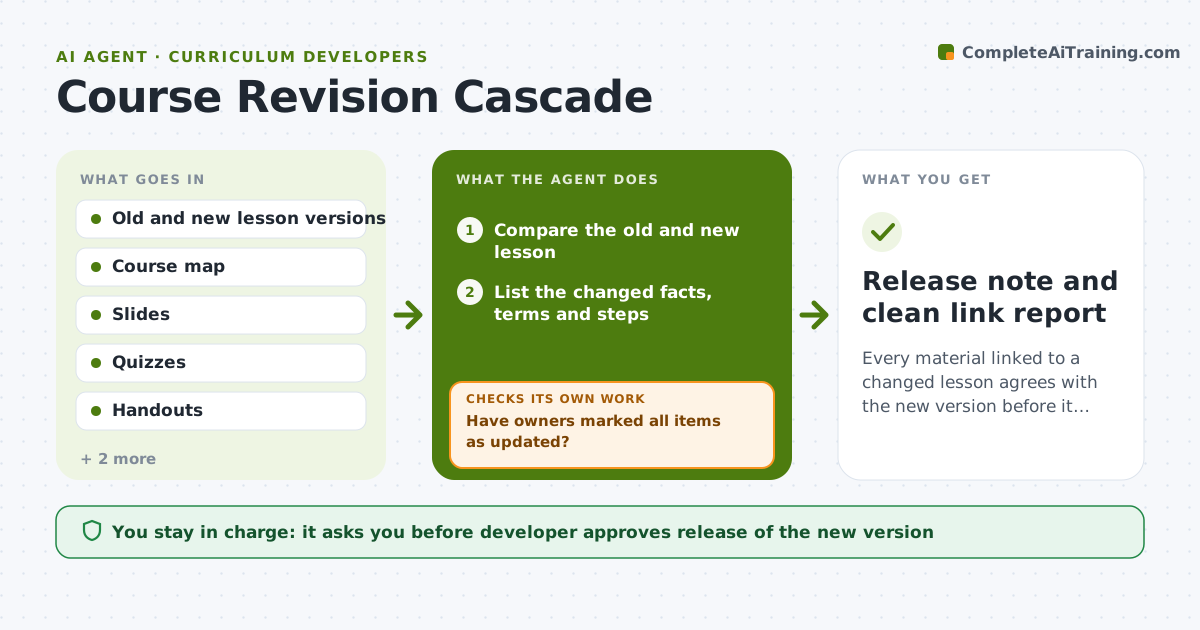
Every material linked to a changed lesson agrees with the new version before it is released.
What it does
When a developer changes one lesson, the slides, quiz questions, handouts and videos that depend on it are often left saying the old thing. The agent reads the changed lesson, compares it with the earlier version, and lists what changed: a definition, a number, a step order. It then searches the course for every linked slide, quiz item, handout and video script that uses the changed content and flags the ones that now disagree. It sends each owner a list of what to update, and after the owners say they are done it rechecks every link and loops on leftovers. The developer approves the release of the new version. Edge case: a video that cannot be edited, so the agent suggests a caption or a note instead.
How it works
Follow the arrows from top to bottom. The orange dashed arrow is the loop: when a check fails, the agent goes back and tries again.
Read the steps as a list
- Lesson changed
- Compare the old and new lesson
- List the changed facts, terms and steps
- Search slides, quizzes, handouts and videos for linked content
- Flag items that still use the old content
- Send each owner an update list
- Have owners marked all items as updated?If not: Remind the owners and list leftovers by item. Back to step 3.
- Reread every linked item
- Does any linked item still conflict with the new lesson?If not: Flag the item again and return to the owner. Back to step 8.
- Developer approves release of the new versionThe agent waits here for your OK.
- Release note and clean link report
How it decides
It marks a material as outdated when it uses a changed fact, term or step from the old lesson, and clears it only when a recheck finds no old content.
- Any quiz item that tests a changed fact must be rechecked
- Flag videos that cannot be edited and suggest a caption or note
- Chase owners after 3 working days
- No release while any item is flagged
Make it yours
Every agent is a starting point. You choose these settings for your own situation.
- Where course files are stored
- How long before chasing owners (default 3 days)
- Which material types it checks
- Format of the release note
What keeps you in control
It always asks you first
- Developer approves release of the new version
Hard limits
- Never edit course materials itself
- Do not release a version with open flags
It stops when
- Done: all linked items agree and the release is approved
- Stop: an owner cannot be reached and the developer must reassign
Set it up
We guide you through the set-up, step by step
Members get the full set-up guide for this agent. No technical skills needed: you copy, paste and upload.
- One set of instructions to paste into your AI, with the clicks for ChatGPT, Claude, Microsoft 365 Copilot, Gemini and Grok
- The agent then walks you through connecting your own data, one source at a time
- A downloadable copy with the flow chart, the rules and the full guide