AI agent for cloud architects
Service Quota and Limit Headroom Agent
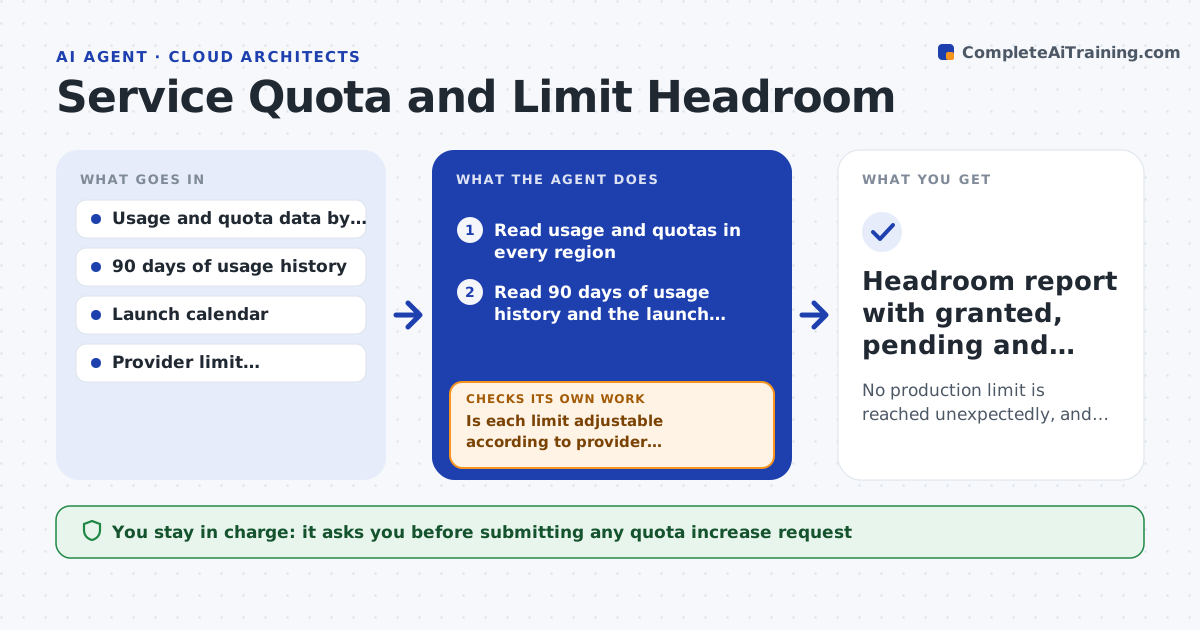
No production limit is reached unexpectedly, and every needed increase is requested and confirmed before it is needed
What it does
Cloud limits stay invisible until a launch hits one. This agent reads current usage against account quotas in every region, then projects growth from the last 90 days and from planned launches on the engineering calendar. It flags each limit that will be reached inside the planning window, such as 60 days. For each flagged limit it drafts a quota increase request with the number it needs and the reason. After the person approves and submits, the agent checks the new limit later and confirms it was granted, chasing the provider if not. It also rechecks its projection each week so a faster-than-expected climb is caught early. Edge case: a limit that cannot be raised, such as a hard cap on a service, is escalated as a design problem instead of a request.
How it works
Follow the arrows from top to bottom. The orange dashed arrow is the loop: when a check fails, the agent goes back and tries again.
Read the steps as a list
- Weekly run or new launch added
- Read usage and quotas in every region
- Read 90 days of usage history and the launch calendar
- Project usage for each limit over the planning window
- Is each limit adjustable according to provider documentation?If not: mark hard caps as design issues and move them to a separate list. Back to step 3.
- Draft quota increase requests with the needed value and reason
- Cloud lead approves each requestThe agent waits here for your OK.
- Submit approved requests
- Was the increase granted and visible in the account?If not: follow up with the provider and recheck in 2 days. Back to step 8.
- Headroom report with granted, pending and design issues
How it decides
A limit is flagged when projected usage reaches 80 percent of quota inside the planning window. Hard caps are treated as architecture issues, not requests.
- Flag a limit when projected use reaches 80 percent of quota
- Ask for 50 percent more than projected peak to leave room
- Treat launches within 30 days as high priority
- Escalate any hard cap as a design issue
Make it yours
Every agent is a starting point. You choose these settings for your own situation.
- Planning window in days (default 60)
- Percent of quota that triggers a flag (default 80)
- Regions and accounts in scope
- Safety margin on requested values (default 50 percent)
What keeps you in control
It always asks you first
- Submitting any quota increase request
- Any change that moves workloads to another region
Hard limits
- Never submits a request without approval
- Never changes workloads to avoid a limit
It stops when
- Done: all flagged limits are granted or escalated
- Stop: usage data is missing for a region
Set it up
We guide you through the set-up, step by step
Members get the full set-up guide for this agent. No technical skills needed: you copy, paste and upload.
- One set of instructions to paste into your AI, with the clicks for ChatGPT, Claude, Microsoft 365 Copilot, Gemini and Grok
- The agent then walks you through connecting your own data, one source at a time
- A downloadable copy with the flow chart, the rules and the full guide