MCP server · Analytics
SpanHound MCP server
by abhishekash
Ask your AI what happened in a local agent run: failures, approvals, token usage, and run comparisons.
SpanHound is a small helper that reads trace files saved on your own computer and lets your AI answer questions about them. A trace is a record of what an AI agent did step by step: which tools it called, what it was allowed to do, how long it took, and how many tokens it used. It is handy if you run agents locally and want to understand why a run was slow, failed, or cost more than expected, without setting up a big monitoring system.
What is an MCP server? The 30-second version
On its own, your AI can only chat. It cannot see files on your computer or look inside a run. An MCP server is a small helper program that gives your AI one new skill or connection. SpanHound is that helper here: it connects your AI to a folder of local trace files, so the AI can look things up there and tell you what it found when you ask.
What this MCP server does
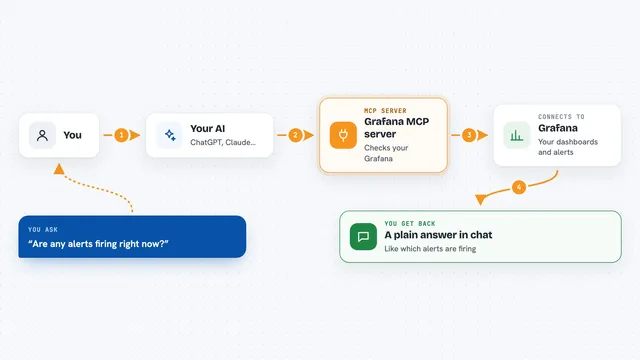
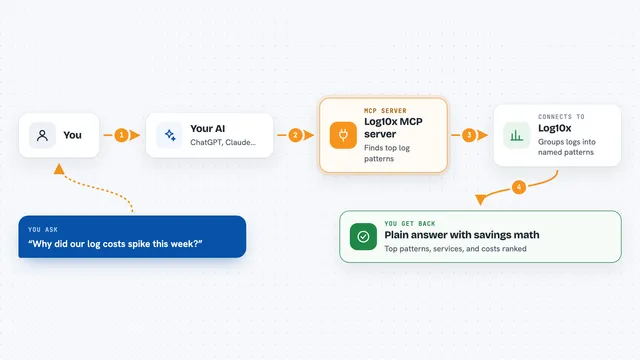
You point SpanHound at a folder that holds your trace files, usually JSONL spans or saved OTLP JSON exports. You then connect it to your AI client, like Claude Desktop, and ask a question in plain words. Your AI sends the question to SpanHound, and SpanHound reads the trace files and picks out the matching pieces, such as a failed tool call or an approval decision. The answer comes back in the chat as a list, a summary, or a small table of numbers. SpanHound only reads; it does not change your traces.
What you can do with it
- List your recent agent runs with task, model, duration, and cost
- See the nested shape of one run and what the agent actually did
- Find the slowest spans to explain why a run took long
- Check every approve, deny, or edit decision and who made it
- Add up token usage across runs or for a single run
- Search spans by tool name, file path, or the word denied
- Compare two runs to spot regressions across models or versions
Try asking your AI
- “Why did yesterday's run stall?”
- “Did the agent act after I denied the write?”
- “How many model tokens did this run use?”
- “Which tool is failing or timing out?”
What it gives back to you
You get back short, readable answers in the chat: lists of runs, a summary of one run, a span tree, counts of tokens and costs, or a ranked list of failing tools. Numbers come as plain totals, and unknown pricing is shown honestly instead of as zero. Error messages are shortened and obvious passwords or keys are hidden before the answer reaches you. Nothing is changed on your side, only read.
Before you start
What you need
- A folder of local trace files (JSONL spans or saved OTLP JSON exports)
- An MCP client, such as Claude Desktop
- uv installed on your computer (the tool runs with uvx)
Good to know
It reads trace files on your computer and sends what it finds to your AI client, so only point it at folders you are comfortable sharing, and remember it can only report what the trace itself recorded.
Install it with your AI
Add SpanHound MCP server to your AI, no technical skills needed
You don't install anything by hand. You copy one prompt, paste it into an AI that can work on your computer, and it checks, installs and connects the server for you, asking you when it needs something.
Sign in to get the install prompt
Members get a ready-made prompt that lets the Claude desktop app check SpanHound MCP server, install it and connect it for them, step by step. You don't need any technical skills: you copy, paste and answer a few questions. Your connected AI can also find and install any of the 4,609 MCP servers here for you.
Who it's for
Developers and technically curious people who run AI agents locally and want to understand their runs, but anyone comfortable with a config file can use it.