MCP server · Analytics · official
openITCOCKPIT MCP server
by openITCOCKPIT · official
Ask your AI what is broken in your monitoring, why, and who is already handling it.

This is a helper that connects your AI assistant to an openITCOCKPIT monitoring system. Instead of clicking through dashboards, you can just ask questions in plain words and get answers back. It is handy for anyone who looks after servers, services or network devices and wants a quicker way to find out what is going on.
What is an MCP server? The 30-second version
On its own, your AI can only chat with you. It cannot see your monitoring system. An MCP server is a small helper program that gives your AI a new skill, in this case a connection to openITCOCKPIT. Once it is running, your AI can look things up in your monitoring and, if you allow it, make changes there for you.
What this MCP server does
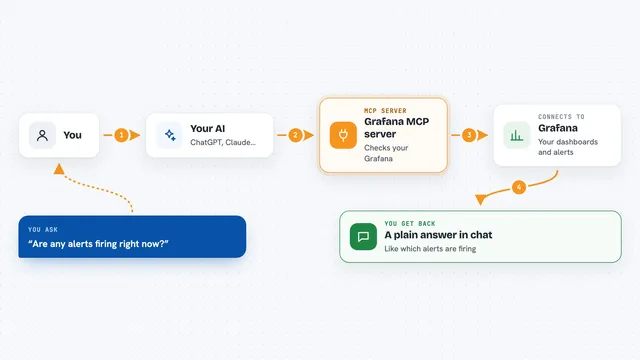
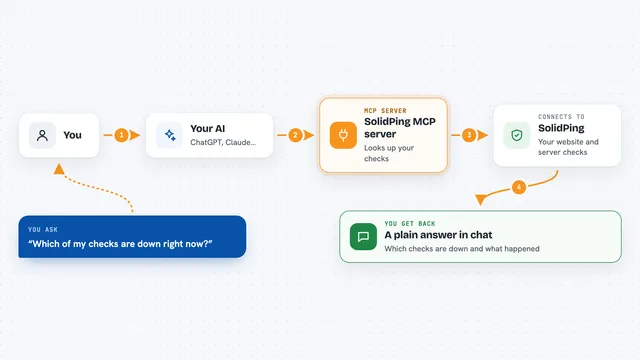
You ask your AI a question, like what is broken right now. Your AI passes that question to this helper program. The helper talks to your openITCOCKPIT system using its own login, finds the answer, and hands it back. Your AI then explains it to you in the chat. Some tools only read; others can change things, but those are switched off until you turn them on.
 Click to zoom
What you can do with it
- See what is broken right now, with causes separated from knock-on effects
- Ask why a specific host or service is in a critical state
- Check whether someone already acknowledged a problem or set a maintenance window
- Get a summary of what happened during a shift, like overnight
- Find out why you did not get an alert for a particular host
- Look up which templates a host could use
- Schedule a downtime for a host, if write tools are enabled
Try asking your AI
- “What is broken right now?”
- “Why is db-01 critical?”
- “Is anyone already working on the web01 problem?”
- “What happened during the night shift?”
What it gives back to you
You get answers in the chat, written in normal language. That can be a list of current problems, a short explanation of why something is failing, a summary of the last few hours, or a note that a change was made. Behind the scenes it is pulling host and service states, check history, logs, downtimes and acknowledgements from your monitoring system.
Before you start
What you need
- An openITCOCKPIT system, version 5.6 or newer
- An API key from openITCOCKPIT (a kind of password the system gives you for apps)
- Docker, if you follow the quickstart route
- A token you choose yourself, which your AI client will use to talk to this helper
Good to know
With write tools enabled, your AI can change your monitoring setup, so review what it proposes before you approve it and start with read-only access.
Install it with your AI
Add openITCOCKPIT MCP server to your AI, no technical skills needed
You don't install anything by hand. You copy one prompt, paste it into an AI that can work on your computer, and it checks, installs and connects the server for you, asking you when it needs something.
Sign in to get the install prompt
Members get a ready-made prompt that lets the Claude desktop app check openITCOCKPIT MCP server, install it and connect it for them, step by step. You don't need any technical skills: you copy, paste and answer a few questions. Your connected AI can also find and install any of the 4,361 MCP servers here for you.
Who it's for
IT staff, sysadmins and support teams who already use openITCOCKPIT and want to ask questions about their monitoring in plain words.