MCP server · Developer tools
AI Commander MCP server
Let your AI run commands and move files on your own computers, without opening any ports.

AI Commander is a helper that lets your AI assistant reach computers you own and control them from a chat. You can ask it to check if a machine is online, run a command, start a long job in the background, or copy a file over. It is handy if you manage a few machines and want to do small tasks without logging in yourself.
What is an MCP server? The 30-second version
On its own, your AI can only chat. An MCP server is a small helper program that gives your AI a new skill or a connection to an app or service. This one connects your AI to AI Commander, which in turn reaches the computers linked to your AI Commander account. So when you ask your AI to do something on one of your machines, it passes the request through this helper and reports back what happened.
What this MCP server does
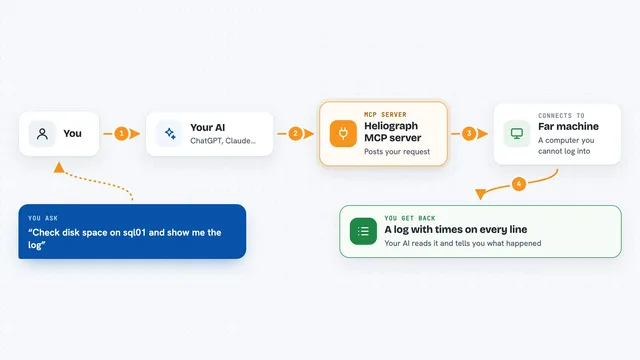
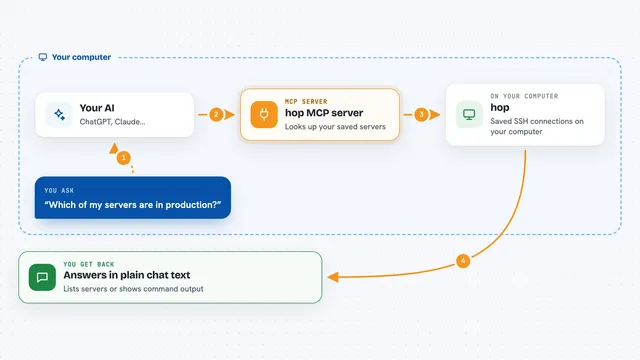
You ask your AI something like "is my office PC online?" or "run this script on the build machine." The AI sends that request to the AI Commander helper. The helper talks to the AI Commander service, which forwards it to the small agent running on the machine you picked. The machine does the work, and the result comes back to your chat as an answer, a list, or a file. Nothing on your machine needs to accept incoming connections, so you do not have to open ports or set up a VPN.
 Click to zoom
What you can do with it
- List your linked machines and see which ones are online
- Run a shell command on a chosen machine
- Start a long-running job in the background and check on it later
- Stop a background job you started
- Copy a file to or from a machine
- Take a desktop screenshot when you have allowed it
Try asking your AI
- “List my AI Commander machines and show which are online.”
- “Run uptime on the build server and tell me the result.”
- “Start a backup script on my home PC in the background and give me the job id.”
- “Copy report.csv from my laptop to the office machine.”
What it gives back to you
You get back plain answers in the chat: a list of machines with their online status, the text output of a command, a job id you can check later, or a confirmation that a file was moved. Screenshots come back as an image. If something fails, you see the error message from the machine.
Before you start
What you need
- An AI Commander account (there is a free plan)
- The AI Commander desktop app or machine agent installed on the computers you want to reach
- Cursor with the AI Commander plugin, or another tool that can add a remote MCP server
- Signing in through the OAuth page when your tool asks
Good to know
Commands, job stops, and file writes can change or delete data on the machine you picked, so check the target and the action before you approve it.
Install it with your AI
Add AI Commander MCP server to your AI, no technical skills needed
You don't install anything by hand. You copy one prompt, paste it into an AI that can work on your computer, and it checks, installs and connects the server for you, asking you when it needs something.
Sign in to get the install prompt
Members get a ready-made prompt that lets the Claude desktop app check AI Commander MCP server, install it and connect it for them, step by step. You don't need any technical skills: you copy, paste and answer a few questions. Your connected AI can also find and install any of the 4,361 MCP servers here for you.
Who it's for
People who manage one or more of their own computers and want to run small tasks or move files from a chat instead of logging in directly.