MCP server · Analytics
Yandex Metrika MCP server
by artgas1
Lets your AI pull Yandex Metrika reports and stats for you, in plain chat.
This is a helper that connects your AI assistant to Yandex Metrika, the web analytics service from Yandex. Once it is set up, you can ask your AI questions about your site traffic and it will go and fetch the numbers for you. It is handy for anyone who looks at Metrika reports but does not want to click through the interface every time.
What is an MCP server? The 30-second version
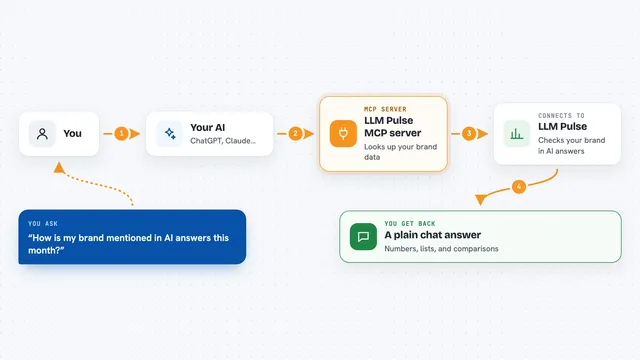
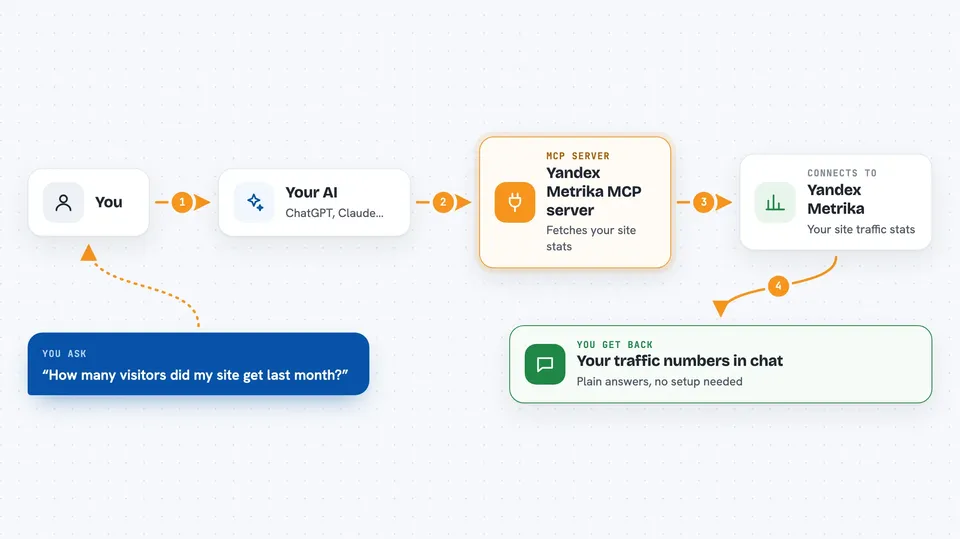
On its own, your AI can only chat with you. It cannot open Yandex Metrika or read your stats. An MCP server is a small helper program that gives your AI a new skill, and here that skill is talking to Yandex Metrika for you. You ask in normal words, the AI passes the request to this helper, and the helper brings the answer back.
What this MCP server does
You ask your AI something about your site traffic, like how many visits you had last week. The AI turns that into a request and sends it to this helper. The helper talks to the Yandex Metrika service using your account token. Metrika sends back the report, and the helper passes it to your AI, which explains it to you in the chat. By default it only reads data, so nothing in your Metrika account gets changed.
 Click to zoom
What you can do with it
- See how many visits, users and pageviews you had in a period
- Compare two time periods side by side
- List your Metrika counters and goals
- Break traffic down by source, page or device
- Check which goals were reached and how often
- Ask what other actions are available but switched off
Try asking your AI
- “How many visitors did my site get last month?”
- “Compare this week with last week for my main counter”
- “Which pages got the most views in the last 7 days?”
- “How many people completed my signup goal this month?”
What it gives back to you
You get answers in the chat: numbers, short tables, and lists of pages, sources or goals. Your AI usually sums it up in a sentence or two and shows the main figures. If a report was cut short because it was too long, the helper says so, so you know the numbers are partial. If something went wrong, you see the error instead of a made-up answer.
Before you start
What you need
- A Yandex Metrika account with at least one counter
- A Yandex OAuth token with access to Metrika (a kind of password for apps; Yandex gives you one)
- Node.js installed on your computer if you run it yourself
- An AI app that supports MCP, like Claude Desktop
Good to know
By default it only reads your data, but if you switch writing on it can create, change and delete counters, goals and other things in your Metrika account, and some of that cannot be undone.
Install it with your AI
Add Yandex Metrika MCP server to your AI, no technical skills needed
You don't install anything by hand. You copy one prompt, paste it into an AI that can work on your computer, and it checks, installs and connects the server for you, asking you when it needs something.
Sign in to get the install prompt
Members get a ready-made prompt that lets the Claude desktop app check Yandex Metrika MCP server, install it and connect it for them, step by step. You don't need any technical skills: you copy, paste and answer a few questions. Your connected AI can also find and install any of the 4,361 MCP servers here for you.
Who it's for
Marketing people, site owners and analysts who already use Yandex Metrika and want to ask about their traffic in plain chat instead of clicking through reports.