MCP server · Design tools
JupyterCAD MCP server
by asmith26
Let your AI build and edit 3D CAD shapes in JupyterCAD just by describing them in plain words.
This is a small helper that connects your AI assistant to JupyterCAD, a program for making 3D models. You describe what you want, like a box or a cylinder, and the AI draws it in your CAD file for you. It is handy if you use JupyterCAD but find clicking through menus slow or fiddly.
What is an MCP server? The 30-second version
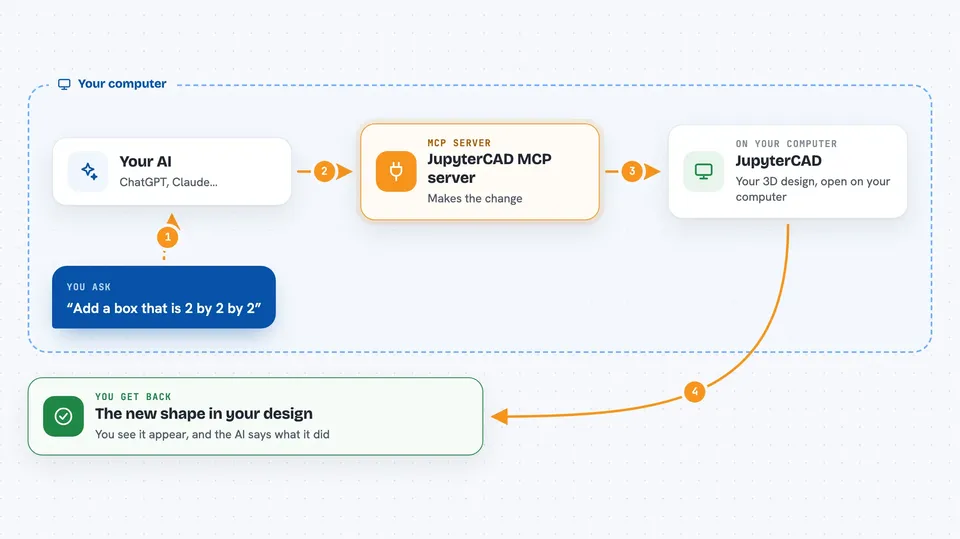
On its own, your AI can only chat. It cannot open your CAD program or change anything inside it. An MCP server is a small helper program that gives your AI a new skill, and here that skill is talking to JupyterCAD. Once it is connected, you can ask your AI to add a shape or change a model, and it will actually do it in your file.
What this MCP server does
You type a request, like add a box that is 1 by 1 by 1. Your AI reads that and picks the right action from this helper. The helper then talks to JupyterCAD and makes the change in your CAD document. You see the new shape appear in JupyterLab, and the AI tells you what it did. It can also read your current design, remove or rename things, and combine shapes.
 Click to zoom
What you can do with it
- Add basic shapes like boxes, cones, cylinders, spheres, and tori
- Read the current contents of your CAD file
- Remove or rename objects in the design
- Combine two shapes with cut, fuse, or intersect
- Round or bevel edges with fillet and chamfer
- Add notes and annotations to the document
- Change the color or visibility of an object
Try asking your AI
- “Add a box with width 2, height 2 and depth 2”
- “Remove the sphere I added earlier”
- “Fuse the box and the cylinder together”
- “Make the cone red and hide the torus”
What it gives back to you
You get short answers in the chat, like a confirmation that a shape was added or removed. The real result shows up in JupyterCAD, where the new or changed shape appears in your design. If you ask it to read the file, it gives you a list of what is currently in the document. It can also tell you the names and details of the objects it sees.
Before you start
What you need
- JupyterLab with the JupyterCAD extension installed
- A CAD file open in JupyterLab, for example my_cad_design.jcad
- uv installed on your computer (a tool that runs Python programs)
Good to know
It can change or delete parts of your CAD file, so keep a backup or use version control before letting it edit a design you care about.
Install it with your AI
Add JupyterCAD MCP server to your AI, no technical skills needed
You don't install anything by hand. You copy one prompt, paste it into an AI that can work on your computer, and it checks, installs and connects the server for you, asking you when it needs something.
Sign in to get the install prompt
Members get a ready-made prompt that lets the Claude desktop app check JupyterCAD MCP server, install it and connect it for them, step by step. You don't need any technical skills: you copy, paste and answer a few questions. Your connected AI can also find and install any of the 4,361 MCP servers here for you.
Who it's for
People who use JupyterCAD for 3D design and want to build or tweak models by describing them instead of clicking through menus.