MCP server · Design tools
Blender MCP server
by ahujasid
Let your AI build and change 3D scenes in Blender for you, just by asking in plain words.
This is a helper that connects your AI assistant to Blender, the free 3D program. Once it is set up, you can describe what you want and the AI will create objects, change colors, and adjust your scene inside Blender. It is handy for anyone who wants to try 3D modeling without learning every button first.
What is an MCP server? The 30-second version
On its own, your AI can only chat with you. An MCP server is a small helper program that gives your AI a new skill or a connection to another app. This one connects your AI to Blender on your computer, so the AI can look at your scene and make changes there when you ask. Think of it as a bridge between the chat window and your 3D project.
What this MCP server does
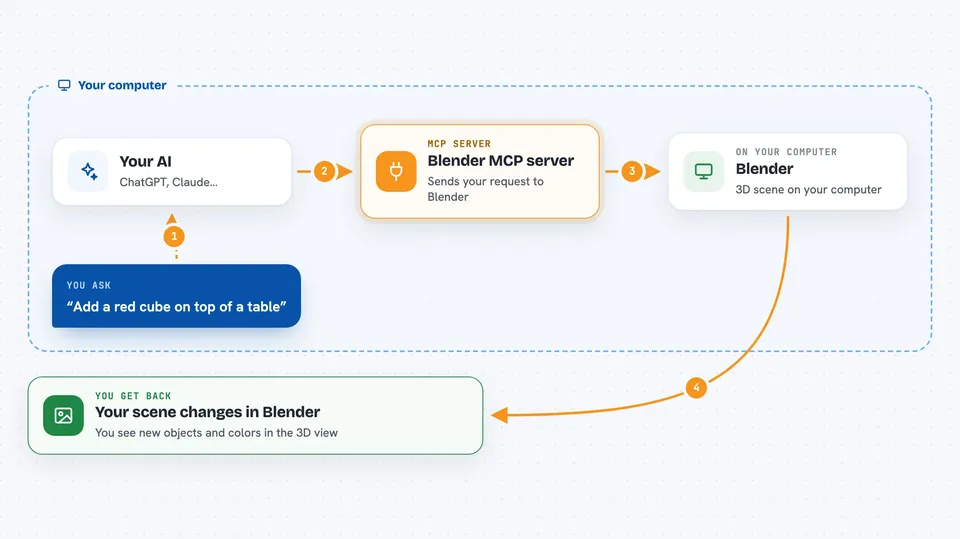
You ask your AI something like "add a red cube on top of a table" in your chat app. The AI sends that request to this helper, which passes it to a small add-on running inside Blender. Blender then creates or changes the objects, and the result shows up in your Blender window. The AI can also read back details about your scene, like what objects exist and what materials they use, so it can keep working with you.
 Click to zoom
What you can do with it
- Create new 3D objects like cubes, spheres, and simple shapes
- Change the color and material of objects in your scene
- Delete or move objects you no longer want
- Describe what is currently in your Blender scene
- Download ready-made 3D models and assets from online libraries
- Generate AI-made 3D models and drop them into your scene
- Run small scripts inside Blender to do more advanced edits
Try asking your AI
- “Add a wooden table with four legs and place a blue mug on it”
- “What objects are in my scene right now and what colors are they”
- “Give the floor a grey concrete look and make the walls white”
- “Find a low-poly tree model online and add it next to the house”
What it gives back to you
You get answers in your chat, like a short description of your scene or a confirmation that something was created or changed. The real results appear in Blender itself, where you can see the new objects and colors. If you ask for a list, the AI will type it out for you. If you ask for a change, you will see it happen in your 3D view.
Before you start
What you need
- Blender 3.0 or newer installed on your computer
- Python 3.10 or newer
- The uv tool installed (the setup guide walks you through it)
- An AI app that supports MCP, like Claude Desktop or Cursor
Good to know
By default the AI can run any Python code inside Blender, so only connect it to a Blender session you trust, and consider turning on safe mode if you want risky scripts blocked.
Install it with your AI
Add Blender MCP server to your AI, no technical skills needed
You don't install anything by hand. You copy one prompt, paste it into an AI that can work on your computer, and it checks, installs and connects the server for you, asking you when it needs something.
Sign in to get the install prompt
Members get a ready-made prompt that lets the Claude desktop app check Blender MCP server, install it and connect it for them, step by step. You don't need any technical skills: you copy, paste and answer a few questions. Your connected AI can also find and install any of the 4,361 MCP servers here for you.
Who it's for
Anyone curious about 3D modeling, hobbyists, students, and designers who want to try ideas quickly without memorizing Blender menus.