MCP server · Social media
Posthive MCP server
Let your AI schedule and manage social media posts across many platforms from one place.
Posthive is a tool for planning and publishing social media posts across many platforms at once. This MCP server connects your AI assistant to your own Posthive setup, so you can ask it to draft, schedule, and manage posts for you. It is handy if you run social accounts for a small business, a team, or yourself and want less copy-pasting between apps.
What is an MCP server? The 30-second version
On its own, your AI can only chat. An MCP server is a small helper program that gives your AI a new skill or a connection to an app. This one connects your AI to Posthive, your own social media scheduling tool. Once it is connected, you can ask your AI to create a post or check what is scheduled, and it will do that inside Posthive for you.
What this MCP server does
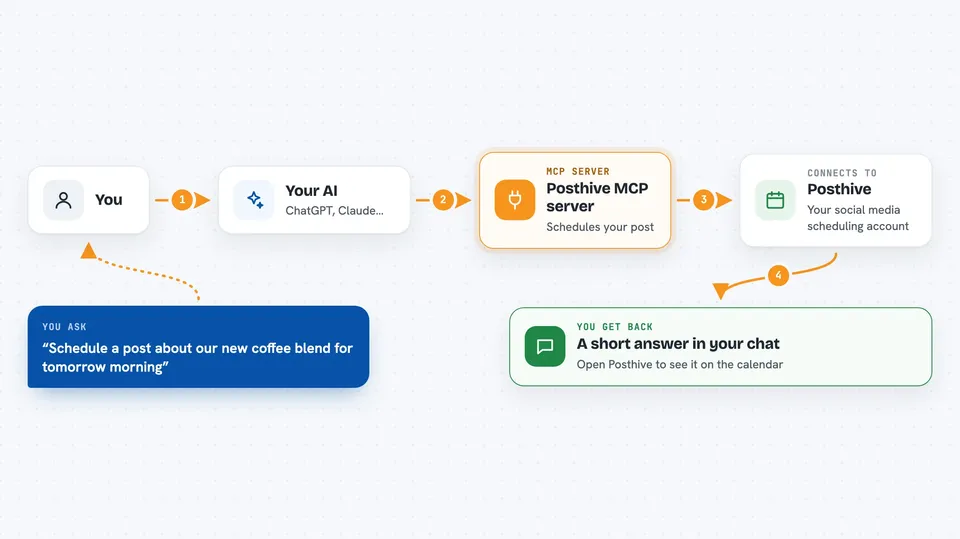
You ask your AI something like schedule a post about our new coffee blend for tomorrow morning. Your AI uses this helper to talk to your Posthive account. Posthive then lines the post up for the platforms you have connected, like Bluesky, Threads, Instagram, LinkedIn, Mastodon, YouTube, X, or Discord. You get back a short answer in the chat, usually saying the post was created or scheduled, and you can open Posthive to see it on the calendar.
 Click to zoom
What you can do with it
- List the social accounts you have connected in Posthive
- Create a new post and schedule it for a date and time
- Look up a single post by its details
- See everything you have scheduled
- Approve a draft so it can go out
- Update or duplicate an existing post
- Delete a post you no longer want
- List your saved templates and create a post from one
Try asking your AI
- “Show me all my connected social accounts in Posthive.”
- “Schedule a post for tomorrow at 9am saying we are open for the holidays.”
- “What posts do I have scheduled for this week?”
- “Duplicate my last post and move it to Friday afternoon.”
What it gives back to you
You get short answers in the chat, like a list of your accounts or the posts you have scheduled. When you create or change a post, the AI tells you what it did, for example that the post was created and when it will go out. You can then open Posthive to see the full details on the calendar.
Before you start
What you need
- A Posthive account, either on posthive.co or your own self-hosted copy
- The web address of your Posthive API, ending in /mcp
- An MCP-compatible AI app, such as Claude, ChatGPT, Cursor, or VS Code
- A browser to sign in the first time you use it
Good to know
It can create, change, and delete posts in your Posthive account, so check what your AI is about to do before you approve it.
Install it with your AI
Add Posthive MCP server to your AI, no technical skills needed
You don't install anything by hand. You copy one prompt, paste it into an AI that can work on your computer, and it checks, installs and connects the server for you, asking you when it needs something.
Sign in to get the install prompt
Members get a ready-made prompt that lets the Claude desktop app check Posthive MCP server, install it and connect it for them, step by step. You don't need any technical skills: you copy, paste and answer a few questions. Your connected AI can also find and install any of the 4,361 MCP servers here for you.
Who it's for
Small business owners, social media managers, and anyone who runs several social accounts and wants their AI to help plan and schedule posts.