MCP server · Developer tools
Terminal MCP server
by aybelatchane
Lets your AI open a terminal, look at what's on screen, and press keys or type for you.
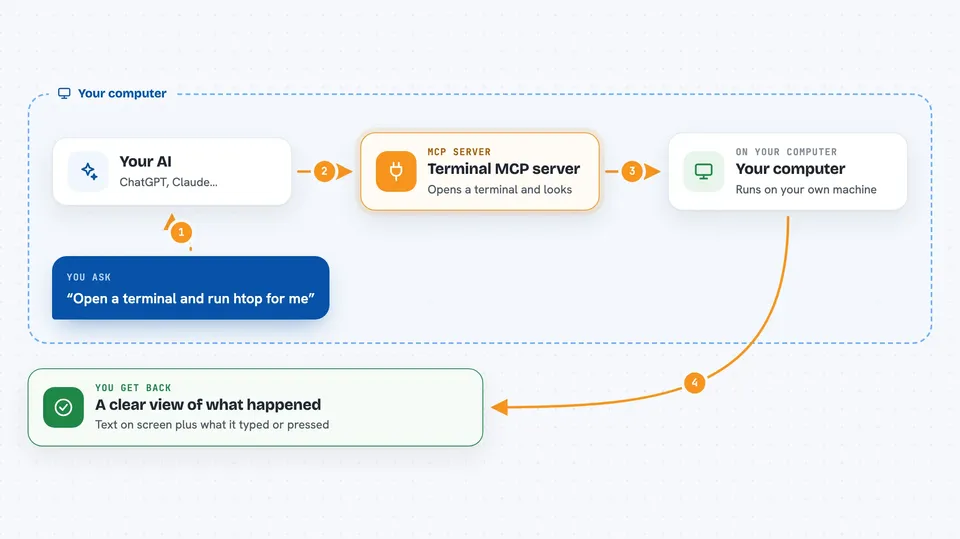
This is a small helper that lets your AI work inside a terminal window, the black screen where you type commands. It can start programs like htop, read what is on the screen, and press keys or type text for you. It is handy for anyone who wants their AI to drive a command-line tool without touching the keyboard themselves.
What is an MCP server? The 30-second version
On its own, your AI can only chat. An MCP server is a small helper program that gives your AI a new skill or a connection to something else. This one connects your AI to a terminal, so it can open a session, see what is on the screen, and send keystrokes. You ask in plain words, and the helper does the terminal work behind the scenes.
What this MCP server does
You ask your AI to start a terminal session, for example running a program like htop. The AI uses this helper to open that session and take a snapshot of what is on the screen. The snapshot lists the text and the clickable elements it can see, a bit like a map of the screen. Then the AI can type text, press keys like arrows or Ctrl+C, or click on something it found. You get back a clear picture of what happened and what the screen looks like now.
 Click to zoom
What you can do with it
- Start a new terminal session running a program you name
- Take a snapshot of the terminal to see text and on-screen elements
- Type text into the terminal and press Enter
- Press special keys like arrows, F-keys, or Ctrl combinations
- Click on a detected element on the screen
- Wait for specific text, an element, or the terminal to go idle
- List, resize, or close your open terminal sessions
Try asking your AI
- “Start a terminal session running htop”
- “Take a snapshot of the terminal so I can see what's on screen”
- “Press the down arrow key three times”
- “Type ls -la and press Enter, then show me the output”
What it gives back to you
You get back a snapshot of the terminal, which is a list of the text on screen plus any elements the helper spotted, like buttons or menu items. When you ask it to type or press keys, it tells you what it did. You can also ask for the raw output of the terminal if you want the plain text. Everything shows up in your chat as a readable summary or list.
Before you start
What you need
- Node.js installed on your computer (the npx command comes with it)
- An AI app that supports MCP, like Claude Desktop, Cursor, or VS Code
- On Linux or WSL, an X11 display if you want to see the terminal window (not needed in headless mode)
Good to know
This lets your AI type and press keys in a real terminal, so it can run commands that change or delete files, so keep an eye on what it does.
Install it with your AI
Add Terminal MCP server to your AI, no technical skills needed
You don't install anything by hand. You copy one prompt, paste it into an AI that can work on your computer, and it checks, installs and connects the server for you, asking you when it needs something.
Sign in to get the install prompt
Members get a ready-made prompt that lets the Claude desktop app check Terminal MCP server, install it and connect it for them, step by step. You don't need any technical skills: you copy, paste and answer a few questions. Your connected AI can also find and install any of the 4,066 MCP servers here for you.
Who it's for
People who use command-line tools and want their AI to drive them, like developers, testers, and anyone automating a terminal-based program.