MCP server · Productivity
dead-letter MCP server
Turn .eml email files into clean Markdown your AI can read and work with.
dead-letter is a small tool that takes email files (the kind that end in .eml) and turns them into tidy Markdown text. It cleans up the messy parts, like signatures and quoted replies, and keeps the useful parts, like who sent it and what files came with it. It is handy if you keep email exports and want your AI to read them without choking on technical junk.
What is an MCP server? The 30-second version
On its own, your AI can only chat with you. An MCP server is a small helper program that gives your AI a new skill or a connection to something useful. This one connects your AI to dead-letter, so it can take an .eml email file and convert it into clean Markdown for you. You just ask in plain words, and the AI uses this helper behind the scenes.
What this MCP server does
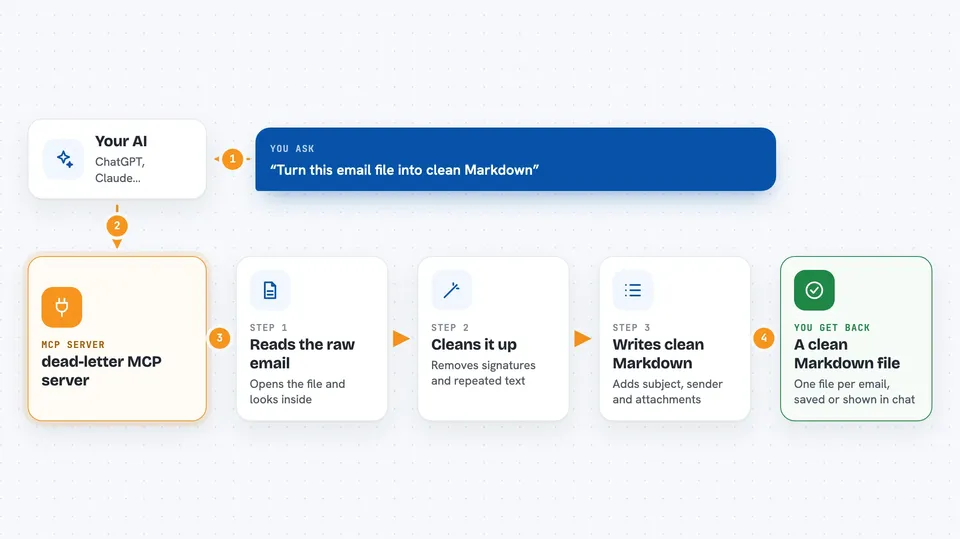
You point your AI at an .eml email file, or a folder full of them. The AI passes that to the dead-letter helper. The helper reads the raw email, strips out signatures and repeated quoted text, splits threads apart, and pulls out attachments and calendar details. Then it hands back a clean Markdown file with a small info block at the top listing things like subject, sender, and attachment names.
 Click to zoom
What you can do with it
- Convert a single .eml email file into Markdown
- Convert a whole folder of .eml files at once
- Split email threads into separate messages
- Strip signatures and repeated quoted text
- Extract attachment names and calendar event details
- Check that your setup is working with a quick health check
Try asking your AI
- “Convert this email file into Markdown for me”
- “Turn everything in my inbox folder into Markdown files”
- “Split this email thread and clean up the signatures”
- “What attachments came with this email?”
What it gives back to you
You get back clean Markdown text for each email, with a small block at the top showing the subject, sender, date, and attachment names. If you convert a folder, you get one Markdown file per message. The chat shows you the converted text or tells you where the files were saved. You can also ask for a report that lists what happened to each file.
Before you start
What you need
- The uv tool installed on your computer (a free helper that runs Python programs)
- An MCP client like Claude Desktop, VS Code, Cursor, or Cline
- Some .eml email files to convert
Good to know
It reads your email files and may move or copy them depending on the settings, so keep a backup of anything important.
Install it with your AI
Add dead-letter MCP server to your AI, no technical skills needed
You don't install anything by hand. You copy one prompt, paste it into an AI that can work on your computer, and it checks, installs and connects the server for you, asking you when it needs something.
Sign in to get the install prompt
Members get a ready-made prompt that lets the Claude desktop app check dead-letter MCP server, install it and connect it for them, step by step. You don't need any technical skills: you copy, paste and answer a few questions. Your connected AI can also find and install any of the 4,361 MCP servers here for you.
Who it's for
Anyone who keeps email exports and wants their AI to read them, like researchers, writers, and people building personal knowledge bases.