MCP server · Email
GigaMail MCP server
by adecubed
Let your AI read, search and draft your email, with you approving every send or delete.
GigaMail is a helper that connects your AI assistant to your own email and calendar. You can ask it to find messages, summarise a thread, or write a reply, and nothing gets sent or deleted until you say yes. It is handy if you live in your inbox and want a hand with the daily pile.
What is an MCP server? The 30-second version
On its own, your AI can only chat with you. An MCP server is a small helper program that gives your AI a new skill, in this case a connection to your mailbox and calendar. Once GigaMail is connected, your AI can look things up in your email and prepare actions there when you ask. It runs on your computer, and your mail stays on your machine.
What this MCP server does
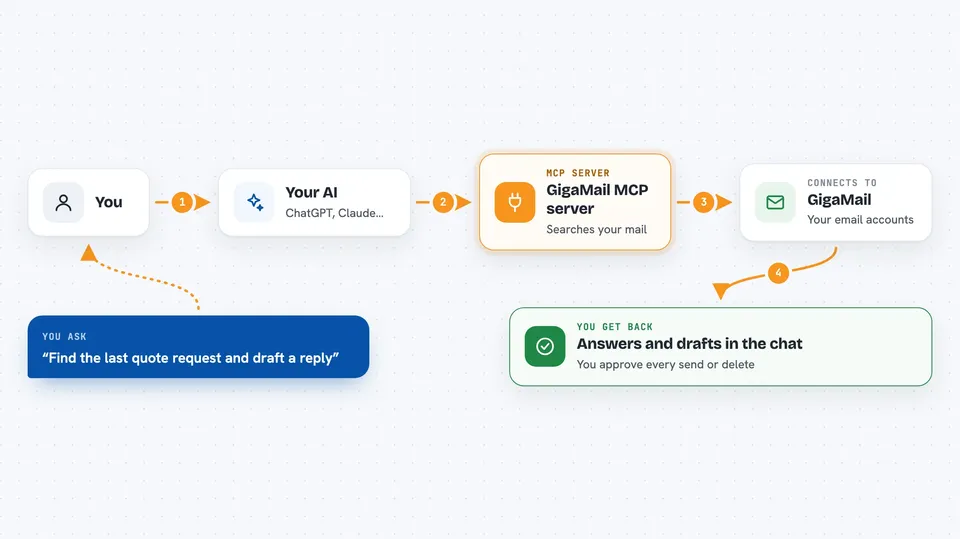
You ask your AI something about your mail, like finding a quote request or checking your calendar. The AI uses GigaMail to search your accounts, both through the mail provider and a local index on your computer. GigaMail hands back the messages, sender history or free time slots it found. If you then want to reply, send or delete something, GigaMail prepares the action and waits. You approve it yourself, and only then does it go through.
 Click to zoom
What you can do with it
- Search across several mail accounts at once
- Read a message and summarise a long thread
- Draft a reply using your own price list or documents
- Check your calendar and find free slots for a meeting
- Look up past conversations with a sender
- Mark messages as read or move them to a folder
- Send, reply or delete only after you approve
Try asking your AI
- “Find the last quote request and draft a reply using my price list”
- “What did this client ask me about last month?”
- “Do I have a free hour on Thursday afternoon?”
- “Summarise the unread messages in my inbox this morning”
What it gives back to you
You get answers in the chat: lists of matching emails, short summaries, sender history, or available time slots. When you ask for a reply, you see the draft text before anything is sent. Dangerous actions come back as a request waiting for your approval, not as a done deal. After you approve, GigaMail tells you what it did.
Before you start
What you need
- Python installed on your computer, then the command pip install gigamail[all]
- A mail account you can connect, either Microsoft 365 or a standard IMAP mailbox
- For Microsoft, a quick sign-in through your browser; for IMAP, your mail password or app password
- An AI client that supports MCP, such as Claude Desktop or Claude Code
Good to know
It can send, reply, delete and change your calendar, so only approve actions you have read carefully; every dangerous step waits for your own confirmation.
Install it with your AI
Add GigaMail MCP server to your AI, no technical skills needed
You don't install anything by hand. You copy one prompt, paste it into an AI that can work on your computer, and it checks, installs and connects the server for you, asking you when it needs something.
Sign in to get the install prompt
Members get a ready-made prompt that lets the Claude desktop app check GigaMail MCP server, install it and connect it for them, step by step. You don't need any technical skills: you copy, paste and answer a few questions. Your connected AI can also find and install any of the 4,361 MCP servers here for you.
Who it's for
Anyone who handles a lot of email by hand, like small business owners, sales people, assistants and freelancers.