MCP server · Apple, iOS and Mac
Mac Messages MCP server
Lets your AI read, search, and send iMessage texts on your Mac when you ask it to.

This is a small helper that connects your AI assistant to the Messages app on your Mac. Once it is set up, you can ask your AI to look through your texts, find a contact, or send a message for you. It is handy if you live in Messages and want to stop scrolling to find things yourself.
What is an MCP server? The 30-second version
On its own, your AI can only chat with you. An MCP server is a small helper program that gives your AI a new skill or a connection to an app. This one connects your AI to the Messages app on your Mac, so it can look things up or send texts when you ask. You stay in charge: it only does something when you tell it to.
What this MCP server does
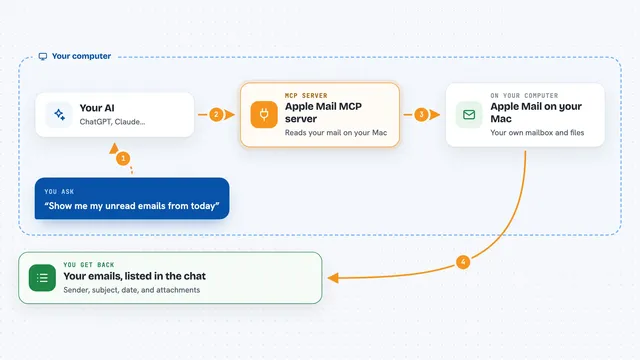
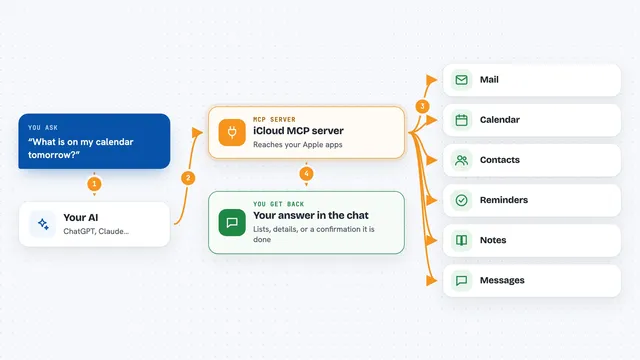
You ask your AI something in plain words, like show me texts from yesterday. Your AI passes that request to this helper program running quietly on your Mac. The helper reads your Messages and Contacts databases in a read-only way, or uses Messages to send when you ask it to send. Then it hands the results back to your AI, which shows them to you in the chat. Nothing leaves your Mac through this server.
 Click to zoom
What you can do with it
- Read your recent texts across all conversations
- Search message text by a word or phrase over a time window
- Find a contact by name and get their phone number
- List your named group chats and their IDs
- Find attachments by date, sender, or file type
- Check whether a phone number can likely receive iMessage
- Send a text or group message through Messages
Try asking your AI
- “Show me my messages from the last two hours.”
- “Find messages from Carter about dinner in the last 30 days.”
- “Find PDFs sent to me this month, but do not open any yet.”
- “Find Jordan in my contacts and draft a message saying I am running 10 minutes late. Do not send it until I confirm.”
What it gives back to you
You get answers in the chat: lists of messages, matching texts, contact names with phone numbers, group chat names, or attachment details. Small images can show up right in the chat, and larger files come back as a file path on your Mac. If you ask it to send, it tells you whether the message went out. Everything is shown as plain text you can read and copy.
Before you start
What you need
- A Mac signed into the Messages app
- Full Disk Access granted to the app that launches the server (Claude Desktop, Cursor, VS Code, or your terminal)
- Permission for that app to control Messages if you want to send
- uv installed (the README shows a one-line Homebrew command)
Good to know
The send tool really sends a message from your account, so only approve a send after checking who it is going to and what it says.
Install it with your AI
Add Mac Messages MCP server to your AI, no technical skills needed
You don't install anything by hand. You copy one prompt, paste it into an AI that can work on your computer, and it checks, installs and connects the server for you, asking you when it needs something.
Sign in to get the install prompt
Members get a ready-made prompt that lets the Claude desktop app check Mac Messages MCP server, install it and connect it for them, step by step. You don't need any technical skills: you copy, paste and answer a few questions. Your connected AI can also find and install any of the 4,361 MCP servers here for you.
Who it's for
Anyone who uses Messages on a Mac all day and wants their AI to help find, summarize, or send texts without leaving the chat.