MCP server · Email
Apple Mail MCP server
by parasxos
Lets your AI search, read, sort and send your Apple Mail for you, right on your Mac.

This is a small helper that connects your AI assistant to the Mail app on your Mac. Once it is set up, you can ask your AI things like what someone sent you last week, or ask it to file a pile of newsletters. It is handy if you live in Apple Mail and want to stop clicking around.
What is an MCP server? The 30-second version
On its own, your AI can only chat. An MCP server is a small helper program that gives your AI a new skill or a connection to an app. This one connects your AI to Apple Mail on your own computer, so it can look things up and do things there when you ask. Nothing goes through a company in the cloud; it all stays on your Mac.
What this MCP server does
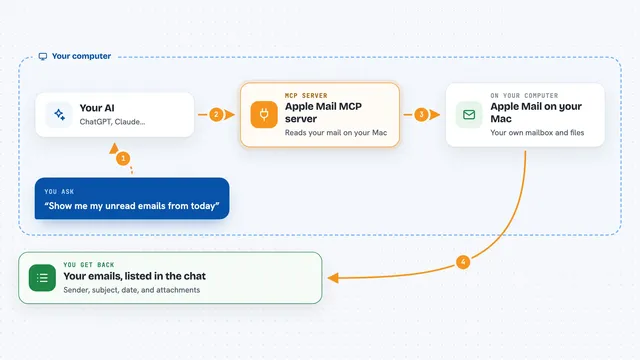
You ask your AI a question or give it a task, like find a message or file these emails. Your AI passes that to this helper program running quietly on your Mac. The helper reads your Mail store directly, which is much faster than the old way of poking Mail one message at a time. For sending, it writes a clean message and hands it to the right account. Then it tells your AI what happened, and your AI tells you.
 Click to zoom
What you can do with it
- Search every message body in your mailbox, not just the first line
- Read a whole conversation as one thread
- Send an email as the right account, work or personal
- Schedule a message to go out later, even if your Mac is asleep
- File dozens of messages through a plan you review first
- Save a draft into your real Drafts folder
- Grab an attachment and save it to a folder
Try asking your AI
- “What did Maria send me about the memo last week?”
- “Show me the whole thread with the budget people from March.”
- “File these 40 newsletters into a Newsletters folder, but show me the plan first.”
- “Send a short reply to Sam saying I will look at it tomorrow morning.”
What it gives back to you
You get answers in plain chat: a list of matching messages with sender, date and a snippet, or a full message, or a whole thread laid out in order. For triage, you get a plan you can read before anything moves, and afterwards a short report of what was filed. For sending, it confirms the message went out and as which account.
Before you start
What you need
- A Mac with the Mail app set up
- Full Disk Access granted to your terminal app (a one-time toggle in System Settings)
- The uvx tool installed, or pipx or Homebrew
- Your AI client, like Claude Desktop, Claude Code, Cursor or VS Code
Good to know
It can send email and move messages on your behalf, so review any plan it shows you before you say yes, and use the read-only setting if you want it to only look.
Install it with your AI
Add Apple Mail MCP server to your AI, no technical skills needed
You don't install anything by hand. You copy one prompt, paste it into an AI that can work on your computer, and it checks, installs and connects the server for you, asking you when it needs something.
Sign in to get the install prompt
Members get a ready-made prompt that lets the Claude desktop app check Apple Mail MCP server, install it and connect it for them, step by step. You don't need any technical skills: you copy, paste and answer a few questions. Your connected AI can also find and install any of the 4,361 MCP servers here for you.
Who it's for
Anyone who uses Apple Mail all day and wants their AI to handle the searching, sorting and sending for them.