
MCP server · Health and learning
DICOM MCP server for medical images
Lets your AI search medical image systems and read report PDFs for you.
This is a small helper that connects your AI assistant to medical imaging systems, the kind hospitals use to store scans and reports. It lets your AI look up patients, studies and images, and read the text inside report PDFs. It is handy for people who work with medical images and want to ask questions in plain words instead of clicking through software.
What is an MCP server? The 30-second version
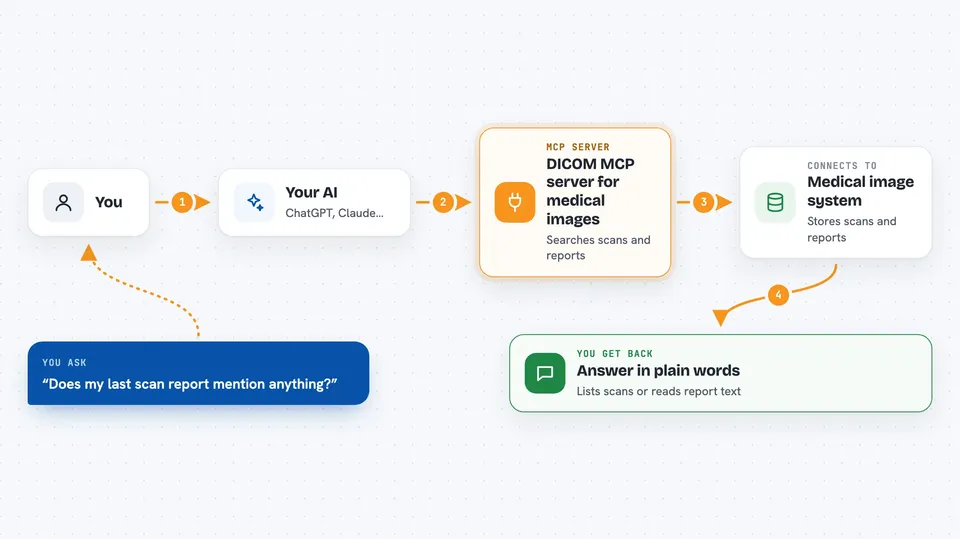
On its own, your AI can only chat. An MCP server is a small helper program that gives your AI a new skill or a connection to another system. This one connects your AI to DICOM servers, which are the systems that hold medical images and reports. Once it is connected, your AI can look things up there and bring answers back to you when you ask.
What this MCP server does
You ask your AI a question in normal words, like whether a past scan report mentions something. The AI uses this helper to search the DICOM server for the right patient, study and series. The helper talks to the server and pulls back the details or the report text. Then the AI reads that and answers you in the chat. It can also send a series or a whole study to another DICOM destination you have set up.
 Click to zoom
What you can do with it
- Search for patients by name, ID or birth date
- Find studies by date, type of scan or description
- List the series and images inside a study
- Read the text inside report PDFs stored in DICOM
- Send a series or study to another DICOM destination
- Check the connection to your DICOM server
- Switch between different DICOM servers you have set up
What it gives back to you
You get answers in the chat, written in normal words. That can be a list of patients, studies or series, or the text pulled out of a report PDF. It can also tell you whether a send or a connection check worked. The AI turns all of that into a short reply you can read.
Before you start
What you need
- Python and the uv tool installed on your computer
- A DICOM server you are allowed to connect to, such as a local Orthanc test server
- A config file listing your DICOM server details
- The Claude desktop app or another AI app that supports MCP servers
Good to know
The README warns that this is not meant for clinical use and should not be connected to live hospital databases or systems with patient-sensitive data, because that could lead to loss or leakage of patient data.
Install it with your AI
Add DICOM MCP server for medical images to your AI, no technical skills needed
You don't install anything by hand. You copy one prompt, paste it into an AI that can work on your computer, and it checks, installs and connects the server for you, asking you when it needs something.
Sign in to get the install prompt
Members get a ready-made prompt that lets the Claude desktop app check DICOM MCP server for medical images, install it and connect it for them, step by step. You don't need any technical skills: you copy, paste and answer a few questions. Your connected AI can also find and install any of the 4,361 MCP servers here for you.
Who it's for
People who work with medical images, like radiologists, imaging researchers and hospital IT staff, who want to ask questions about scans and reports in plain words.


