MCP server · Customer communication
Pipedrive MCP server
by ckalima
Let your AI look up, create, and update your Pipedrive deals, contacts, and activities for you.

This is a small helper that connects your AI assistant to your Pipedrive CRM. Once it is set up, you can ask your AI things like "show me my open deals" or "add a note to this contact" and it will actually go and do it in Pipedrive. It is handy for salespeople and anyone who lives in Pipedrive all day and would rather type a question than click through menus.
What is an MCP server? The 30-second version
On its own, your AI can only chat. It cannot see your Pipedrive account or change anything there. An MCP server is a small helper program that gives your AI a new skill, and this one gives it a connection to Pipedrive. So when you ask a question about your deals or contacts, your AI passes the request to this helper, the helper talks to Pipedrive, and the answer comes back to you in the chat.
What this MCP server does
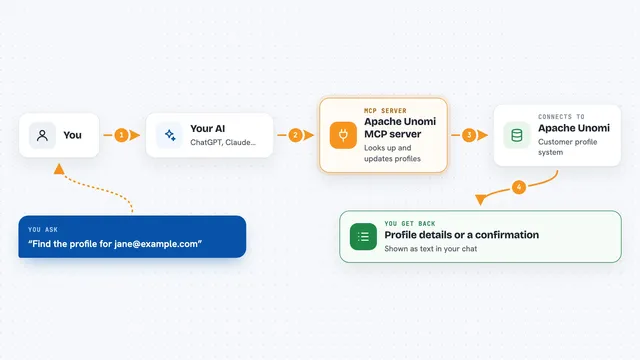
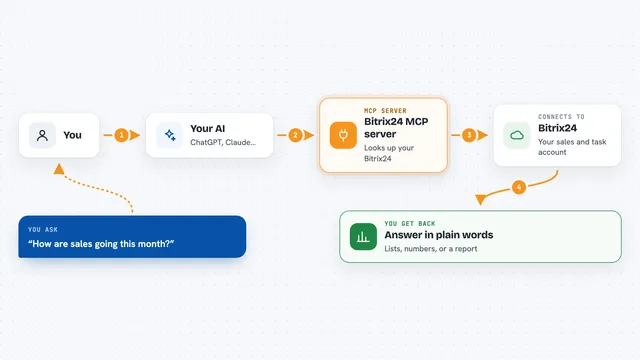
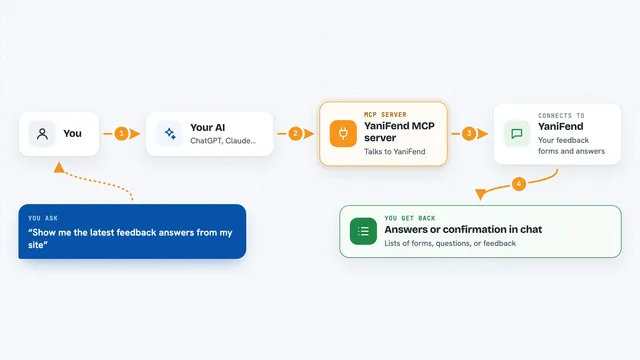
You ask your AI something about your Pipedrive data, in normal words. Your AI looks at the tools this helper offers, picks the right one, and sends the request through. The helper then talks to Pipedrive on your behalf, using your own Pipedrive account. Pipedrive sends back the data, and your AI turns it into a readable answer for you. If you asked it to create or change something, the helper makes that change in Pipedrive and tells you it is done.
 Click to zoom
What you can do with it
- List your open deals, filtered by owner, stage, pipeline, or value
- Create a new deal, contact, or organization
- Update details on an existing deal or person
- Search for deals or contacts by name
- Add notes and activities to your records
- Look up which custom fields exist and what they mean
- Check recent email threads for engagement
Try asking your AI
- “Show me all open deals worth more than 10,000”
- “Create a deal called Acme Contract with a value of 50,000”
- “Find every contact at TechCorp”
- “What custom fields are defined for deals?”
What it gives back to you
You get answers in plain language in the chat, based on real data from your Pipedrive account. Lists come back as readable summaries, like a list of deals with their values and stages. If you asked it to create or update something, it tells you what it changed. It can also show you details of a single record, like one deal with all its fields.
Before you start
What you need
- A Pipedrive account
- Your Pipedrive API key (a 40-character code you copy from Pipedrive settings; it works like a password for apps)
- Node.js installed on your computer (the setup command uses it)
- The Claude desktop app or Claude Code, or another AI client that supports MCP
Good to know
By default it can read and create things but not delete them; deleting, converting, and other permanent changes only work if you turn on full mode, so keep it off until you trust it.
Install it with your AI
Add Pipedrive MCP server to your AI, no technical skills needed
You don't install anything by hand. You copy one prompt, paste it into an AI that can work on your computer, and it checks, installs and connects the server for you, asking you when it needs something.
Sign in to get the install prompt
Members get a ready-made prompt that lets the Claude desktop app check Pipedrive MCP server, install it and connect it for them, step by step. You don't need any technical skills: you copy, paste and answer a few questions. Your connected AI can also find and install any of the 4,361 MCP servers here for you.
Who it's for
Salespeople, account managers, and small sales teams who use Pipedrive daily and want to ask questions or make quick updates without clicking around.