MCP server · Customer communication
Bitrix24 MCP server
Let your AI read and update Bitrix24 deals, leads, contacts and tasks, and build sales reports for you.
This is a small helper that connects your AI assistant to your Bitrix24 account. Once it is set up, you can ask your AI questions about your deals, leads, contacts and tasks, and it can also add or change things for you. It is handy for salespeople, team leads and anyone who spends a lot of time clicking around Bitrix24.
What is an MCP server? The 30-second version
On its own, your AI can only chat. An MCP server is a small helper program that gives your AI a new skill or a connection to an app. This one connects your AI to Bitrix24, so when you ask a question, the AI can actually look things up in your CRM or make changes there. You talk in plain words, and the helper does the clicking behind the scenes.
What this MCP server does
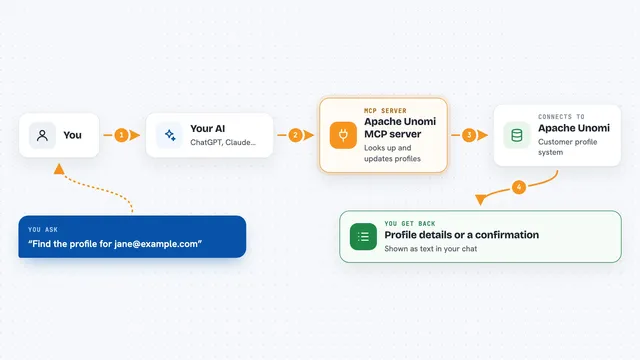
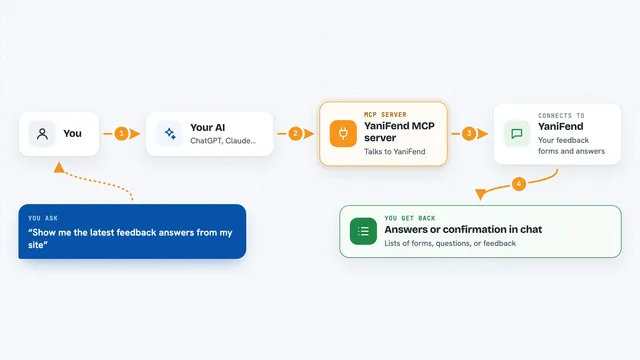
You ask your AI something like how sales are going this month. The AI passes your question to this helper. The helper talks to your Bitrix24 account through a webhook (a private link you create inside Bitrix24). Bitrix24 sends back the deals, contacts, tasks or numbers. The AI then explains the answer to you in the chat, in normal words.
What you can do with it
- Search deals by name, stage, manager, result or date
- Look up a contact by phone, email or name and see their open deals
- See open, overdue or today's tasks grouped by employee
- Get a pipeline report with win rate and a manager leaderboard
- Find stale deals that have had no activity and no open tasks
- Create a deal with a new or existing contact
- Add a timeline comment or create a task for a colleague
Try asking your AI
- “How are sales going in September? Who is closing the most deals?”
- “Which deals have been stuck for more than a week, and for how much?”
- “What is overdue for the managers today?”
- “Find the client with phone +7 900 123-45-67 and help me prepare for the call”
What it gives back to you
You get answers in the chat: lists of deals or tasks, a pipeline report with numbers and a manager ranking, or a summary of a single deal with its contacts and comments. When the AI creates or updates something, it tells you what it changed. The AI is supposed to show you what it plans to write and wait for your OK before doing it.
Before you start
What you need
- A Bitrix24 account with permission to create an inbound webhook
- An inbound webhook URL from Bitrix24 with CRM, Tasks and Users permissions (this acts like a password, so keep it private)
- Node.js 18 or newer installed on your computer
- An AI assistant that supports MCP, like Claude Desktop, Claude Code or Cursor
Good to know
Some tools can change or delete data in your Bitrix24 (create deals, leads, tasks and comments), so always check what the AI plans to write before you approve it.
Install it with your AI
Add Bitrix24 MCP server to your AI, no technical skills needed
You don't install anything by hand. You copy one prompt, paste it into an AI that can work on your computer, and it checks, installs and connects the server for you, asking you when it needs something.
Sign in to get the install prompt
Members get a ready-made prompt that lets the Claude desktop app check Bitrix24 MCP server, install it and connect it for them, step by step. You don't need any technical skills: you copy, paste and answer a few questions. Your connected AI can also find and install any of the 4,210 MCP servers here for you.
Who it's for
Salespeople, sales managers and team leads who use Bitrix24 every day and want quick answers without clicking through the CRM.