MCP server · Customer communication
ICTCRM MCP server
Let your AI read your ICTCRM contact groups and, if you allow it, add or remove contacts.
This is a small helper that connects your AI assistant to ICTCRM, an open-source customer system with built-in calling tools. Once it is set up, you can ask your AI about your contact groups, and if you switch writes on, it can create or delete contacts and put someone into a calling campaign. It is handy if you work with customer lists and calling campaigns and want to skip clicking around the CRM.
What is an MCP server? The 30-second version
On its own, your AI can only chat with you. An MCP server is a small helper program that gives your AI a new skill or a connection to another app. This one connects your AI to your own ICTCRM account, so it can look things up there or make changes for you when you ask. You stay in charge: it only does what you tell it to do.
What this MCP server does
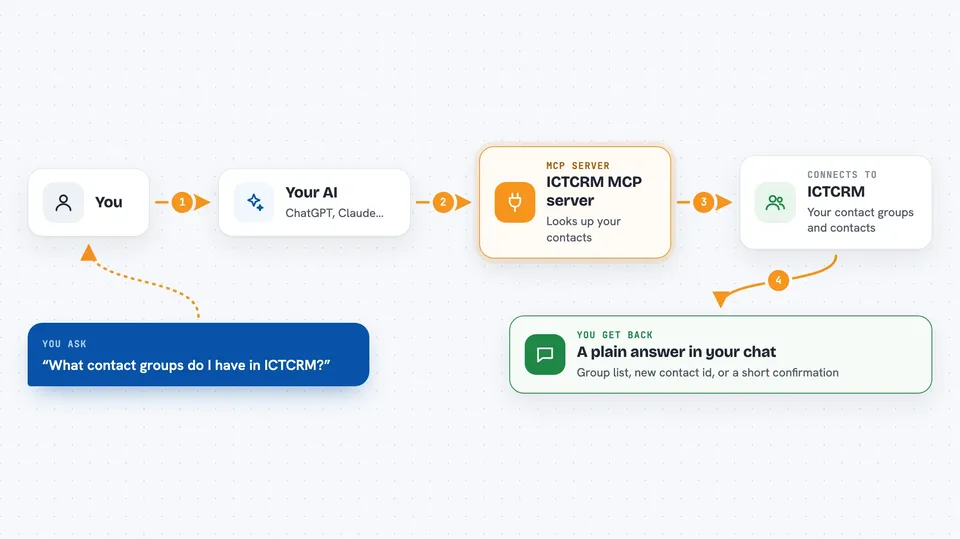
You ask your AI something about your ICTCRM contacts. The AI passes your request to this helper program. The helper logs into your ICTCRM account and asks it for the information or the change you wanted. Then the answer comes back to your AI, and your AI tells you in plain words. For example, you can ask which contact groups exist, or ask it to add a new person to a group.
 Click to zoom
What you can do with it
- List your contact groups with their names and descriptions
- Create a new contact inside a group
- Delete a contact by its id
- Add a contact to a calling campaign
- Check what groups exist before adding someone
- Keep writes turned off until you are ready
Try asking your AI
- “What contact groups do I have in ICTCRM?”
- “Create a contact named Jane Doe with email jane@example.com in the Leads group”
- “Delete contact 4821 from my CRM”
- “Add this new contact to the spring calling campaign”
What it gives back to you
Mostly you get short answers in the chat. When you ask for groups, you get a list with each group's id, name and description. When you create a contact, you get back the new contact id. When you delete one or add someone to a campaign, you get a short confirmation that it worked.
Before you start
What you need
- An ICTCRM account with a username and password
- The web address of your ICTCRM server
- Node.js 18 or newer on your computer
- Claude Desktop or another AI app that supports MCP servers
Good to know
The write tools can create and delete real contacts in your CRM, so keep writes turned off until you need them and double check before deleting anyone.
Install it with your AI
Add ICTCRM MCP server to your AI, no technical skills needed
You don't install anything by hand. You copy one prompt, paste it into an AI that can work on your computer, and it checks, installs and connects the server for you, asking you when it needs something.
Sign in to get the install prompt
Members get a ready-made prompt that lets the Claude desktop app check ICTCRM MCP server, install it and connect it for them, step by step. You don't need any technical skills: you copy, paste and answer a few questions. Your connected AI can also find and install any of the 4,361 MCP servers here for you.
Who it's for
People who manage customer lists and calling campaigns in ICTCRM, like sales and support staff, without wanting to click through the CRM by hand.