MCP server · Customer communication
YaniFend MCP server
by skippedaga
Manage your YaniFend feedback questions and read collected answers right inside your AI chat.
YaniFend is a small feedback widget you can drop onto any website so visitors can leave structured answers. This MCP server lets your AI assistant work with your YaniFend account for you, without you clicking around the backoffice. It is handy if you run a site and want to tweak questions or read feedback from the chat you already have open.
What is an MCP server? The 30-second version
On its own, your AI can only chat with you. An MCP server is a small helper that gives your AI a new skill or a connection to an app. This one connects your AI to YaniFend, so it can look up your feedback forms and change them when you ask. You stay in the chat, and the helper does the clicking in the background.
What this MCP server does
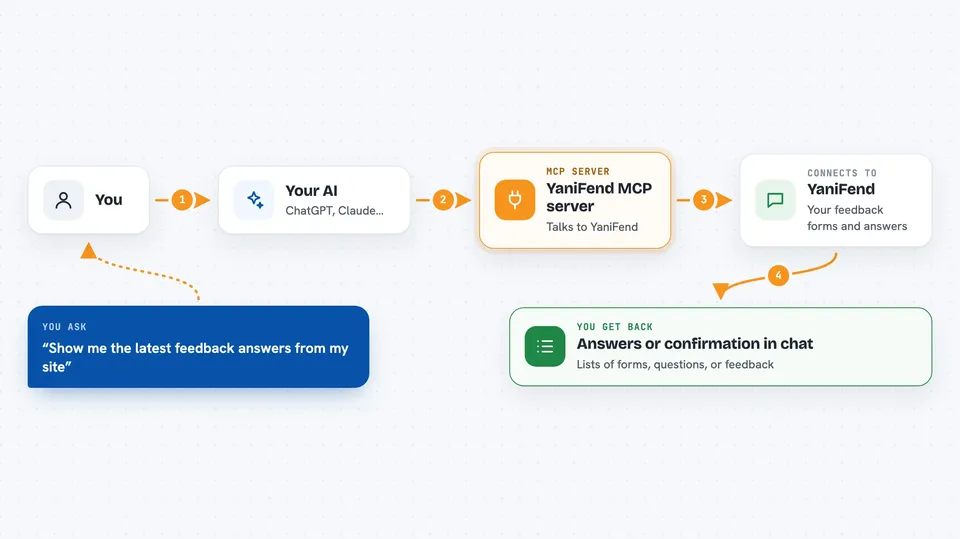
You ask your AI something like "show me the latest feedback" or "add a question to my form". Your AI passes that request to this helper. The helper signs in to your YaniFend account and talks to the YaniFend service. It then brings the result back into the chat, for example a list of answers or a confirmation that a question was added.
 Click to zoom
What you can do with it
- List the feedback forms (called personages) on your site
- Add, edit, reorder, or delete questions in a form
- Add or change answer options like continue, close, or notify a manager
- Read the latest collected answers
- Copy a whole questionary from one form to another
- Get the embed snippet to paste on your site
- Set up notifications to Telegram, Slack, or email
Try asking your AI
- “Show me the latest feedback answers from my site”
- “Add a rating question about our checkout to my main form”
- “Give me the embed snippet for my contact form”
- “Clone my main questionary onto the new personage”
What it gives back to you
You get answers in plain chat text: lists of forms, questions, options, or collected feedback, plus short confirmations when something was added or changed. For example, asking for the latest answers gives you a short list of recent responses with their ratings or choices. Asking for an embed snippet gives you the code to paste on your site.
Before you start
What you need
- A YaniFend account (yanifend.com)
- A supported AI app: Claude, ChatGPT, or Grok
- For the desktop extension: your YaniFend email and password
Good to know
It can add, change, and delete your questions, options, and forms, so double-check before you confirm a delete.
Install it with your AI
Add YaniFend MCP server to your AI, no technical skills needed
You don't install anything by hand. You copy one prompt, paste it into an AI that can work on your computer, and it checks, installs and connects the server for you, asking you when it needs something.
Sign in to get the install prompt
Members get a ready-made prompt that lets the Claude desktop app check YaniFend MCP server, install it and connect it for them, step by step. You don't need any technical skills: you copy, paste and answer a few questions. Your connected AI can also find and install any of the 4,361 MCP servers here for you.
Who it's for
Site owners, marketers, and support or HR teams who collect feedback through YaniFend and want to manage it from their AI chat.