MCP server · Customer communication
Apache Unomi MCP server
by sergehuber
Let your AI look up and update customer profiles and consent settings on an Apache Unomi server.
This is a small helper that connects your AI assistant to Apache Unomi, a system companies use to keep customer profiles. Once it is set up, your AI can look up a person's profile, update details, and check or change consent settings. It is handy for people who work with customer data and want to do simple lookups without clicking through a separate dashboard.
What is an MCP server? The 30-second version
On its own, your AI can only chat with you. An MCP server is a small helper program that gives your AI a new skill or a connection to another app. This one connects your AI to an Apache Unomi server, so it can look up profiles and make changes there when you ask. You stay in the chat, and the helper does the talking to Unomi behind the scenes.
What this MCP server does
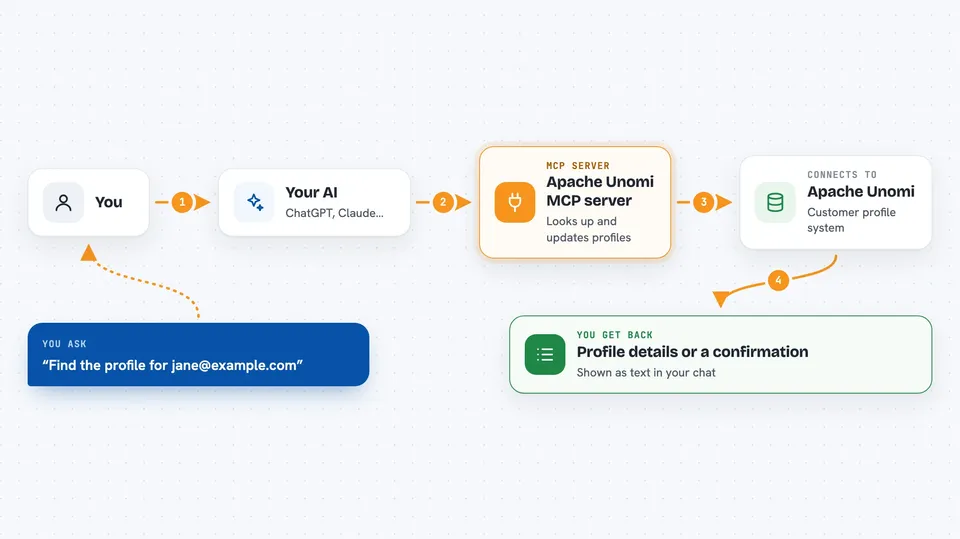
You ask your AI something like "find the profile for jane@example.com" or "update my first name to Jane". Your AI passes that request to this helper. The helper talks to your Apache Unomi server using the details you set up. Unomi sends back the profile, or confirms the change, and your AI shows you the result in the chat.
 Click to zoom
What you can do with it
- Look up a profile by email address
- Create a profile automatically if one does not exist yet
- Update profile details like name, age, or subscription status
- Search profiles by first name, last name, or email
- Check the consent status for a person
- Grant, deny, or revoke a consent
- List all consents for a profile, filtered by status or scope
Try asking your AI
- “Find the profile for jane@example.com and show me her details”
- “Update my profile: set firstName to Jane and isSubscribed to true”
- “Search for profiles with the last name Smith, show the first 10”
- “List all granted consents for my profile”
What it gives back to you
You get back profile details as a list of fields, like name, email, and any custom properties. Consent checks come back as a status like GRANTED, DENIED, or REVOKED, with a timestamp. Updates come back as a short confirmation that the change was saved. All of this shows up as text in your chat window.
Before you start
What you need
- A running Apache Unomi server you can reach
- The Claude desktop app
- The address of your Unomi server and its login details
- Your Unomi profile ID or email, so the helper knows which profile is yours
Good to know
This helper can change and delete profile details and consent records on your Unomi server, so double check before letting it make changes.
Install it with your AI
Add Apache Unomi MCP server to your AI, no technical skills needed
You don't install anything by hand. You copy one prompt, paste it into an AI that can work on your computer, and it checks, installs and connects the server for you, asking you when it needs something.
Sign in to get the install prompt
Members get a ready-made prompt that lets the Claude desktop app check Apache Unomi MCP server, install it and connect it for them, step by step. You don't need any technical skills: you copy, paste and answer a few questions. Your connected AI can also find and install any of the 4,361 MCP servers here for you.
Who it's for
People who work with customer data on Apache Unomi, like marketing or CRM staff who want quick profile and consent lookups without leaving the chat.