MCP server · Chat
OrcaRouter MCP server
Let your AI browse AI models and their prices, and send chat requests through OrcaRouter.
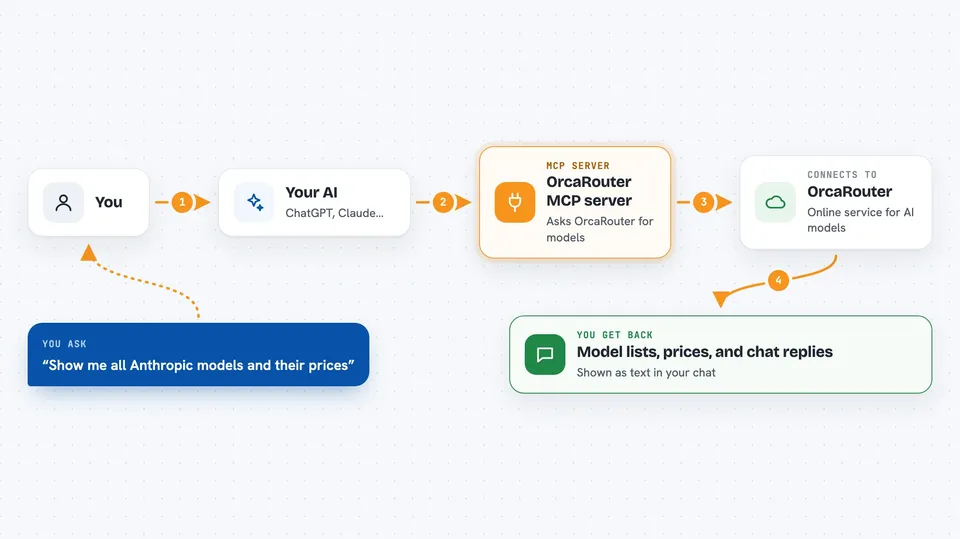
This is a small helper that connects your AI assistant to OrcaRouter, a service that gathers many AI models in one place. Once it is set up, you can ask your assistant to show you which models exist, what they cost, and to send a chat request through OrcaRouter. It is handy if you want to compare AI models or try different ones without leaving your chat window.
What is an MCP server? The 30-second version
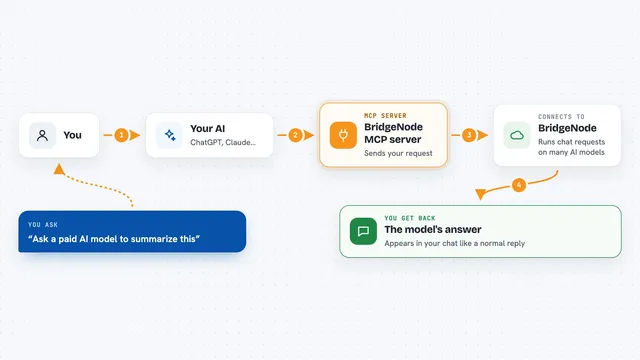
On its own, your AI can only chat with you. An MCP server is a small helper program that gives your AI a new skill or a connection to another service. This one connects your AI to OrcaRouter, a gateway that lists many AI models from different companies. So when you ask about models or prices, your AI can look them up there and answer you.
What this MCP server does
You ask your AI something like which Anthropic models exist or what a certain model costs. Your AI passes that question to this helper. The helper talks to OrcaRouter over the internet and gets the list or the details back. Then your AI shows you the answer in plain words in your chat. You can also ask it to send a chat message through a model, and it will bring the reply back to you.
 Click to zoom
What you can do with it
- List all providers available on OrcaRouter
- Show models from a certain provider with their prices
- Look up details for one model, like context size and latency
- Filter models by capability or minimum context window
- Send a chat request through a chosen model
- Use the auto router to pick a model for you
- Set up fallback models in case the first one fails
Try asking your AI
- “List all providers on OrcaRouter”
- “Show me all Anthropic models with their pricing”
- “Get details about minimax/minimax-m2.7”
- “Chat with orcarouter/auto and explain quantum computing”
What it gives back to you
You get back lists, prices, and short descriptions of models, shown as text in your chat. If you ask for one model, you get its details like context size, latency, and supported endpoints. When you send a chat request, you get the model's reply as a normal message. Nothing is changed on your computer; it is all read and reply.
Before you start
What you need
- Node.js 18 or newer installed on your computer
- An OrcaRouter account and API key (a kind of password for apps; you get it from the OrcaRouter console) if you want to send chat requests
- An MCP client like Claude Desktop, Claude Code, Cursor, Windsurf, or Zed
Good to know
Sending chat requests uses your OrcaRouter account and may cost money, so keep an eye on your usage.
Install it with your AI
Add OrcaRouter MCP server to your AI, no technical skills needed
You don't install anything by hand. You copy one prompt, paste it into an AI that can work on your computer, and it checks, installs and connects the server for you, asking you when it needs something.
Sign in to get the install prompt
Members get a ready-made prompt that lets the Claude desktop app check OrcaRouter MCP server, install it and connect it for them, step by step. You don't need any technical skills: you copy, paste and answer a few questions. Your connected AI can also find and install any of the 4,609 MCP servers here for you.
Who it's for
Anyone who wants to compare AI models and prices or try different models from inside their chat assistant, especially people who work with several AI tools at once.