
MCP server · Browser automation
Peek MCP server (rrweb-stack)
by Cubenest
Let your AI coding agent read your recorded browser sessions and, with your OK, drive the live page.
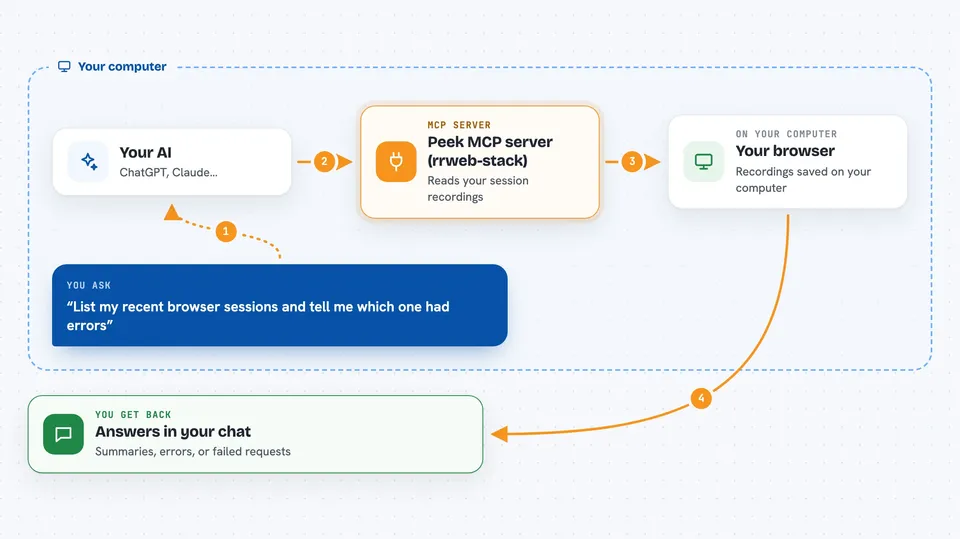
Peek is a small helper that records what happens in your real browser and lets your AI coding agent look at those recordings. It comes from the rrweb-stack project and runs entirely on your own machine. It is handy if you are debugging a web page and want your AI assistant to see what you saw, without sending anything to a cloud service.
What is an MCP server? The 30-second version
On its own, your AI can only chat with you. An MCP server is a small helper program that gives your AI a new skill or a connection to an app or service. This one connects your AI to your recorded browser sessions, so the AI can look things up there for you when you ask. It runs locally, which means the recordings stay on your computer.
What this MCP server does
You record a browsing session with the Peek Chrome extension. The recording is saved to a small local database on your machine. When you ask your AI a question, the AI uses this helper to read that recording and answer you. If you give explicit permission for a specific site, the AI can also act on the live page, like clicking or typing, but only after you say yes.
 Click to zoom
What you can do with it
- List your recorded browser sessions
- Show what happened in a session as readable text
- Search a session for console errors or network calls
- Explain why a page looked broken in a recording
- Export a session so you can share it with a teammate
- Let the AI read the live page for a site you approved
- Let the AI act on the live page for a site you approved
Try asking your AI
- “List my recent browser sessions and tell me which one had errors”
- “Show me the console messages from the last session on my checkout page”
- “What network requests failed in the session I recorded this morning”
- “Summarize what happened in my last recorded session”
What it gives back to you
You get answers in the chat, like a summary of a session, a list of console errors, or the failed network calls. It can also show a session as formatted text you can copy. If the AI acted on a live page, it tells you what it did.
Before you start
What you need
- Node.js version 22 or newer
- The Peek Chrome extension installed in your browser
- The Peek command-line tool installed on your computer
- An AI coding agent that supports MCP, like Claude Code, Cursor, Cline, or Windsurf
Good to know
The AI can only act on a live page after you give explicit permission for that site, and destructive actions always ask first, but you should still review what it does.
Install it with your AI
Add Peek MCP server (rrweb-stack) to your AI, no technical skills needed
You don't install anything by hand. You copy one prompt, paste it into an AI that can work on your computer, and it checks, installs and connects the server for you, asking you when it needs something.
Sign in to get the install prompt
Members get a ready-made prompt that lets the Claude desktop app check Peek MCP server (rrweb-stack), install it and connect it for them, step by step. You don't need any technical skills: you copy, paste and answer a few questions. Your connected AI can also find and install any of the 4,609 MCP servers here for you.
Who it's for
Web developers and testers who debug pages in a real browser and want their AI coding agent to see the same recordings.


