MCP server · Email
Mailchimp MCP server
by damientilman
Lets your AI look up and manage your Mailchimp campaigns, audiences and reports for you.
This is a helper that connects your AI assistant to your Mailchimp account. Once it is set up, you can ask your AI things like how a campaign performed or who unsubscribed, and it will go and check Mailchimp for you. It is handy for anyone who runs email marketing but does not want to click around Mailchimp all day.
What is an MCP server? The 30-second version
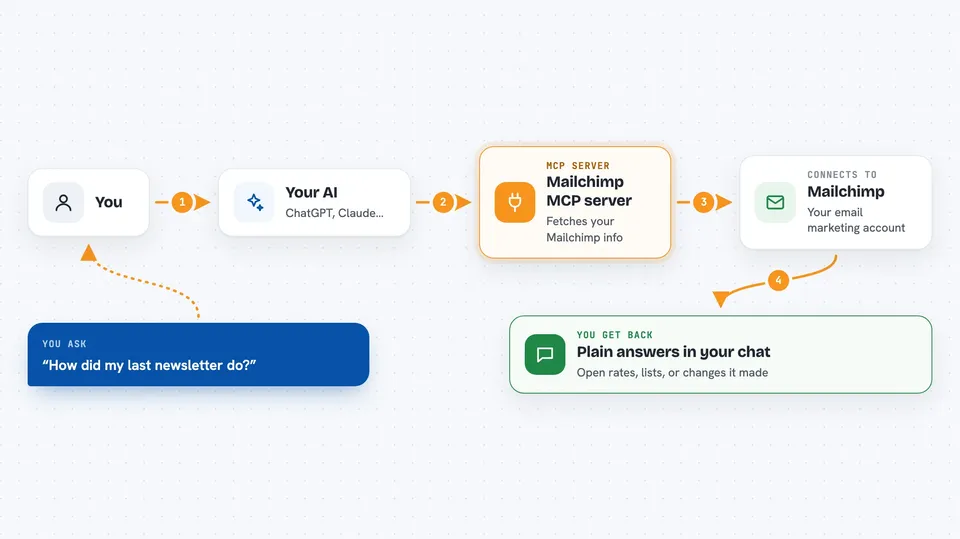
On its own, your AI can only chat with you. An MCP server is a small helper program that gives your AI a new skill or a connection to an app, and here that app is Mailchimp. When you ask a question, your AI passes it to this helper, the helper talks to your Mailchimp account, and the answer comes back into your chat. So instead of being a stranger to your mailing list, your AI can actually look things up and make changes there.
What this MCP server does
You ask your AI something about your Mailchimp account, like how many people opened last week's email. Your AI sends that request to this helper program, which is running quietly in the background. The helper talks to Mailchimp using your account key, fetches the numbers or the list you asked for, and hands them back. Your AI then explains the result to you in normal words in the chat. If you ask it to do something like add a contact or schedule a campaign, the helper carries that out too.
 Click to zoom
What you can do with it
- See how a campaign performed, including opens, clicks and bounces
- Find out who unsubscribed after a particular email
- Look up your audiences, members, tags and segments
- Add, update or unsubscribe a contact in your list
- Create a campaign draft and set its content
- Schedule, unschedule or send a campaign
- Check your e-commerce orders, products and customers
Try asking your AI
- “How did my last newsletter do? Show me the open and click rates.”
- “List everyone who unsubscribed after the March campaign.”
- “Add jane@example.com to my main audience with the tag 'webinar'.”
- “Which email domains opened my campaign the most?”
What it gives back to you
You get back plain answers in your chat, like a short summary of open and click rates, or a list of names and email addresses. For bigger things it can return tables of recipients, links that were clicked, or which countries opened your email. When it makes a change, like adding a contact or scheduling a campaign, it tells you what it did. You do not get raw files or code, just readable results.
Before you start
What you need
- A Mailchimp account
- A Mailchimp API key (a kind of password for apps; Mailchimp gives you one in your account settings)
- An MCP client like Claude Desktop, Cursor or Cline
- Python 3.10 or newer if you run it yourself
Good to know
This helper can send emails, add or remove contacts and delete things in your Mailchimp account, so start with read-only mode on and only turn it off when you trust what you are asking.
Install it with your AI
Add Mailchimp MCP server to your AI, no technical skills needed
You don't install anything by hand. You copy one prompt, paste it into an AI that can work on your computer, and it checks, installs and connects the server for you, asking you when it needs something.
Sign in to get the install prompt
Members get a ready-made prompt that lets the Claude desktop app check Mailchimp MCP server, install it and connect it for them, step by step. You don't need any technical skills: you copy, paste and answer a few questions. Your connected AI can also find and install any of the 4,361 MCP servers here for you.
Who it's for
Marketing people, small business owners and assistants who handle email campaigns and want to ask questions or make quick changes without opening Mailchimp.