
MCP server · Browser automation
Chromium Bridge MCP server
by dashi96
Let your AI drive your Chromium browser: open tabs, click, read pages, and record GIFs.
Chromium Bridge connects your AI assistant to a Chromium-based browser like Arc, Vivaldi, or Brave. It is handy if you want your AI to actually open pages, click buttons, fill forms, and read what is on screen instead of just talking about it. You install a small browser extension plus a helper program, and then you can ask your AI to do browser tasks for you.
What is an MCP server? The 30-second version
On its own, your AI can only chat. An MCP server is a small helper program that gives your AI a new skill or a connection to an app. This one connects your AI to your Chromium browser, so it can look at tabs, read pages, and click things when you ask. You do not need to understand how it works inside; you just install it once and then talk to your AI like usual.
What this MCP server does
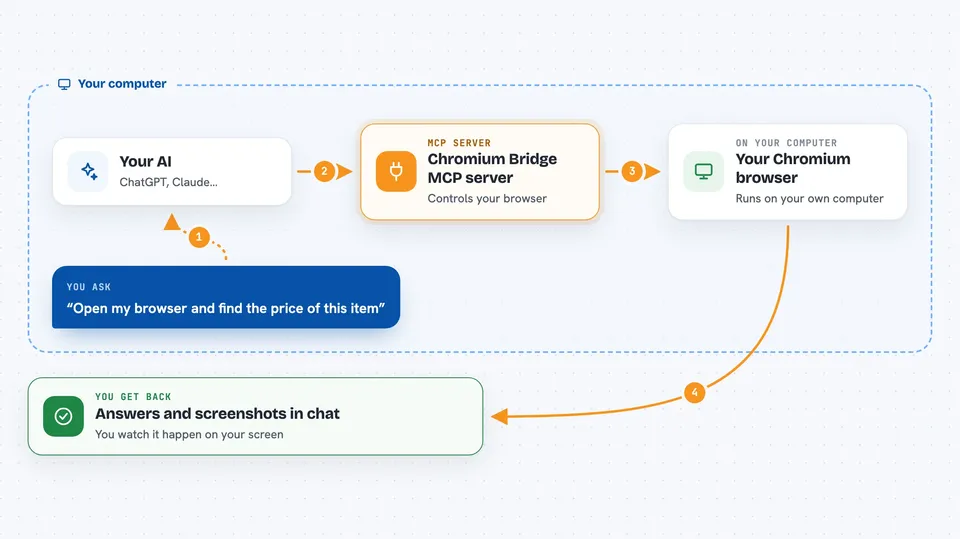
You ask your AI something like "open this site and find the price". Your AI uses this helper, which talks to a small extension running inside your browser. The extension then opens tabs, reads the page text, clicks, types, or takes screenshots, and sends the results back. You see the answer or the action right in your chat, and you can watch the browser do it on your screen.
 Click to zoom
What you can do with it
- Open a new tab and go to a web address
- Read the visible text of a page and summarize it
- Click buttons and links by description or position
- Fill in forms, check boxes, and pick options
- Take screenshots of a page or a zoomed region
- Run small scripts on the page and see the result
- Record a GIF of what happens in a tab
Try asking your AI
- “Open my browser and go to news.ycombinator.com, then tell me the top 5 story titles”
- “Find the search box on this page, type 'wireless headphones', and press Enter”
- “Take a screenshot of the current tab and describe what is on it”
- “Fill in the contact form with my name and email and submit it”
- “Record a GIF of me scrolling through this page”
What it gives back to you
You get answers in plain chat: page titles, lists of tabs, summaries of page text, or the result of a click or a form fill. Screenshots show up right in the chat feed, and you can click them to see them bigger. If you record a GIF, it is saved as a file you can open. For actions like clicking or typing, your AI tells you what it did.
Before you start
What you need
- A Chromium-based browser like Arc, Vivaldi, or Brave
- The Claude Code app or another MCP-compatible AI tool
- Node.js installed on your computer (the helper program runs on it)
- The browser extension loaded from this project (the setup steps are in the README)
Good to know
This tool can click, type, and change things in your browser, so only use it on pages you trust and watch what it does.
Install it with your AI
Add Chromium Bridge MCP server to your AI, no technical skills needed
You don't install anything by hand. You copy one prompt, paste it into an AI that can work on your computer, and it checks, installs and connects the server for you, asking you when it needs something.
Sign in to get the install prompt
Members get a ready-made prompt that lets the Claude desktop app check Chromium Bridge MCP server, install it and connect it for them, step by step. You don't need any technical skills: you copy, paste and answer a few questions. Your connected AI can also find and install any of the 4,361 MCP servers here for you.
Who it's for
Anyone who wants their AI to actually use the browser for them, like researchers, testers, or office workers who do a lot of copy-paste from websites.


