MCP server · Social media
LinkedIn MCP server
by devag7
Lets your AI read LinkedIn profiles, jobs, feed and messages, and with your OK, send connects and posts.
This is a small helper that connects your AI assistant to your own LinkedIn account. Once it is set up, you can ask your AI things like "summarize my profile" or "find recruiters at Google" and it will look them up for you. It is handy for job seekers, recruiters, sales people, and anyone who spends a lot of time on LinkedIn.
What is an MCP server? The 30-second version
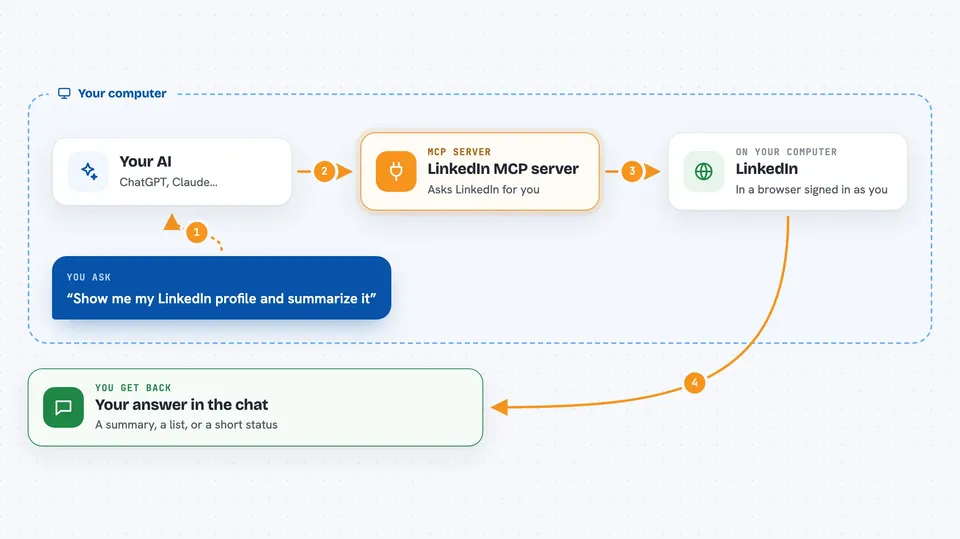
On its own, your AI can only chat with you. An MCP server is a small helper program that gives your AI a new skill or a connection to an app or service. This one connects your AI to LinkedIn, using a real browser window that stays logged in as you. So when you ask a question about LinkedIn, your AI can actually go look it up there and bring the answer back to your chat.
What this MCP server does
You ask your AI something about LinkedIn, like "show me my profile" or "find product manager jobs in Berlin". Your AI passes that request to this helper. The helper opens a real Chrome browser that is already signed in as you, and quietly asks LinkedIn the same way the LinkedIn website does. LinkedIn sends back clean, structured data, and the helper hands it to your AI. Your AI then shows you the answer in your chat, as a list, a summary, or a set of details.
 Click to zoom
What you can do with it
- Read your own LinkedIn profile and summarize your experience
- Look up another person's profile by name
- Search for people, jobs, or companies
- Read a company page, its posts, and its employees
- Check your feed and your notifications
- Read your inbox and open a specific conversation
- See your pending invitations, both sent and received
- With your confirmation, send a connection request, a message, a post, a like, or a comment
Try asking your AI
- “Get my LinkedIn profile and summarize my experience”
- “Find 5 recruiters at Google”
- “Show me my latest notifications”
- “Search for remote data analyst jobs posted this week”
What it gives back to you
You get back normal chat answers: a summary of a profile, a list of people or jobs with their key details, the text of your recent messages, or a short status like "sent" or "already connected" after a write. Everything appears in your AI chat as text you can read and copy. For writes, you also get a clear status, so you know if it worked or if it was skipped.
Before you start
What you need
- Node.js installed on your computer
- Google Chrome installed (or run one command to install it)
- A LinkedIn account, ideally a secondary or throwaway one
- A one-time login step where you sign in to LinkedIn in a real browser window
Good to know
Automating LinkedIn is against its rules and can get your account limited or banned, so use a secondary account, keep the confirmation step on for any writing action, and read the project's safety notes before you start.
Install it with your AI
Add LinkedIn MCP server to your AI, no technical skills needed
You don't install anything by hand. You copy one prompt, paste it into an AI that can work on your computer, and it checks, installs and connects the server for you, asking you when it needs something.
Sign in to get the install prompt
Members get a ready-made prompt that lets the Claude desktop app check LinkedIn MCP server, install it and connect it for them, step by step. You don't need any technical skills: you copy, paste and answer a few questions. Your connected AI can also find and install any of the 4,361 MCP servers here for you.
Who it's for
Job seekers, recruiters, sales and marketing people, and anyone who uses LinkedIn a lot and wants their AI to look things up there for them.