
MCP server · Browser automation
Playwright MCP server
Let your AI open web pages in a real browser, click around, take screenshots, and pull information back to you.
This is a helper that gives your AI assistant its own web browser. Instead of just talking about websites, your AI can actually open them, look at them, and grab what you need. It is handy if you check pages, collect info, or test how a site looks on different phones and tablets.
What is an MCP server? The 30-second version
On its own, your AI can only chat with you. An MCP server is a small helper program that gives your AI a new skill or a connection to an app or service. This one connects your AI to a real web browser through a tool called Playwright, so the AI can open pages, click, type, and take screenshots for you. You just ask in normal words, and the helper does the browser work behind the scenes.
What this MCP server does
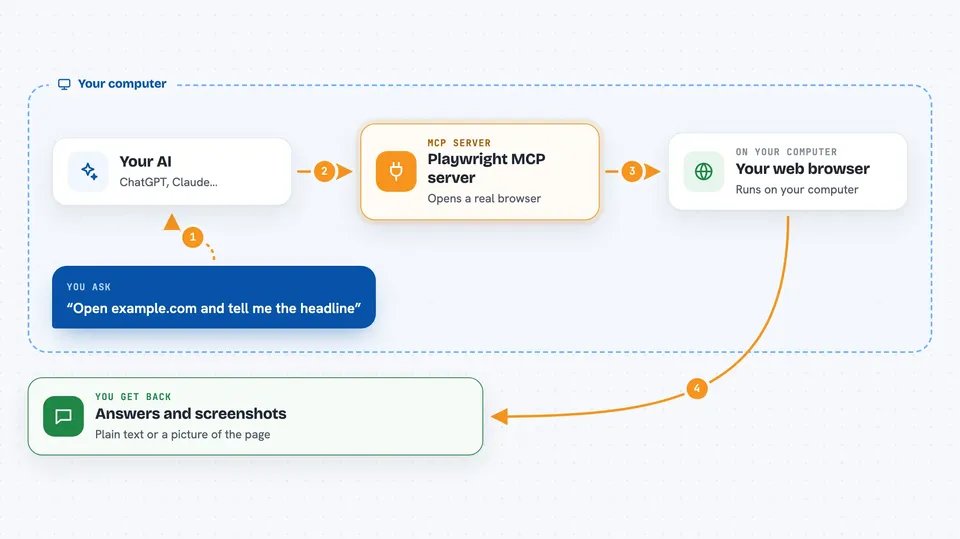
You ask your AI something like 'open this page and tell me what the price is'. Your AI passes that request to this helper. The helper starts a real browser, goes to the page, and does what you asked, like clicking a button or reading text. Then it sends the result back, and your AI shows it to you in the chat. It can also take a picture of the page so you can see what it looks like.
 Click to zoom
What you can do with it
- Open a web page and read the text on it
- Take a screenshot of a page or part of a page
- Click buttons and fill in forms on a site
- Check how a page looks on an iPhone, iPad, or desktop screen
- Run small bits of code inside the page to pull out information
- Generate starter code for browser tests
- Collect information from several pages for you
Try asking your AI
- “Open example.com and tell me what the main headline says”
- “Take a screenshot of our homepage on an iPhone 13”
- “Go to this product page and tell me the price and if it is in stock”
- “Fill in the search box on this site with 'office chair' and show me the first five results”
What it gives back to you
You get answers in plain text, like a summary of what is on a page or a list of items you asked for. You can also get screenshots as images right in the chat, so you can see the page yourself. If the AI changed something on a page, like filling a form, it will tell you what it did. Sometimes it also gives you small pieces of code it used or generated.
Before you start
What you need
- The Claude desktop app or another AI app that supports MCP servers
- Node.js installed on your computer (the setup will use it to run the helper)
- An internet connection so the browser can reach websites
Good to know
This helper can click and type on real websites, so be careful when you ask it to do things on sites where you are logged in or where actions cost money.
Install it with your AI
Add Playwright MCP server to your AI, no technical skills needed
You don't install anything by hand. You copy one prompt, paste it into an AI that can work on your computer, and it checks, installs and connects the server for you, asking you when it needs something.
Sign in to get the install prompt
Members get a ready-made prompt that lets the Claude desktop app check Playwright MCP server, install it and connect it for them, step by step. You don't need any technical skills: you copy, paste and answer a few questions. Your connected AI can also find and install any of the 4,361 MCP servers here for you.
Who it's for
People who check websites, gather information from pages, or want to see how a site looks on different devices, without doing it all by hand.


