MCP server · Browser automation
Flyto2 Core MCP server
by flytohub
Let your AI run browser, file and data jobs step by step, with a record of what happened and the ability to retry from the step that failed.
Flyto2 Core is a helper program that runs jobs for your AI in clear, numbered steps. It can open web pages, take screenshots, read and write files, call other services, and check the results. It is handy if you ask your AI to do multi-step work and want to see exactly what it did, instead of just trusting a summary.
What is an MCP server? The 30-second version
On its own, your AI can only chat with you. An MCP server is a small helper program that gives your AI a new skill or a connection to an app or service. This one connects your AI to Flyto2 Core, a job runner that can drive a browser, touch files, and call other tools. When you ask for something, your AI hands the work to this helper, and the helper carries it out step by step.
What this MCP server does
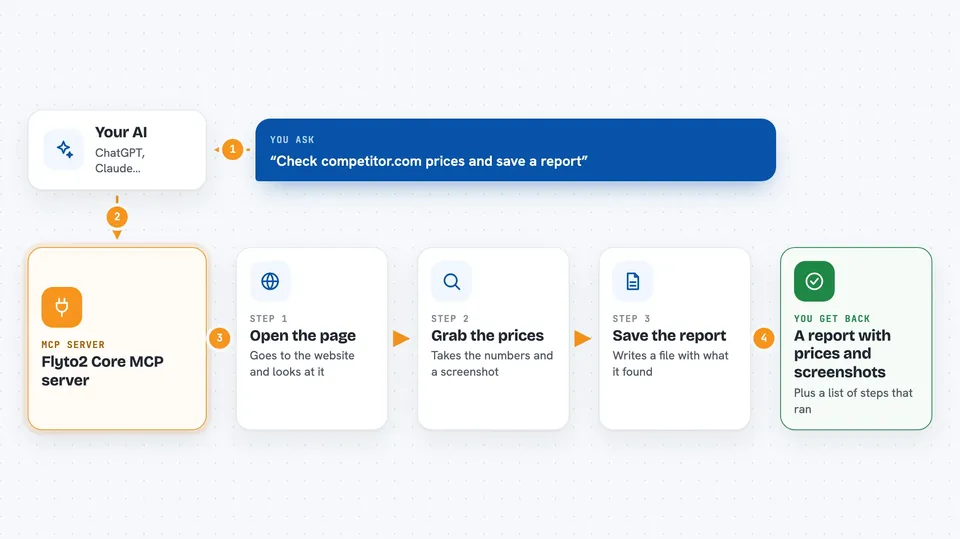
You ask your AI to do something, like check a competitor's pricing page and save a report. Your AI sends that job to Flyto2 Core through this MCP server. Flyto2 Core runs it as a list of steps: open the browser, go to the page, grab the numbers, take a screenshot, write a file, close the browser. Each step is recorded with what went in, what came out, and how long it took. If a step fails, you can ask it to replay from that step instead of starting over.
 Click to zoom
What you can do with it
- Open web pages and take screenshots
- Pull data from a page and save it as a file or spreadsheet
- Run a full site check for speed, accessibility and search basics
- Read, write, copy and compare files on your computer
- Call other services like Slack, Notion or OpenAI
- Encrypt, decrypt and check passwords or tokens
- Replay a failed job from the exact step that broke
Try asking your AI
- “Check the pricing page at competitor.com and save a report with screenshots and the prices you find”
- “Run a full audit of my site and tell me what is slow or broken”
- “Scrape the headlines from news.ycombinator.com and save them to a CSV file”
- “Read my data.json file, clean it up, and write a new file with only the rows from this year”
What it gives back to you
You get back a clear list of the steps that ran, each with a tick or a cross, the time it took, and any files it saved. If it grabbed data, you see that data in the chat or as a saved file. If something failed, you see which step failed and why. You can then ask it to retry just that step.
Before you start
What you need
- Python installed on your computer (version 3.10 or newer)
- A terminal or command prompt to run one install command
- For browser jobs: the Playwright browser files, installed with one extra command
Good to know
This helper can open web pages, read and write files, and call other services on your behalf, so only point it at sites and folders you are happy for it to touch.
Install it with your AI
Add Flyto2 Core MCP server to your AI, no technical skills needed
You don't install anything by hand. You copy one prompt, paste it into an AI that can work on your computer, and it checks, installs and connects the server for you, asking you when it needs something.
Sign in to get the install prompt
Members get a ready-made prompt that lets the Claude desktop app check Flyto2 Core MCP server, install it and connect it for them, step by step. You don't need any technical skills: you copy, paste and answer a few questions. Your connected AI can also find and install any of the 4,361 MCP servers here for you.
Who it's for
People who ask their AI to do multi-step web or file work and want to see the proof of what happened, like analysts, marketers, testers and small teams.