MCP server · Browser automation
Pagecast MCP server
by mcpware
Let your AI record your web app in a browser and turn it into a demo GIF or video for you.
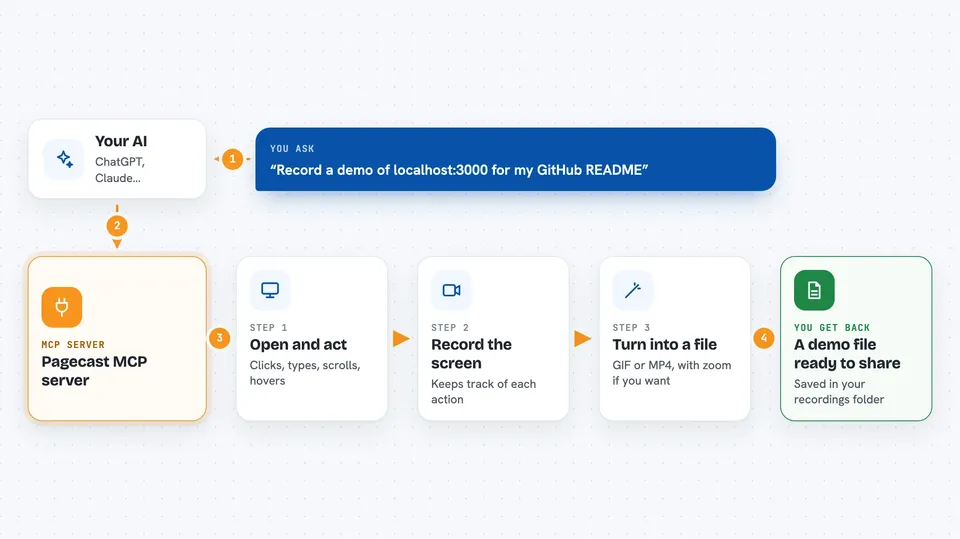
Pagecast is a helper for your AI that records a web page in a real browser and turns that recording into a demo GIF or video. You tell your AI what to show, it clicks and scrolls through your app, and you get a finished file you can drop into a README or post online. It is handy for anyone who has to make a demo of a website and does not want to fiddle with screen recorders and video editors.
What is an MCP server? The 30-second version
On its own, your AI can only chat with you. An MCP server is a small helper program that gives your AI a new skill or a connection to another tool. This one connects your AI to a real browser and to ffmpeg, which is a free video tool. So when you ask for a demo recording, your AI can actually open your site, click around, and save a video file for you.
What this MCP server does
You ask your AI to record a demo of your app. The AI uses this helper to open a real browser window and go to your page. Then it clicks, types, scrolls and hovers the way you asked, and the helper keeps track of where each action happened. When you say stop, it saves the raw recording and turns it into a GIF or MP4, with optional zoom effects that make each click easier to see. You end up with a file ready to share.
 Click to zoom
What you can do with it
- Record a demo of a web page and save it as a GIF or MP4
- Click, type, scroll and hover on the page while it records
- Add a magnified close-up on each interaction so viewers can follow along
- Use a cinematic mode where the camera pans to follow each action
- Pick a size and format by naming the destination, like GitHub or TikTok
- List the recordings you already made in the output folder
- Rebuild the demo after a UI change by simply asking again
Try asking your AI
- “Record a demo of localhost:3000 for my GitHub README”
- “Make a TikTok demo of my dashboard”
- “Record my app for 10 seconds and export as MP4”
- “Record a demo for YouTube showing the login and the search”
What it gives back to you
You get a finished file in your recordings folder, either a GIF or an MP4, plus the raw webm recording and a small timeline file. In the chat, your AI tells you the file name and where it was saved. You can then open it, check it, and upload it wherever you need.
Before you start
What you need
- Node.js version 20 or newer
- ffmpeg installed on your computer (a free video tool)
- The Chromium browser that Playwright installs with one command
- The Claude desktop app or Claude Code, so your AI can use MCP servers
Good to know
It opens a real browser and can click and type on your pages, so avoid pointing it at a live account or site where an accidental click could change or delete something important.
Install it with your AI
Add Pagecast MCP server to your AI, no technical skills needed
You don't install anything by hand. You copy one prompt, paste it into an AI that can work on your computer, and it checks, installs and connects the server for you, asking you when it needs something.
Sign in to get the install prompt
Members get a ready-made prompt that lets the Claude desktop app check Pagecast MCP server, install it and connect it for them, step by step. You don't need any technical skills: you copy, paste and answer a few questions. Your connected AI can also find and install any of the 4,361 MCP servers here for you.
Who it's for
Developers, designers and anyone who needs to show off a web app with a demo GIF or video without learning video editing.