MCP server · Analytics
Power BI MCP server
by FreelexHo
Ask your AI to check, refresh, and troubleshoot your Power BI datasets in plain words.

This is a small helper that connects your AI assistant to Power BI. Once it is set up, you can ask your AI to list your workspaces, refresh a dataset, or explain why a refresh failed. It is handy for anyone who looks after Power BI reports but does not want to click through the Power BI website every time.
What is an MCP server? The 30-second version
On its own, your AI can only chat. An MCP server is a small helper program that gives your AI a new skill or a connection to an app or service. This one connects your AI to Power BI, so your AI can look up your workspaces and datasets, start refreshes, and pull back answers for you. You just ask in normal words, and the helper does the clicking behind the scenes.
What this MCP server does
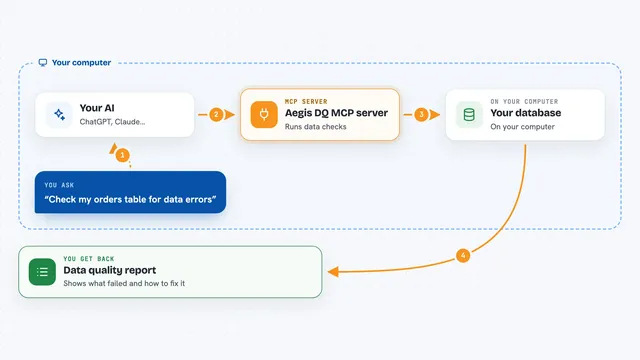
You ask your AI something about Power BI, like which datasets are in a workspace or why last night's refresh failed. Your AI passes that request to this helper. The helper signs in to Power BI with your Microsoft work account and asks Power BI for the information or the action. Then it hands the result back to your AI, which explains it to you in the chat. For refreshes, it can also watch the progress, retry if something goes wrong, and tell you what happened.
 Click to zoom
What you can do with it
- List your Power BI workspaces and the datasets inside them
- Start a refresh of a dataset, including a single table
- Check refresh history and cancel a refresh that is still running
- Explain why a refresh failed and suggest what to do next
- Run a DAX query against a dataset and see the results
- Find the PBIP source folder for a dataset on your computer
- Get a daily report of scheduled refreshes across a workspace
Try asking your AI
- “List my Power BI workspaces”
- “Refresh the Sales dataset in the Finance workspace and tell me when it is done”
- “Why did the Marketing dataset refresh fail last night?”
- “Show me a report of scheduled refreshes in the Finance workspace for today”
What it gives back to you
You get answers in the chat: lists of workspaces or datasets, refresh status and history, error explanations, and query results shown as a table. For refreshes, it tells you whether the refresh started, finished, or failed, and how long it took. The daily report comes back as a short summary or a small Markdown table. It can also make changes, like starting or cancelling a refresh.
Before you start
What you need
- A Microsoft work account with access to Power BI
- Python 3.10 or newer on your computer
- An MCP client like Cursor, Windsurf, or Antigravity IDE
- Your organization may need to allow sign-in for this kind of app; if it is blocked, ask your Azure AD admin
Good to know
It can start or cancel refreshes and run queries against your real Power BI data, so check with your team before using it on shared or important datasets.
Install it with your AI
Add Power BI MCP server to your AI, no technical skills needed
You don't install anything by hand. You copy one prompt, paste it into an AI that can work on your computer, and it checks, installs and connects the server for you, asking you when it needs something.
Sign in to get the install prompt
Members get a ready-made prompt that lets the Claude desktop app check Power BI MCP server, install it and connect it for them, step by step. You don't need any technical skills: you copy, paste and answer a few questions. Your connected AI can also find and install any of the 4,609 MCP servers here for you.
Who it's for
Anyone who works with Power BI reports and wants to check refreshes or run quick queries without opening the Power BI website.