MCP server · Analytics
GenieACS MCP server
by GeiserX
Ask your AI about your GenieACS devices and let it reboot, refresh or update them for you.

This is a helper that connects your AI assistant to GenieACS, the free system many internet providers use to manage routers and other devices in people's homes. Once it is set up, you can ask questions in plain words and even tell the assistant to reboot a device or send it new firmware. It is handy for support teams and network engineers who look after a lot of customer equipment.
What is an MCP server? The 30-second version
On its own, your AI can only chat with you. An MCP server is a small helper program that gives your AI a new skill or a connection to another system. This one connects your AI to your GenieACS setup, so the assistant can look up devices and carry out actions there when you ask. You stay in charge: the AI only does what you tell it to.
What this MCP server does
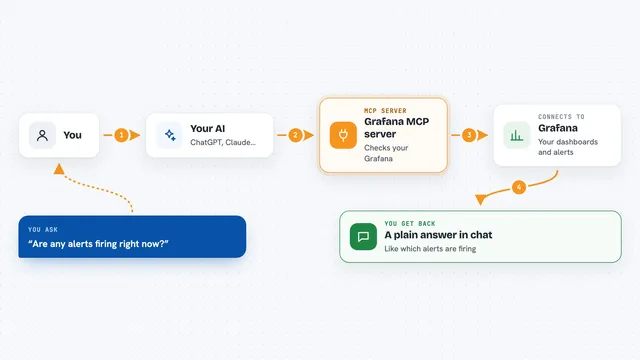
You ask your AI something like which devices stopped reporting last night. The AI passes that request to this helper, and the helper talks to your GenieACS system over its network connection. GenieACS sends back the device information, and the helper hands it to the AI, which explains it to you in the chat. If you ask for an action, like rebooting a device, the helper queues that task in GenieACS and tells you it was sent.
 Click to zoom
What you can do with it
- Find devices by tag, model, firmware version or when they last checked in
- Read a device's full list of settings, its pending tasks and any errors
- Reboot one device or a whole group you have tagged
- Send new firmware to a device
- Refresh or change a single setting on a device
- Wake a device with a connection request
- Tag devices and manage presets, provisions and tasks on the system
What it gives back to you
You get answers in the chat, usually as a list of devices with their ids, models and last contact times, or as the full settings of one device. When you ask for an action, it tells you the task was queued on the device. It can also show you the presets, provisions and files that exist on your GenieACS system.
Before you start
What you need
- A GenieACS system your computer can reach, with its NBI port (7557) open
- The web address of that GenieACS system, for example http://localhost:7557
- Node.js installed if you use the npx option, or Docker if you prefer that
Good to know
This server can change and delete things on your GenieACS system and on real devices, so point it only at a system you are willing to let an assistant act on and keep your app's approval prompts switched on.
Install it with your AI
Add GenieACS MCP server to your AI, no technical skills needed
You don't install anything by hand. You copy one prompt, paste it into an AI that can work on your computer, and it checks, installs and connects the server for you, asking you when it needs something.
Sign in to get the install prompt
Members get a ready-made prompt that lets the Claude desktop app check GenieACS MCP server, install it and connect it for them, step by step. You don't need any technical skills: you copy, paste and answer a few questions. Your connected AI can also find and install any of the 4,609 MCP servers here for you.
Who it's for
Support teams and network engineers who manage routers, ONTs and other customer devices through GenieACS.