MCP server · Developer tools
Concord MCP server
Lets your AI coding agents in different tools talk to each other and share who is working on which file.
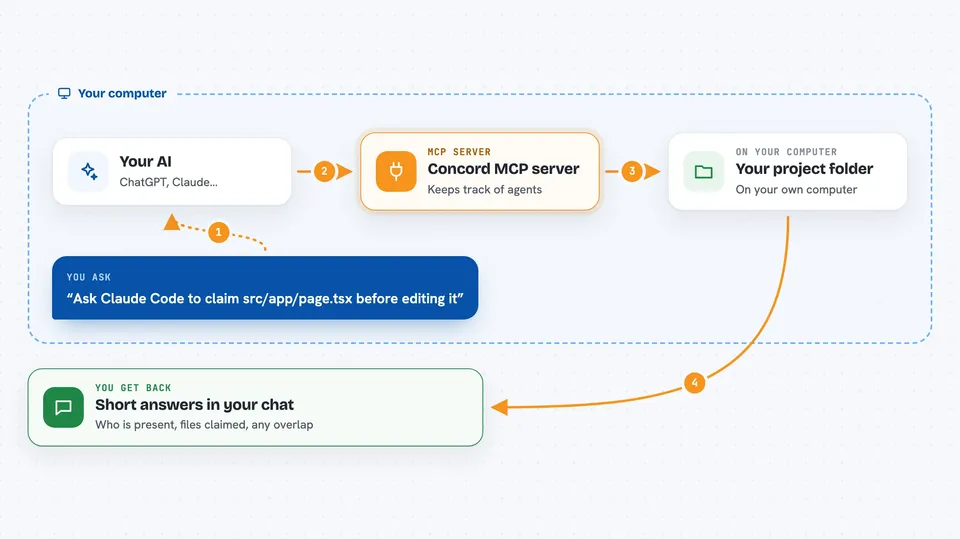
Concord is a small helper that lets different AI coding assistants, like Claude Code, Codex, Cursor, Gemini CLI, and Grok Build, talk to each other while they work in the same project folder. It gives them a shared place to say what they are doing, claim files before editing, and pass work along. It is handy if you run more than one AI coding tool at once and want them to stop stepping on each other.
What is an MCP server? The 30-second version
On its own, your AI can only chat with you. An MCP server is a small helper program that gives your AI a new skill or a connection to something else. This one, Concord, connects your AI to a shared workspace for coding agents, so several assistants can see each other, send messages, and keep track of who is doing what. You set it up once, and then your AI can use it whenever you ask.
What this MCP server does
You install Concord and run one setup command inside your project folder. It creates a small hidden folder called .concord and registers itself with the AI coding tools you already use. From then on, when an agent starts a task, it can claim the files it plans to touch and check whether another agent already claimed them. Agents can send each other short messages, hand off tasks, and leave notes about decisions and evidence. You can look at all of this yourself with simple commands like concord status or concord dashboard.
 Click to zoom
What you can do with it
- See which AI agents are currently working in your project
- Let agents claim files before editing so two of them do not clash
- Send a short message from one agent to another
- Hand off a task from one agent to another with the details attached
- Keep decisions and findings attached to a task after a session ends
- Print a human-readable handoff or review packet for a task
- Watch a live dashboard of agents, tasks, and alerts in your terminal
Try asking your AI
- “Ask Claude Code to claim src/app/page.tsx before editing it”
- “Ask Codex to check whether anyone else is already working on the API folder”
- “Ask one agent to send a message to the other agent about the shared interface”
- “Ask an agent to hand off the login page task to the other agent with a short summary”
What it gives back to you
You get back short answers in the chat, like who is present, which files are claimed, and whether there is an overlap. It can also show messages between agents, task lists, and handoff or review notes. Some of this is saved as plain files in the .concord folder, like HANDOFF.md and REVIEW_PACKET.md, so you can read them yourself.
Before you start
What you need
- Node.js installed on your computer
- At least one AI coding tool that supports MCP, like Claude Code, Codex, Cursor, Gemini CLI, or Grok Build
- A project folder on your computer where the agents will work
Good to know
Concord sends some usage information to getconcord.ai by default, though it never sends your code or file paths, and you can turn it off with a setting.
Install it with your AI
Add Concord MCP server to your AI, no technical skills needed
You don't install anything by hand. You copy one prompt, paste it into an AI that can work on your computer, and it checks, installs and connects the server for you, asking you when it needs something.
Sign in to get the install prompt
Members get a ready-made prompt that lets the Claude desktop app check Concord MCP server, install it and connect it for them, step by step. You don't need any technical skills: you copy, paste and answer a few questions. Your connected AI can also find and install any of the 4,609 MCP servers here for you.
Who it's for
Developers and small teams who run more than one AI coding assistant in the same project and want them to coordinate instead of colliding.