MCP server · Design tools
Mapache MCP server
Lets your AI draw mind maps, notes, shapes, tables and charts on a whiteboard you can watch live.
Mapache is a free whiteboard and mind map app that runs on your own computer. It comes with a helper that lets your AI assistant read your boards and add things to them for you. It is handy if you like thinking visually and want your AI to do the boring drawing.
What is an MCP server? The 30-second version
On its own, your AI can only chat with you in a text box. An MCP server is a small helper program that gives your AI a new skill or a connection to another app. This one connects your AI to Mapache, the whiteboard on your computer. So when you ask for a mind map or a chart, your AI can actually draw it on your board instead of just describing it.
What this MCP server does
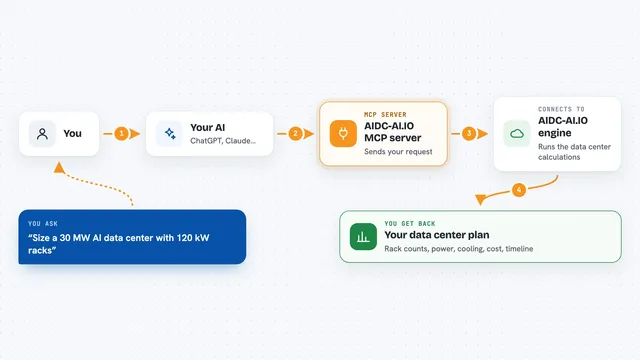
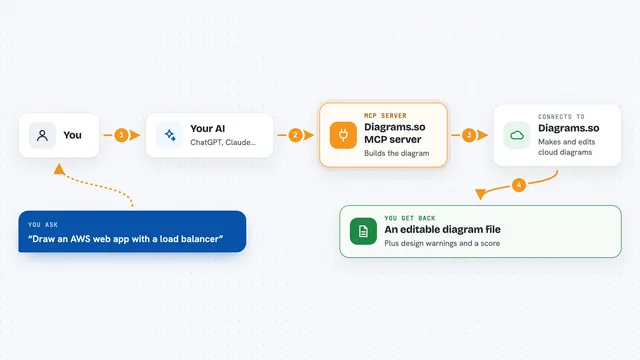
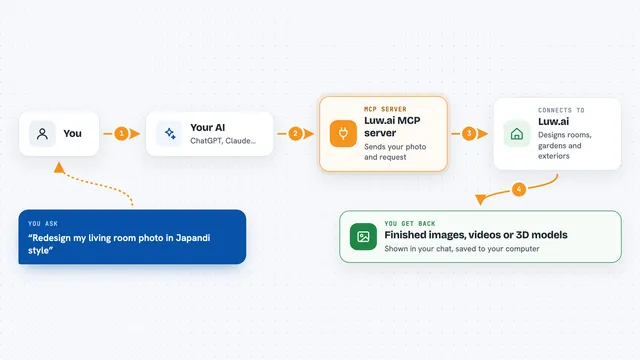
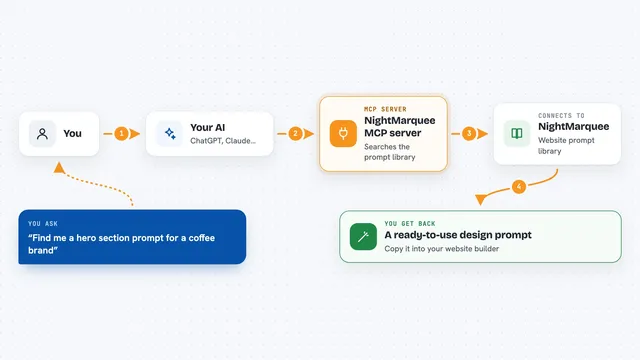
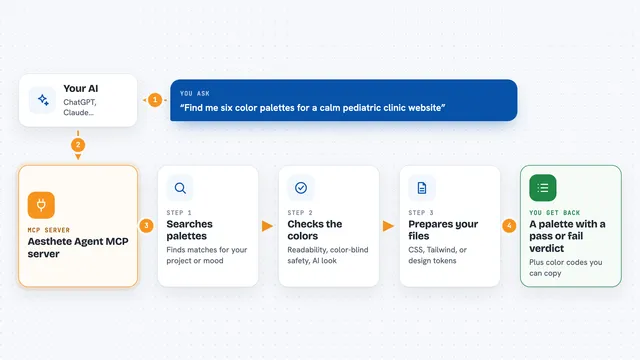
You ask your AI something like turning your meeting notes into a mind map. Your AI uses this helper to talk to Mapache on your computer. Mapache then creates the mind map, sticky notes, shapes, tables or charts on the board you have open. If Mapache is open in your browser, you see the new pieces appear right away, and you can undo them with Ctrl+Z.
What you can do with it
- Turn a list of notes into a mind map on your board
- Add sticky notes, text boxes and shapes to a board
- Draw flowcharts with arrows and labels between boxes
- Put numbers into a table and turn them into a chart
- Read a board you have open and summarize what is on it
- Leave comments on a board for you to review later
- Export a board as a web page, PDF, PNG or SVG
Try asking your AI
- “Turn my notes from today's meeting into a mind map in Mapache”
- “Read the board I have open and add a risks branch with three ideas under each one”
- “Draw the onboarding flow as a flowchart with a decision for paid and free users”
- “Put these sales numbers in a table on my Q4 board and add a column chart”
What it gives back to you
You get the actual changes on your board: new mind map branches, notes, shapes, tables or charts, placed in free space automatically. Your AI also gets back a short text answer describing what it did, so you can read a summary in the chat. If you ask it to export, you get a file like a PDF or a web page saved on your computer. Everything can be undone with Ctrl+Z.
Before you start
What you need
- Node.js 18 or newer installed on your computer
- Mapache downloaded and running on your computer
- An AI app that supports MCP, like Claude Code, Claude Desktop, Codex, Cursor or Windsurf
Good to know
Your AI can add, change and delete things on your boards, so check the result and use Ctrl+Z if something is not right.
Install it with your AI
Add Mapache MCP server to your AI, no technical skills needed
You don't install anything by hand. You copy one prompt, paste it into an AI that can work on your computer, and it checks, installs and connects the server for you, asking you when it needs something.
Sign in to get the install prompt
Members get a ready-made prompt that lets the Claude desktop app check Mapache MCP server, install it and connect it for them, step by step. You don't need any technical skills: you copy, paste and answer a few questions. Your connected AI can also find and install any of the 4,611 MCP servers here for you.
Who it's for
People who plan, brainstorm or run meetings and like working visually, such as project managers, designers, teachers, founders and anyone who already uses a whiteboard tool.